
Conformio in the German Language
- the following section applies ONLY to users of the German Language
To start working on the document using the Wizard, you need to have the role of Project Manager, or Step Performer and follow the steps described in the continuation of the article.
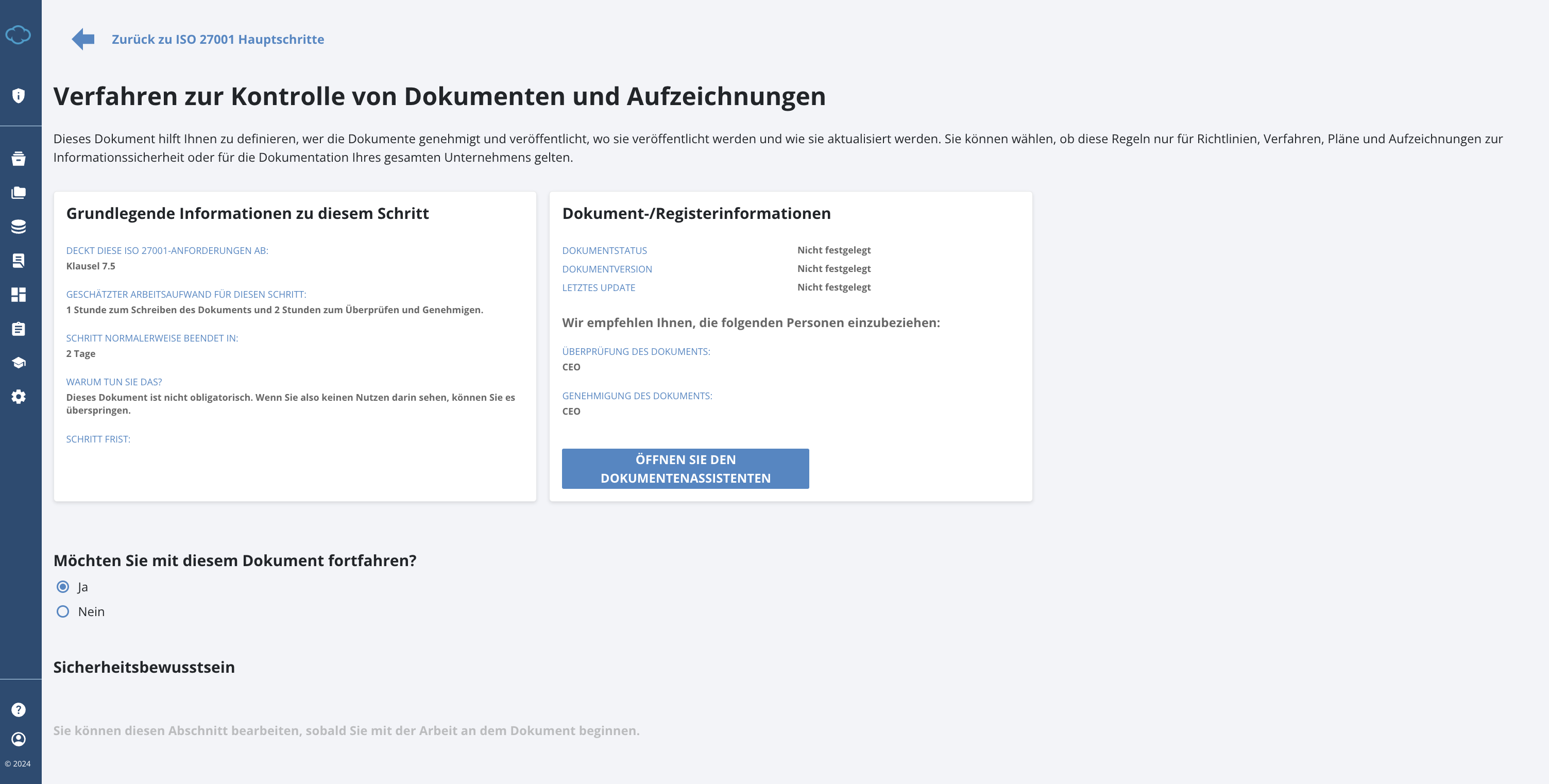
1. To start using the Wizard, click the ÖFFNEN SIE DEN DOKUMENTENASSISTENTEN button.
2. By opening the German Wizard, you are presented with:
- an option to start with the Conformio templates;
- or to upload your own document (if you already have one prepared);
- it will allow you to upload documents in .doc, .docx, or .pdf file format (if under 10MB in size)
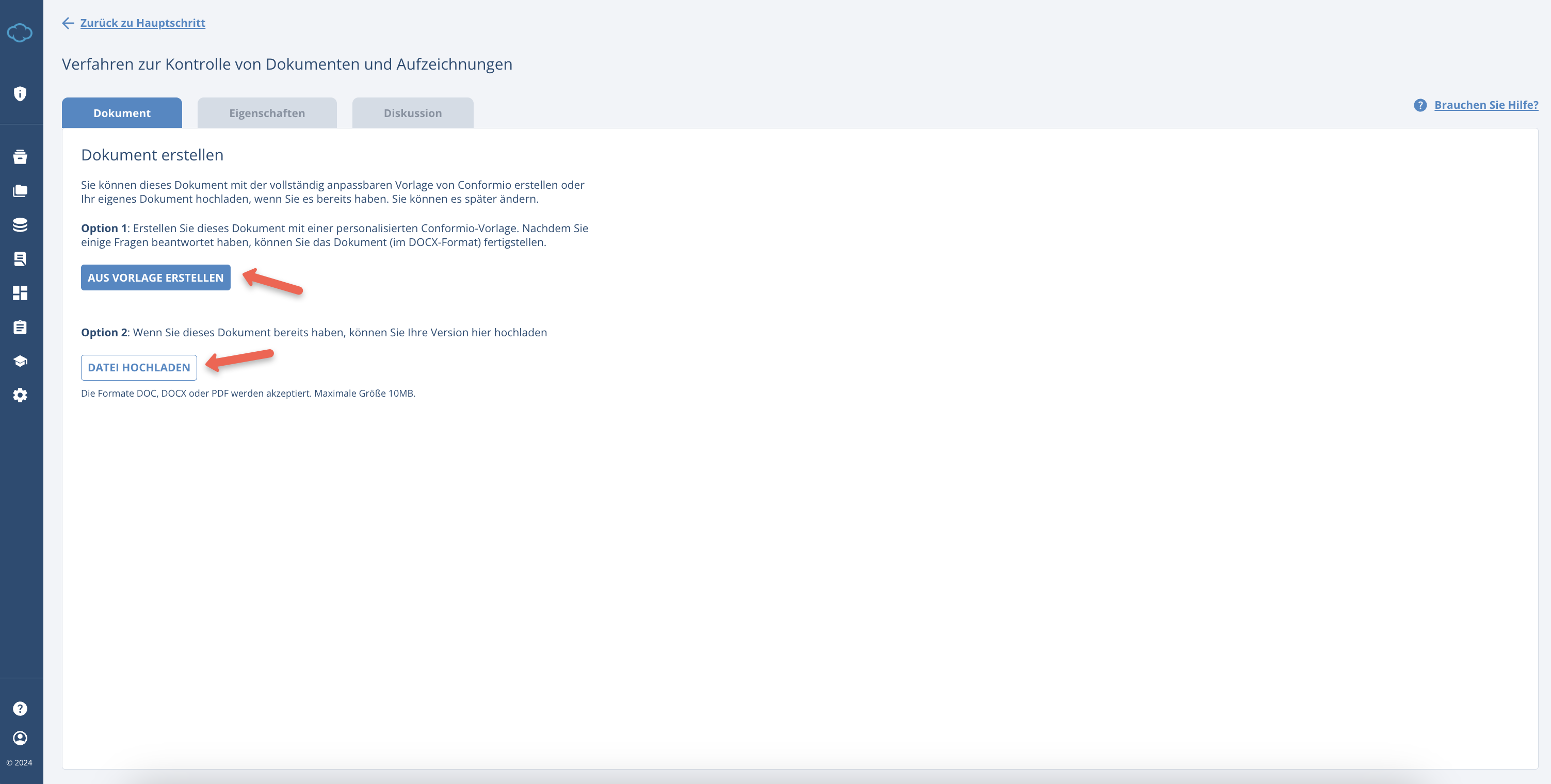
3. By clicking AUS VORLAGE ERSTELLEN you will be transfered into the document wizard.
Here you have to provide the first inputs into the document that will be reflected on the front page of the document:
- Logo of your company (if you have already uploaded it under Settings or with another document, it will be already displayed here);
- Name of the responsible person, for updating this document;
- Classification of the document (who has access to it);
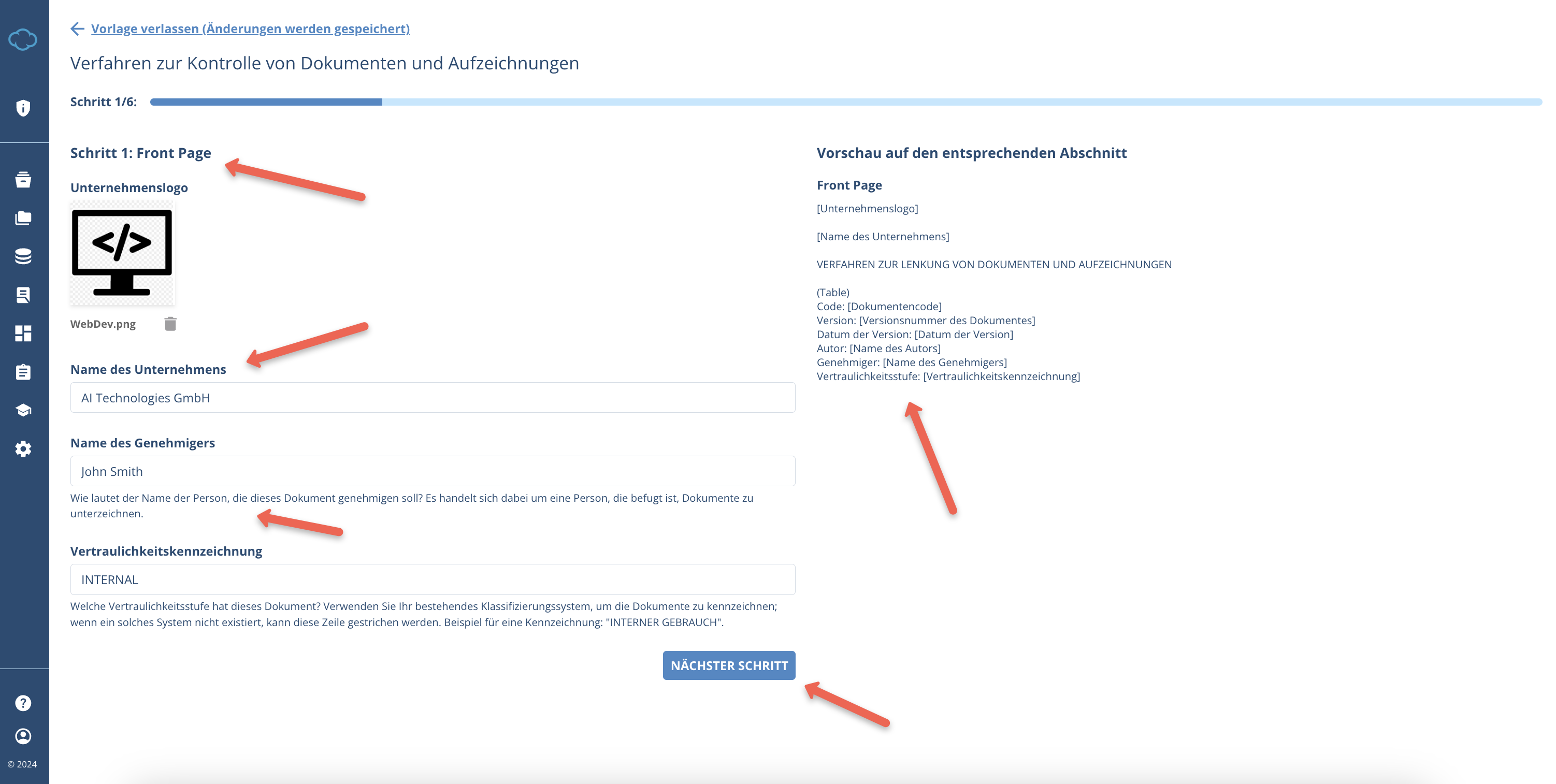
By clicking NÄCHSTER SCHRITT you will be taken to the next step.
4. In the following step, you will have to input the name of the person who will be responsible for document approval (usually this is the CEO or another member of the executive team)
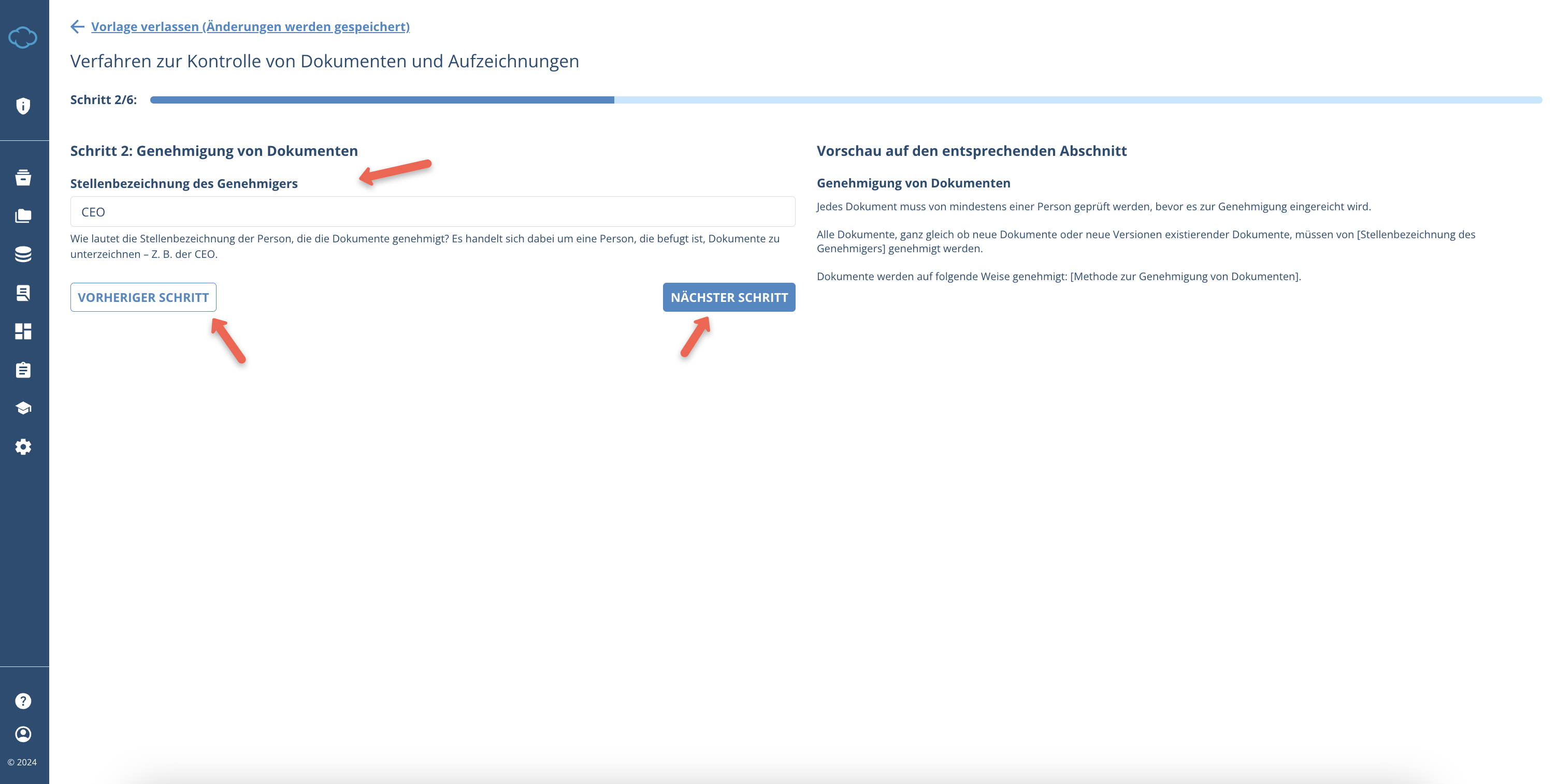
When you are ready, you can proceed to the next step by clicking NÄCHSTER SCHRITT or your can also move to the previous step by clicking the VORHERIGER SCHRITT.
5. The next steps involve an additional selection of users.
- most of the inputs consider the job title of the user who will be responsible for either updating the document or informing users about the changes made to the document;
- not every document will have this process, some will need additional information;
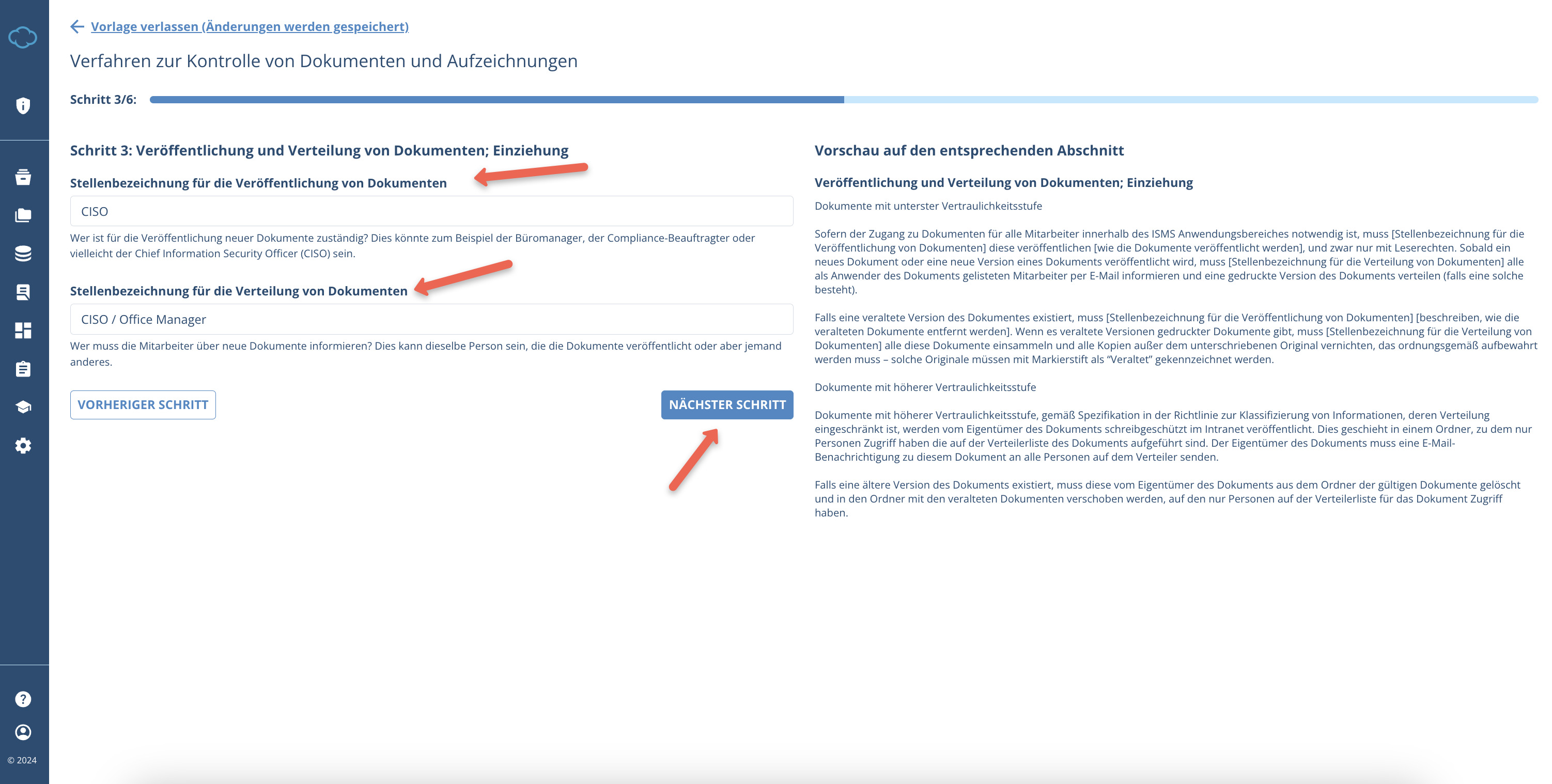
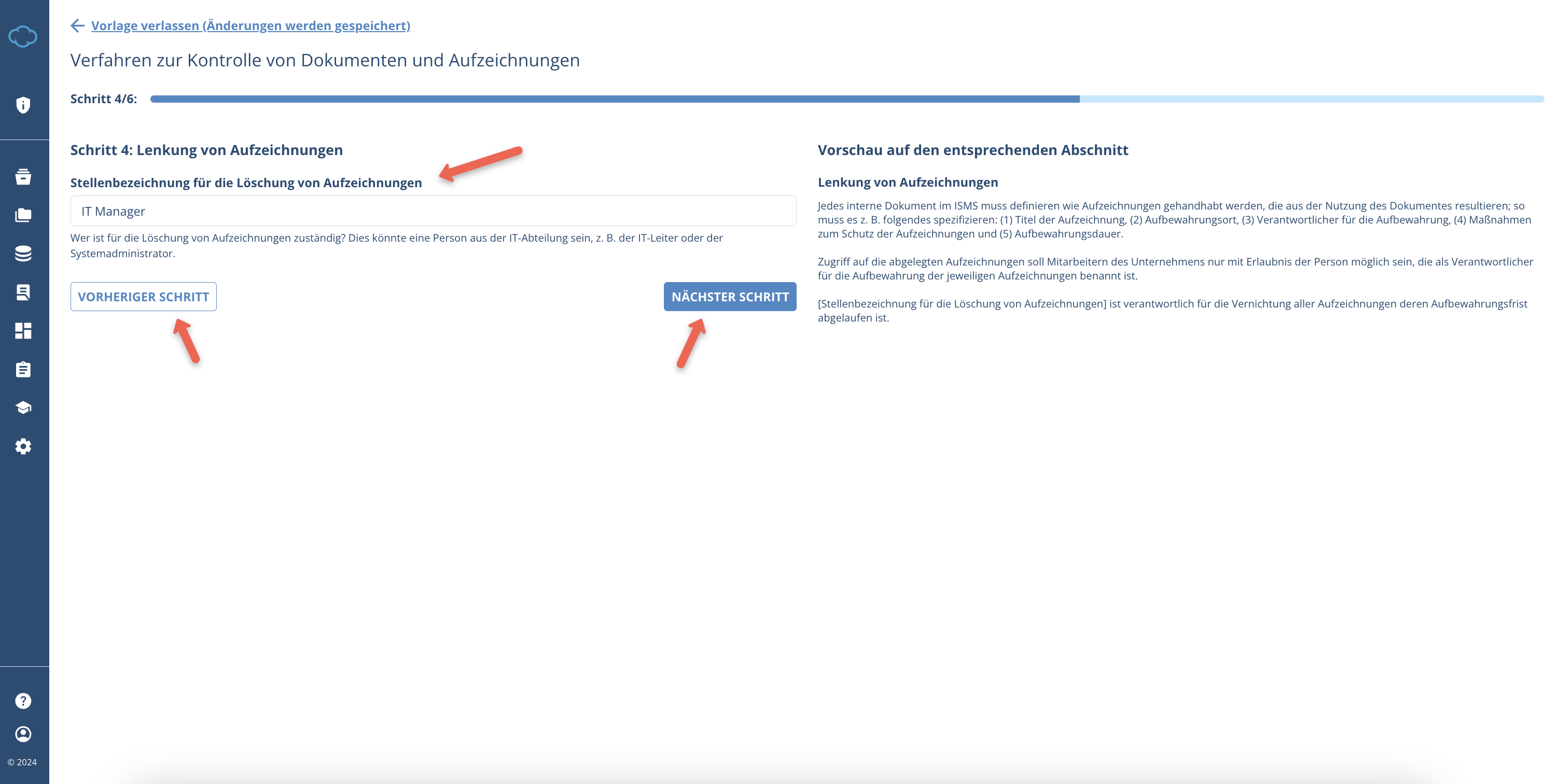
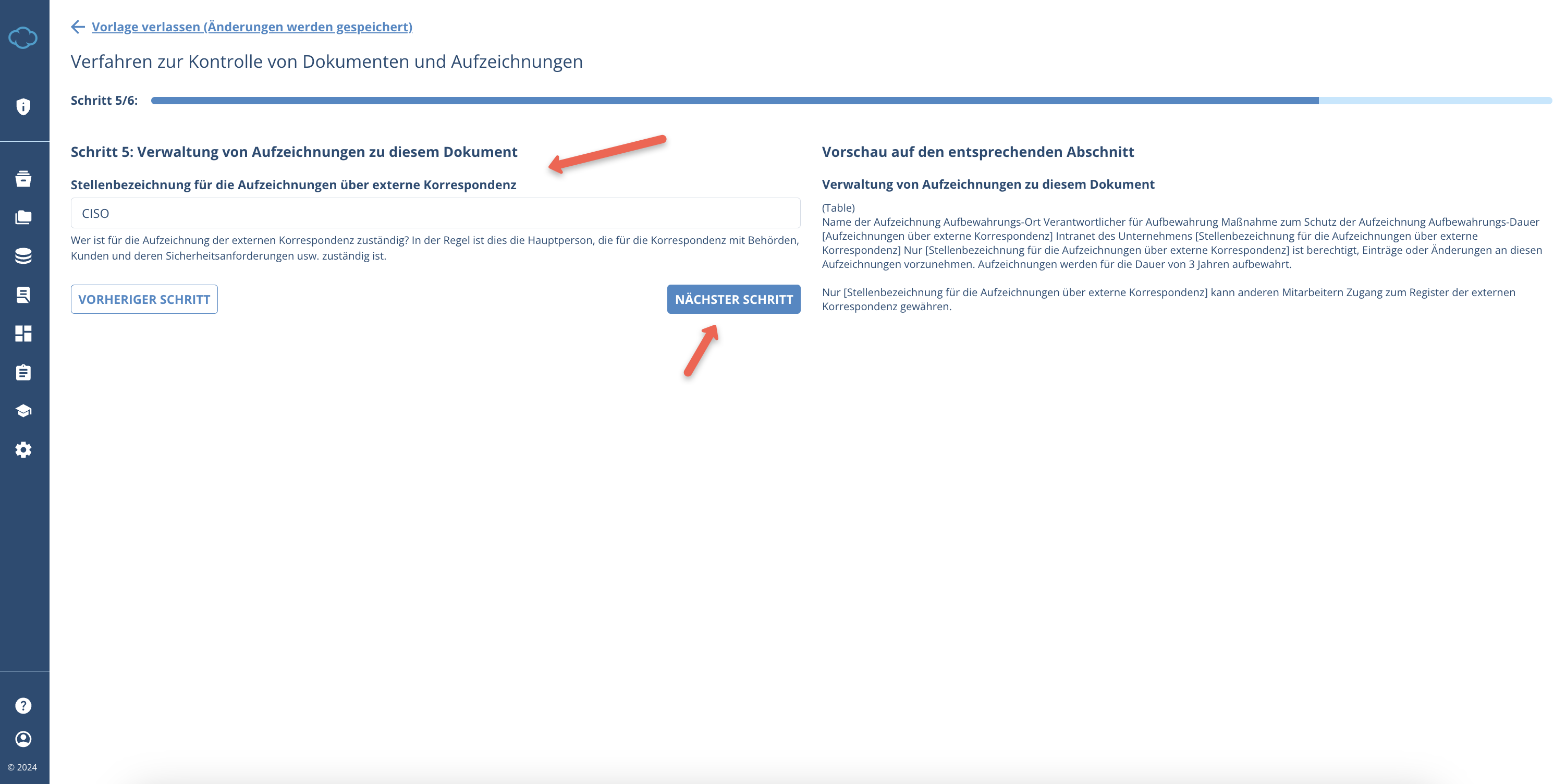
When you are ready, you can proceed to the next step by clicking NÄCHSTER SCHRITT or your can also move to the previous step by clicking the VORHERIGER SCHRITT.
6. Every document will end with the requirement that the document’s validity and handling is assigned to a job title.
- Typically, this is the primary person responsible for managing internal or compliance processes – for example, the office manager, compliance officer, legal counsel, or perhaps the chief information security officer (CISO).
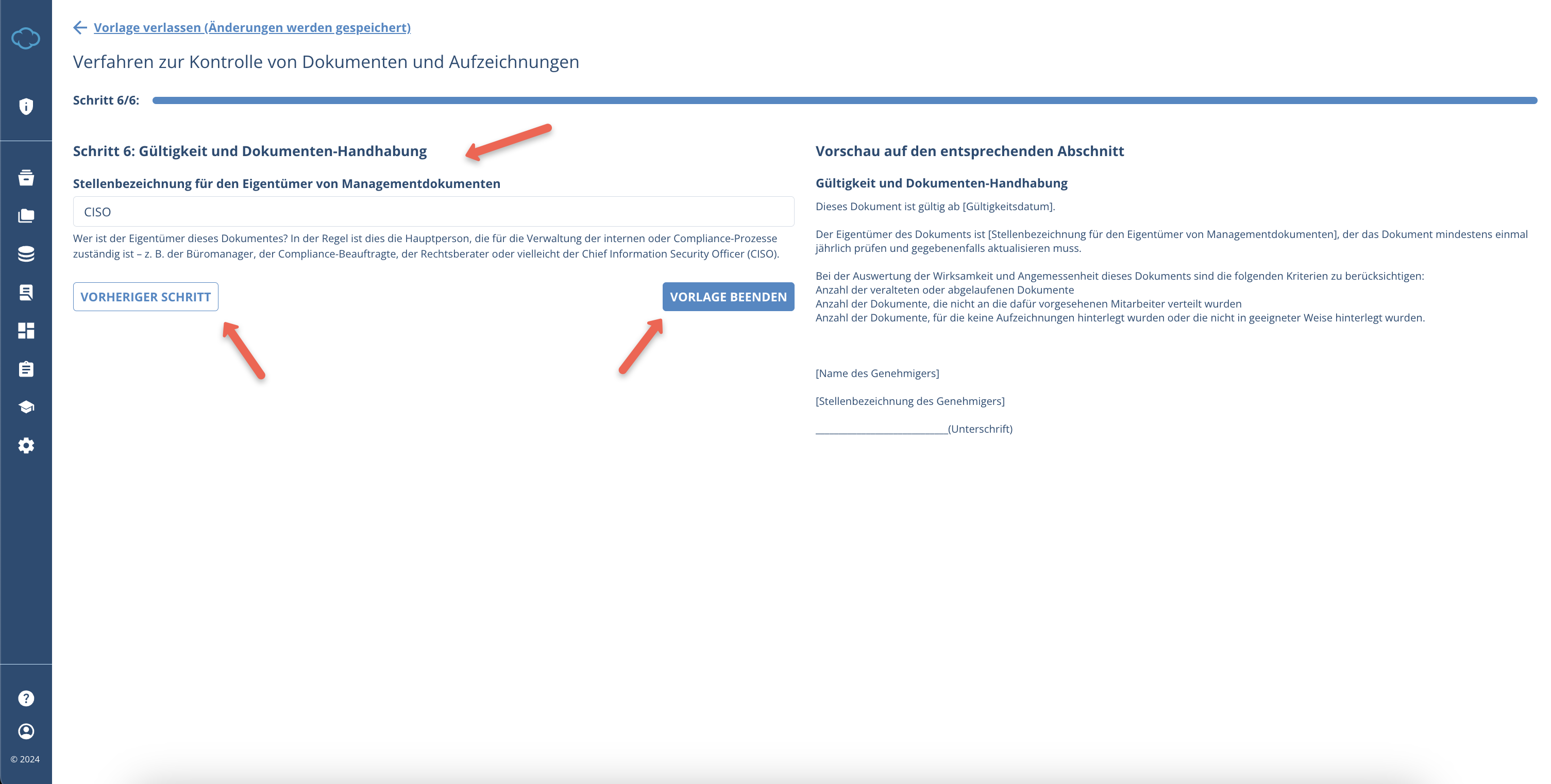
When you are ready, you can proceed to the generation/approval and review step by clicking VORLAGE BEENDEN or you can also move to the previous step by clicking the VORHERIGER SCHRITT.
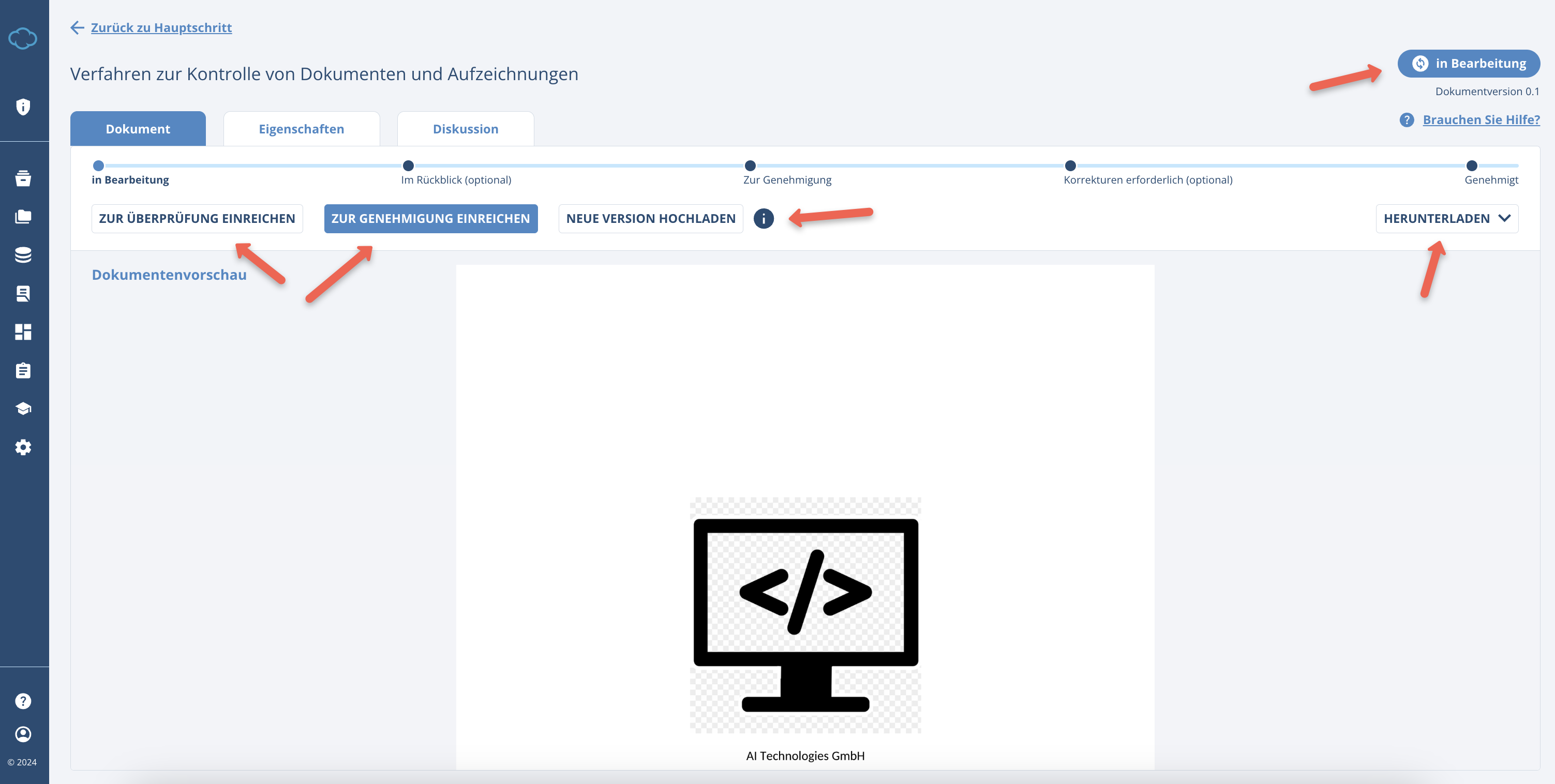
7. After clicking VORLAGE BEENDEN the document will be provisionally generated and displayed in the initial window. Here you can:
- see the status of the document;
- download the document;
- the version of the document;
- submit document for review;
- submit document for approval;
You can also click on “Eingeshaften” to see the properties of the document, such as:
- the owner;
- the approver;
- the reviewer;
- how often does the document need to be reviewed;
- the changes that were made to this document;
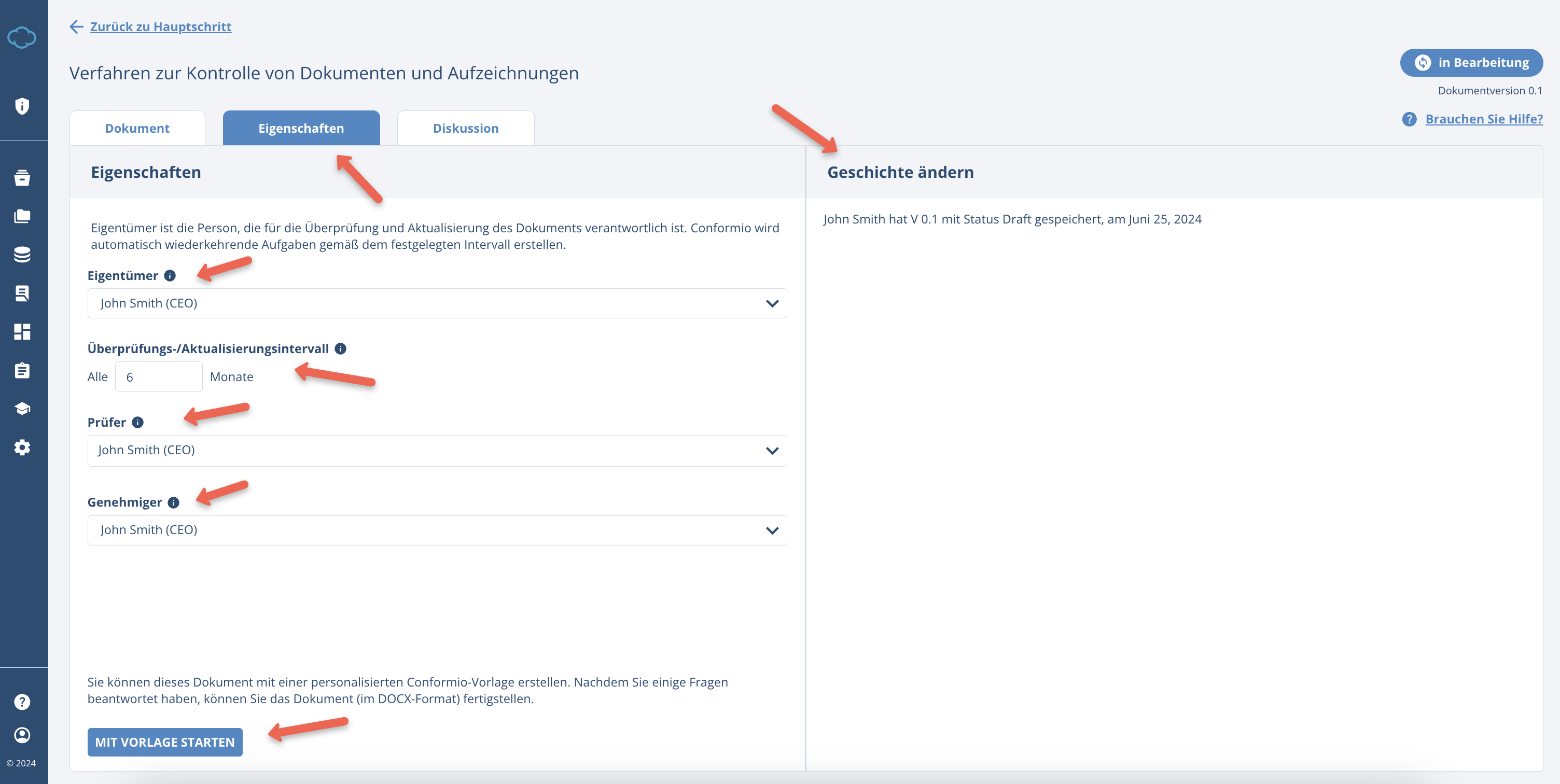
You also have the option to click MIT VORLAGE STARTEN, however, this is not needed if you followed this process, as we already created the initial template.
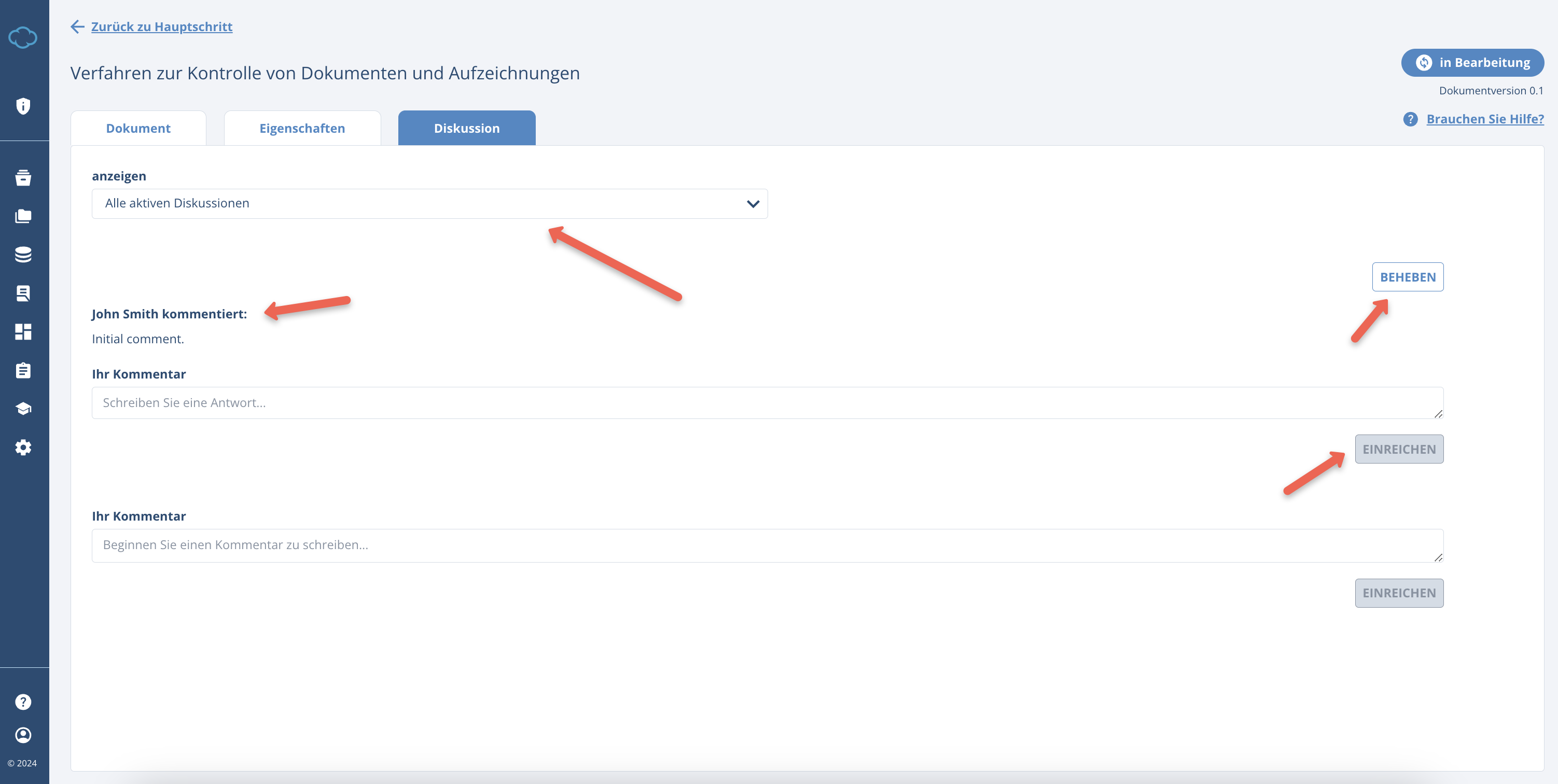
If you click on “Diskussion” you are able to post and reply to comments made by other members of the company (most often these will be the reviewers or the approvers of the document in case something must be changed, etc.);
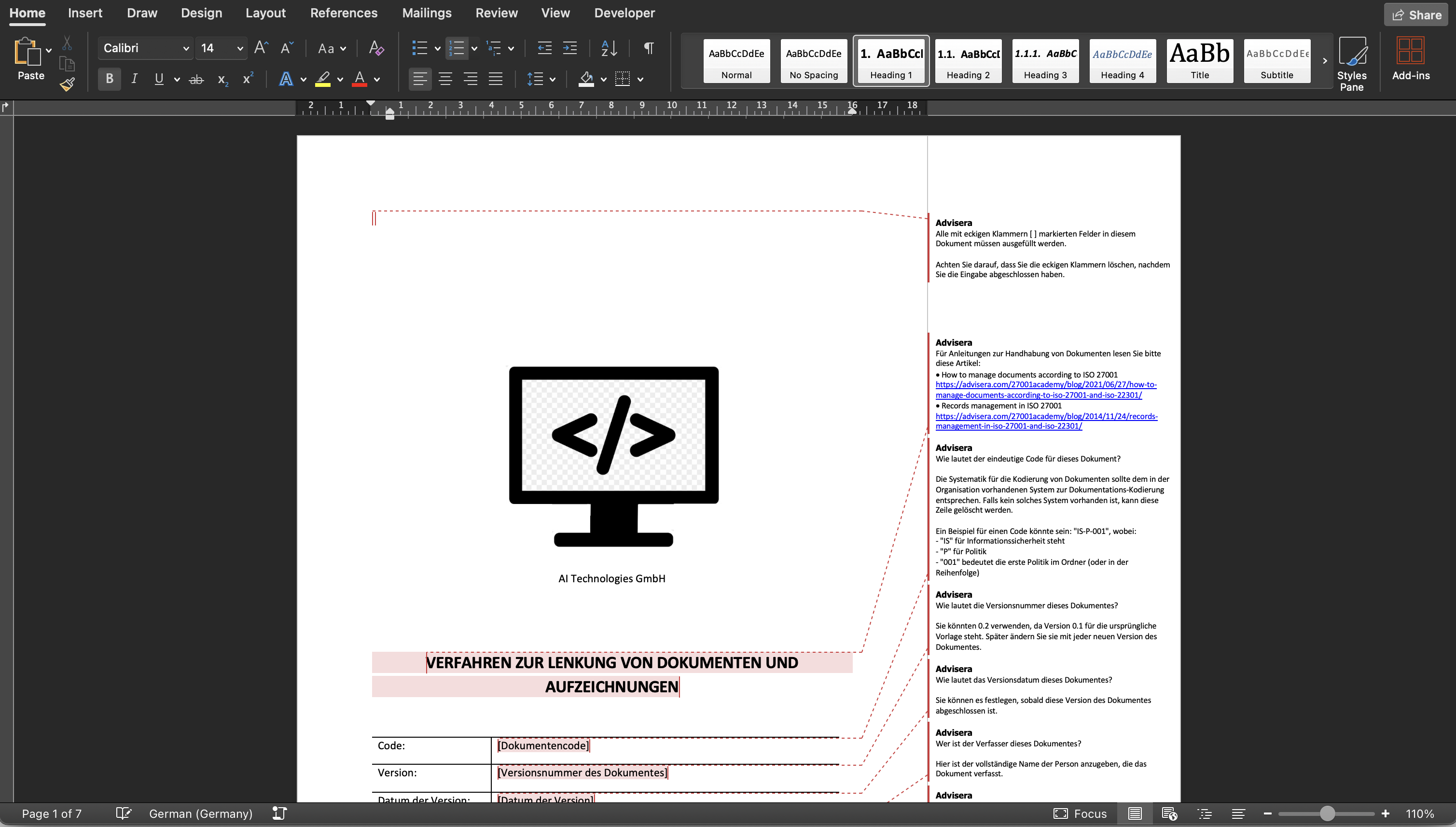
8. The next step is to download the document and edit it on your local computer. You can download the .pdf or the .docx version. Opening the document will allow you to make changes to the document and save it.
9. When you are done with the changes, go back to Conformio and open the Document Wizard for the step you were editing the document for. Click on NEUE VERSION HOCHLADEN and upload the document.
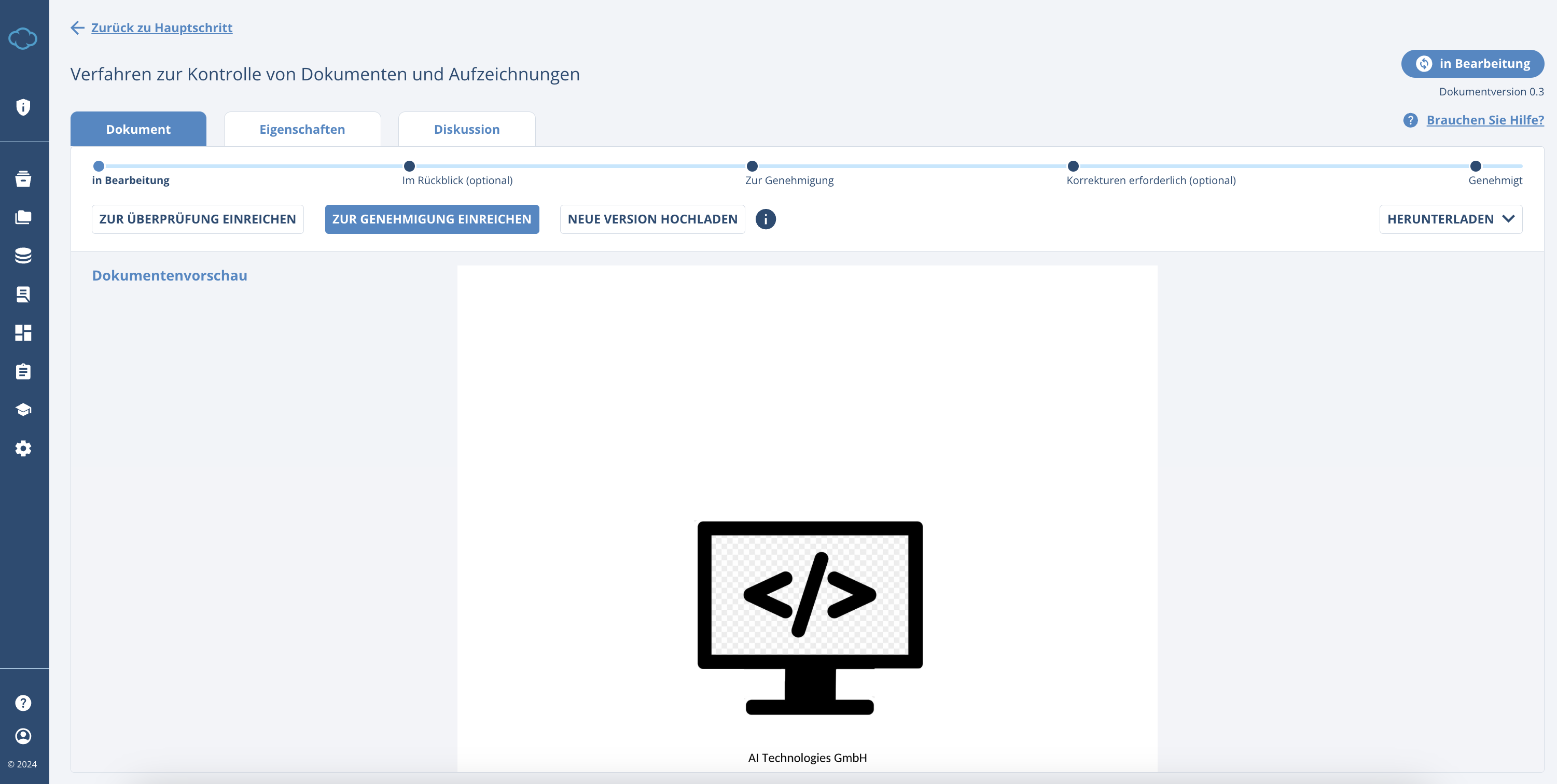
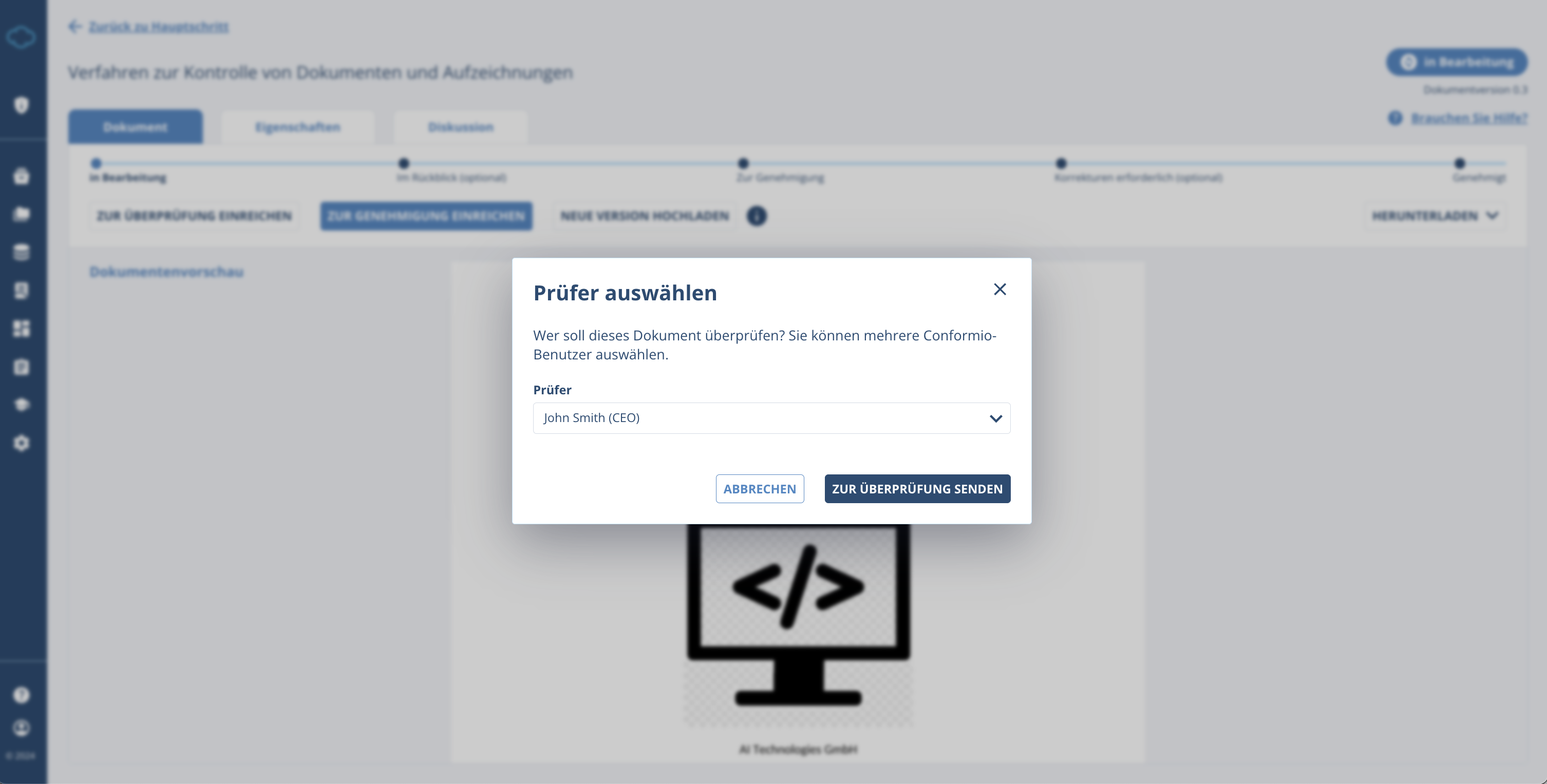
10. When the new document is uploaded, the preview will contain all the changes. The document is now ready to be sent for review and approval. First, send it for review by clicking ZUR UBERPRÜFUND EINREICHEN. You will have to:
- confirm the person you designated as the reviewer who will receive the task to review the document;
- you will be able to see the document version change when the document is in review;
- the reviewer has the option to select VOLLSTÄNDIGE ÜBERPRÜFUNG or ÜBERPRÜFUNG STOPPEN
- one completes the review, and the other stops it;
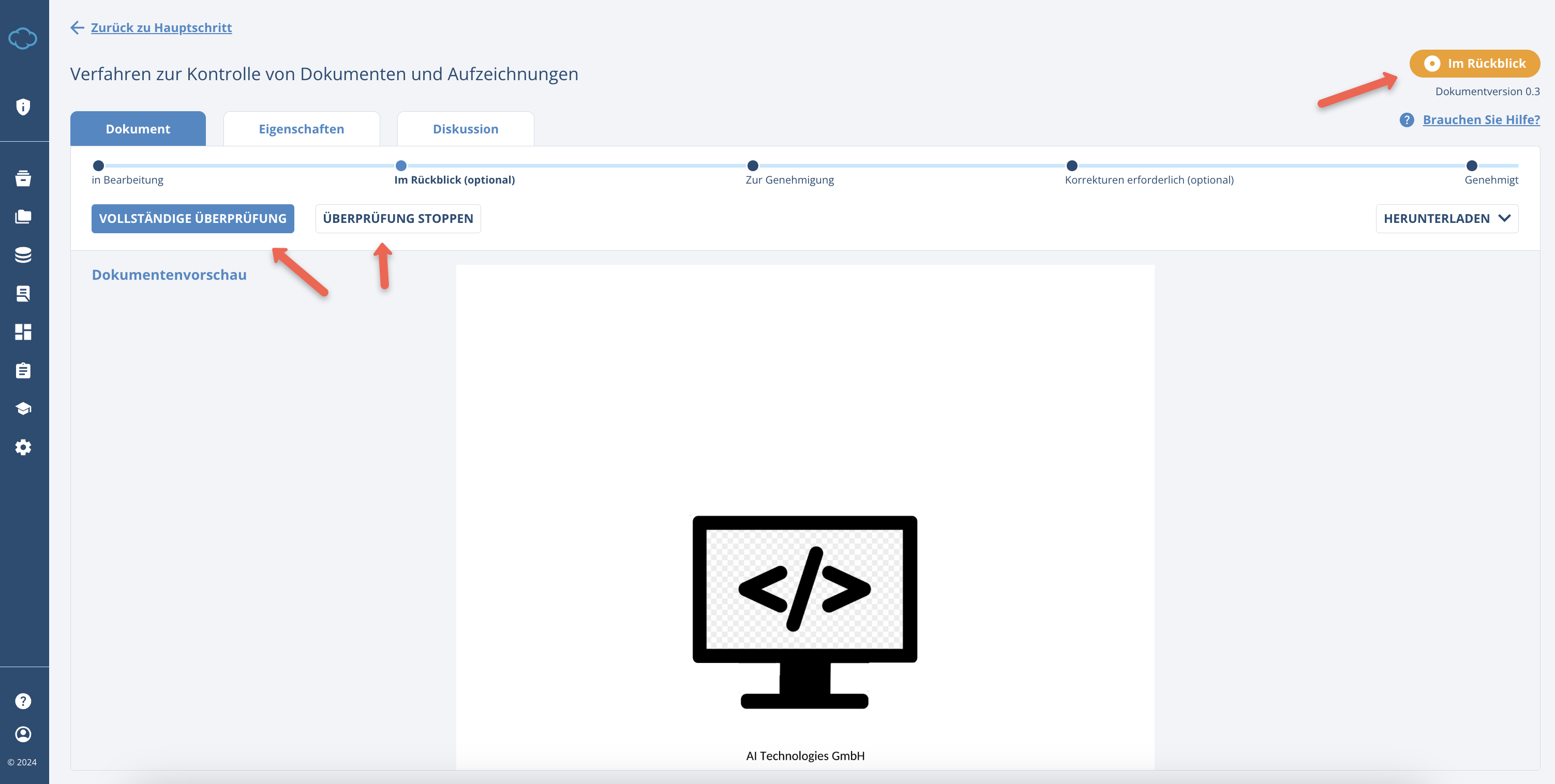
By clicking VOLLSTÄNDIGE ÜBERPRÜFUNG or ÜBERPRÜFUNG STOPPEN the document will return to the “In Bearbeitung” (in progress) status and will be ready to be approved.
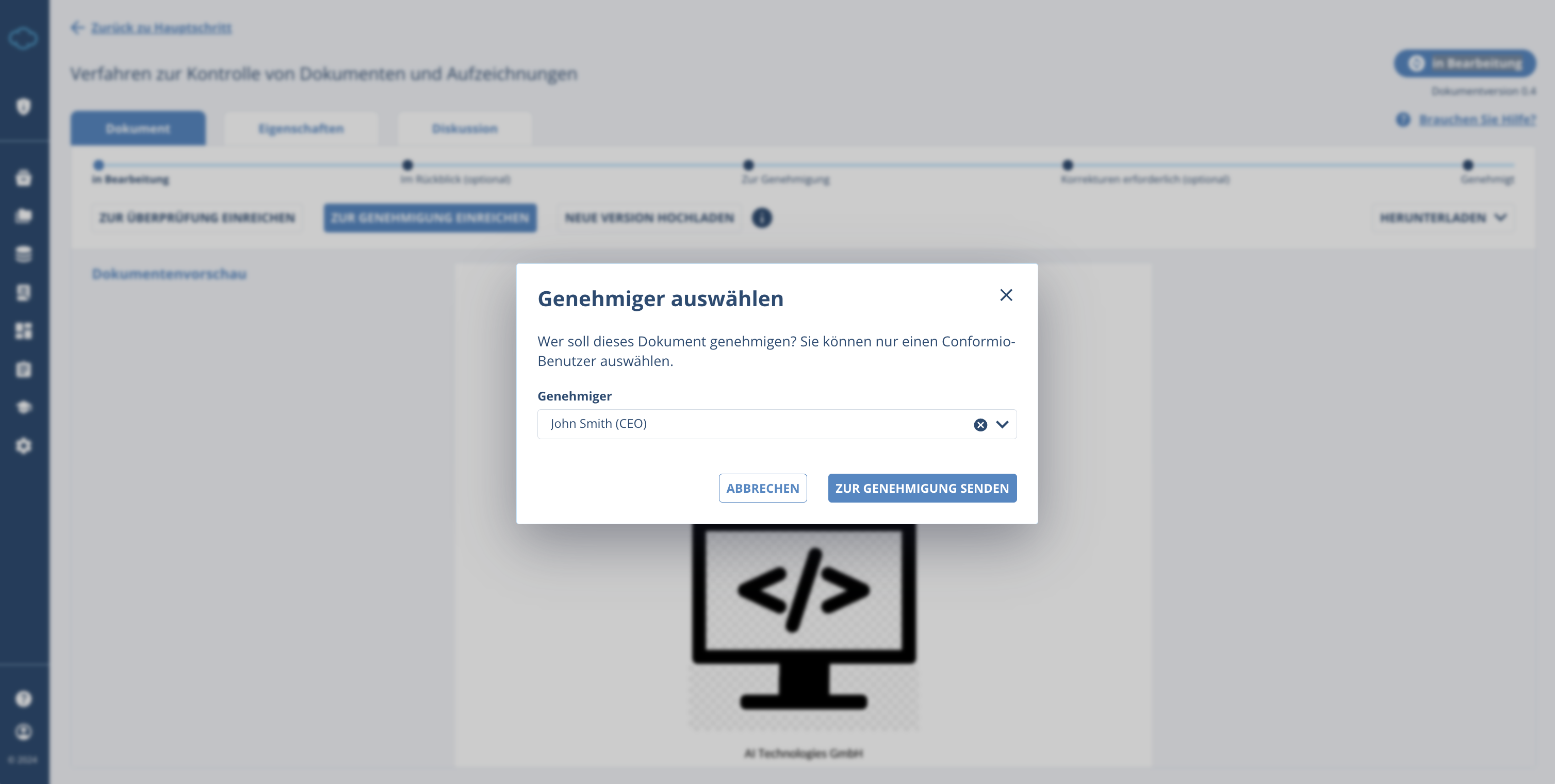
11. After the document is reviewed, the next step is its approval. Proceed by clicking on ZUR GENEHMIGUNG EINREICHEN. You will have to:
- confirm the person you designated as the approver who will receive the task to review the document;
- you will be able to see the document version change when the document is in approval;
- the approver has the option to select GENEHMIGEN SIE, KORREKTUREN ERFORDERLICH, or GENEHMIGUNG UNTERBRECHEN;
- first approves the document, second allows the approver to suggest changes and the latter stops the approval and returns the document to the “In Bearbeitung” status;
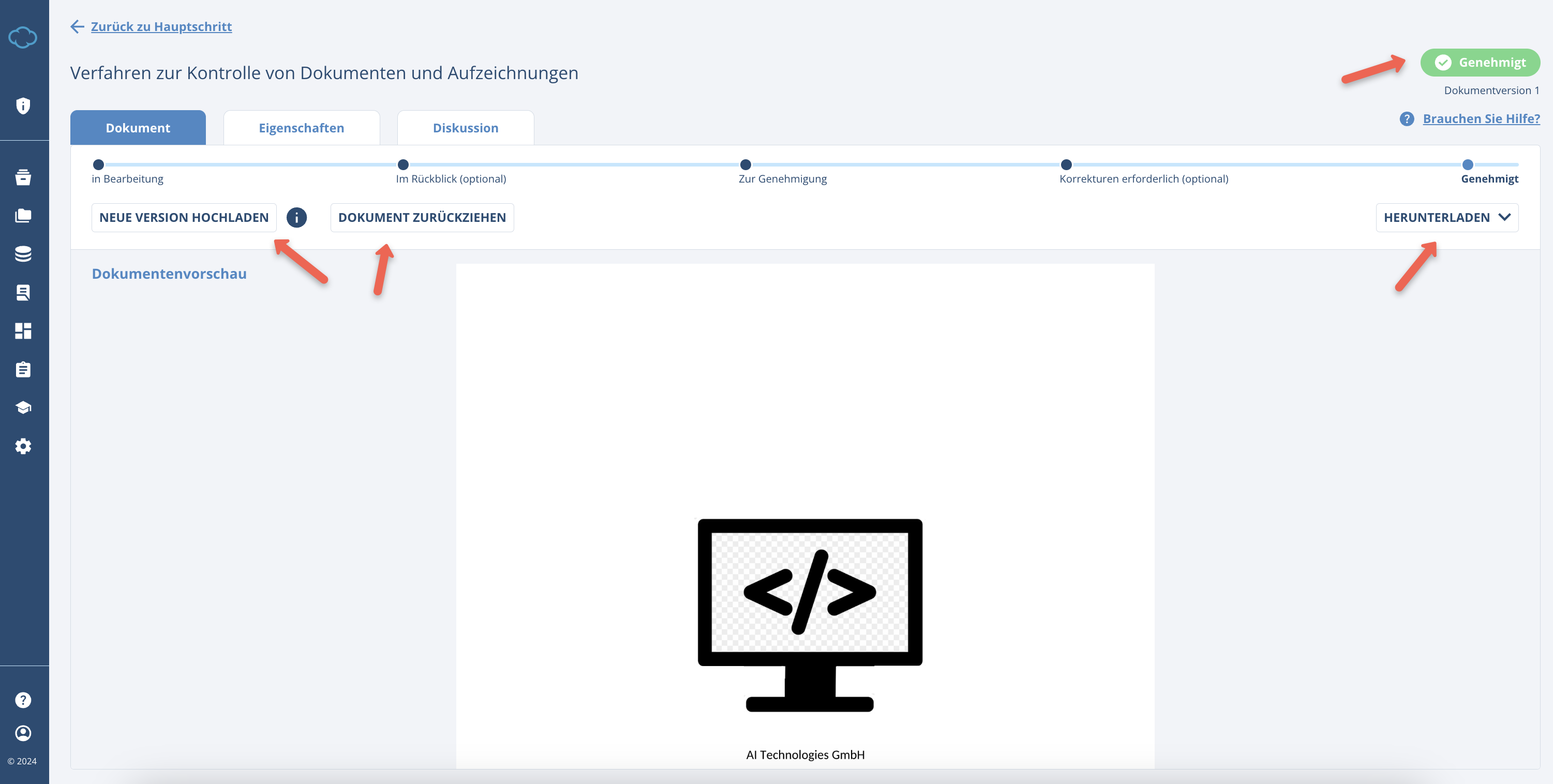
By clicking GENEHMIGEN SIE, the document will be approved and you will be transferred to the next step, where your options are again limited to, downloading the current document, uploading a new version of the document, or withdrawing the document if you no longer need it or it is no longer relevant.
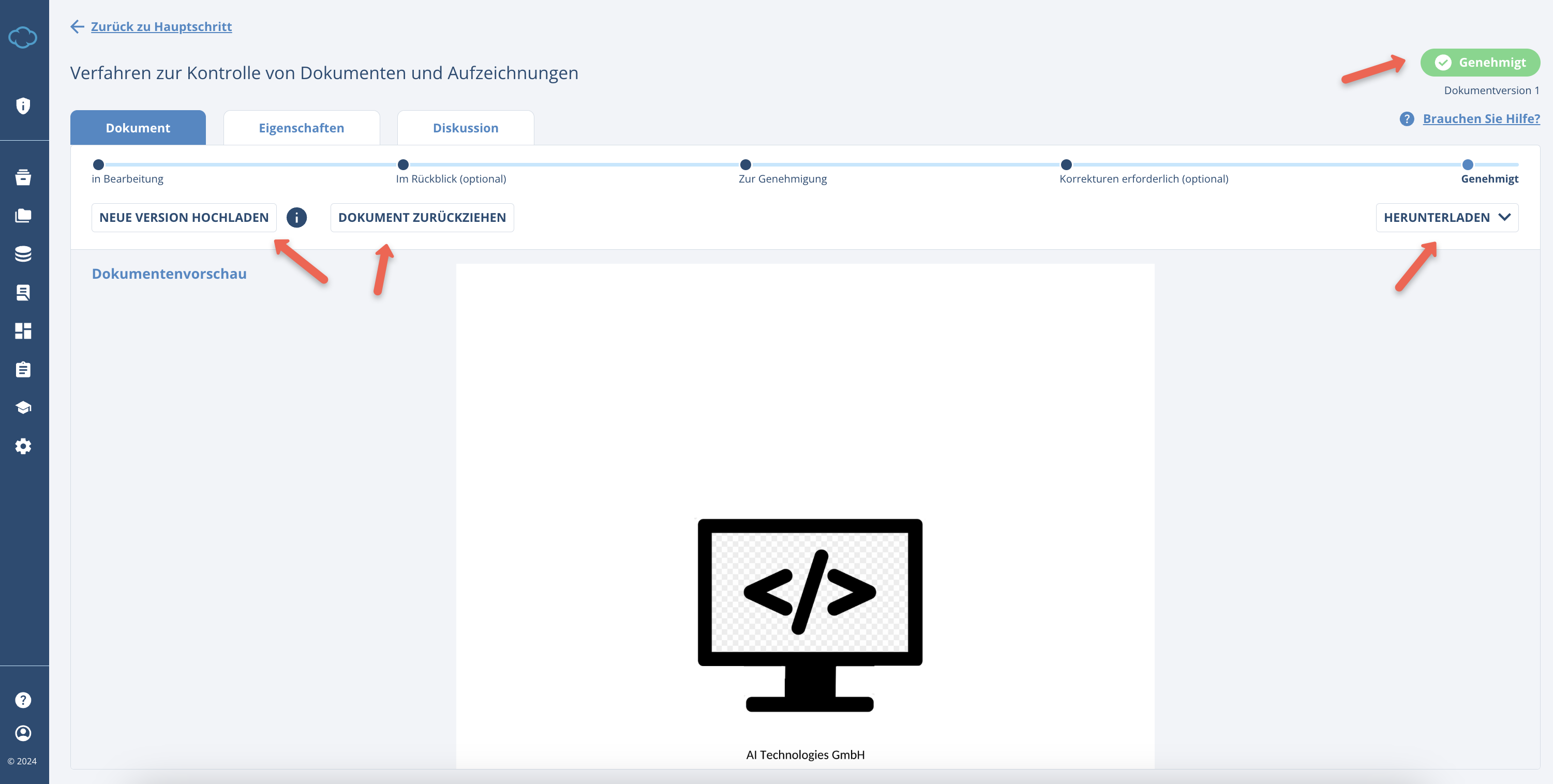
The document version will also become a full number and jump from the minor version to a major version (more on this is available below).
11.1 By clicking KOREKTUREN ERFORDERLICH you will proceed to the “optional” step where your only two options are to download the current document, edit it, and then provide the updated document by uploading it.
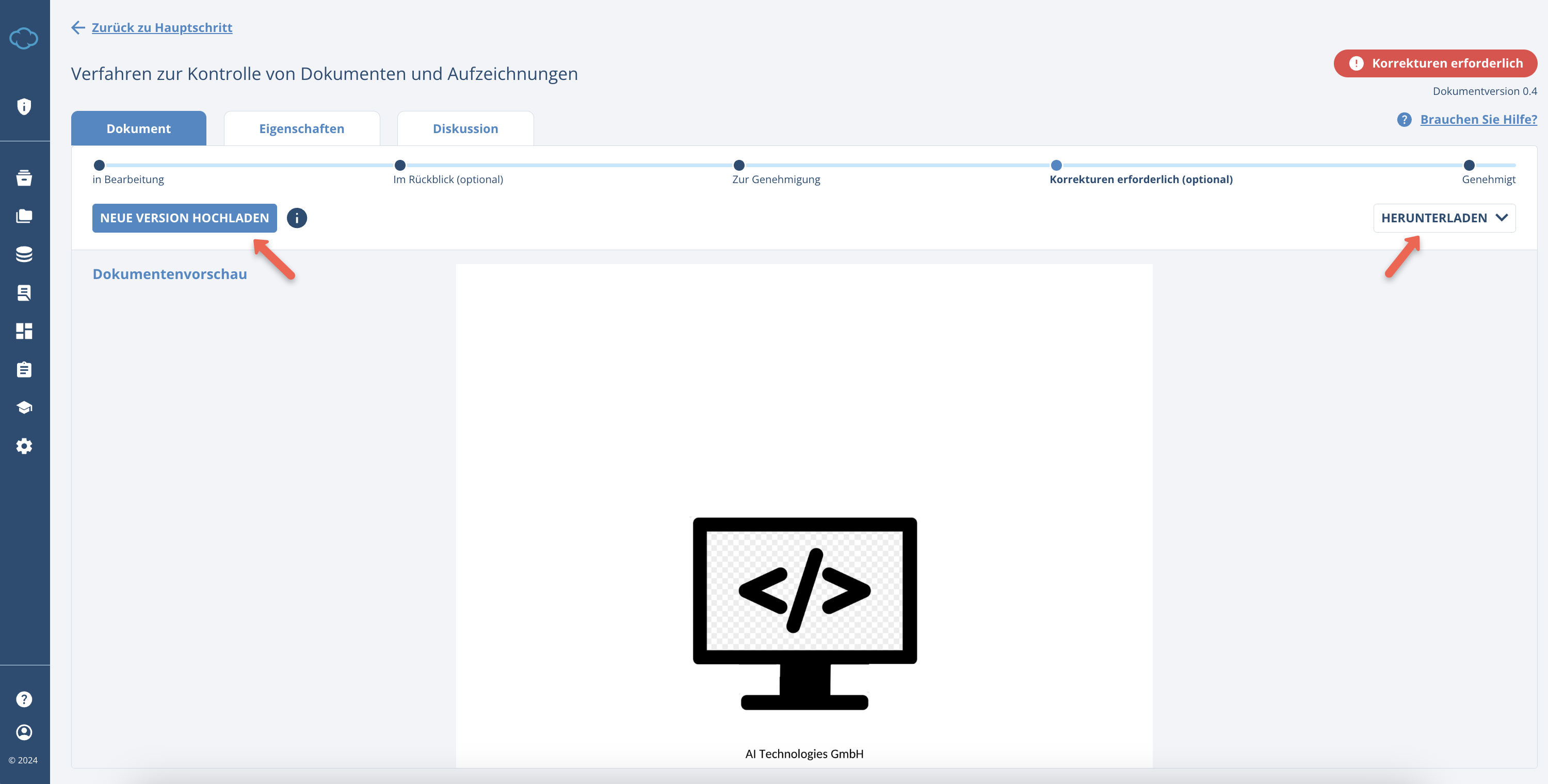
When the updated document is uploaded, it will again be put in “In Bearbeitung” status and you will have to start the approval process from the start.