Online Editor
DISCLAIMER: Users who opened the account after October 22nd 2025, have by default enabled Online Editor and should follow this part of the article. If you have opened the account before October 22nd 2025, please navigate to the Document Wizard section.
To start working on the document using the Online Editor, you need to have the role of Project Manager, or Step Performer and follow the steps described in the continuation of the article.
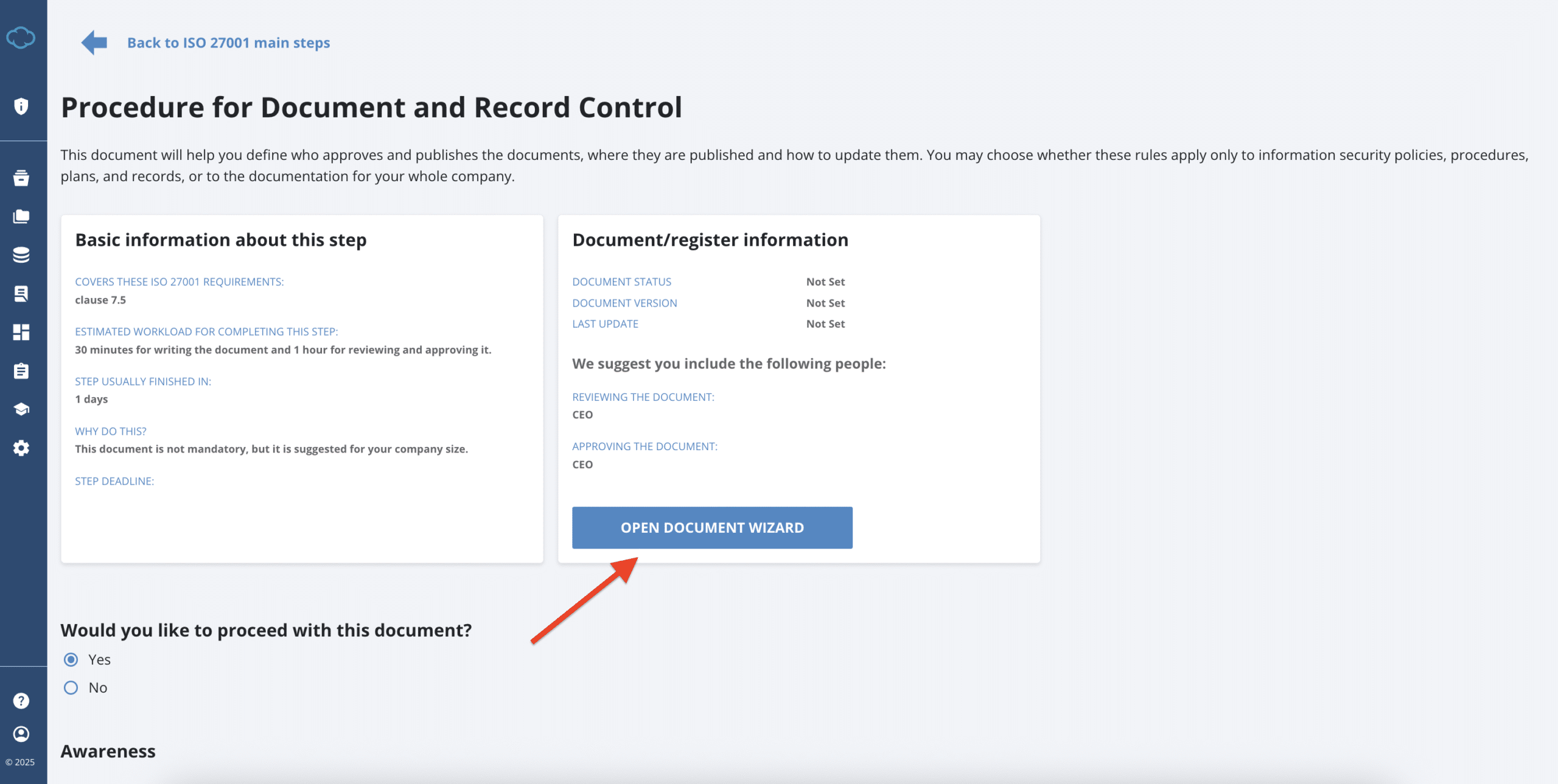
1. To start using the Online Editor, click the Open Document Wizard button.
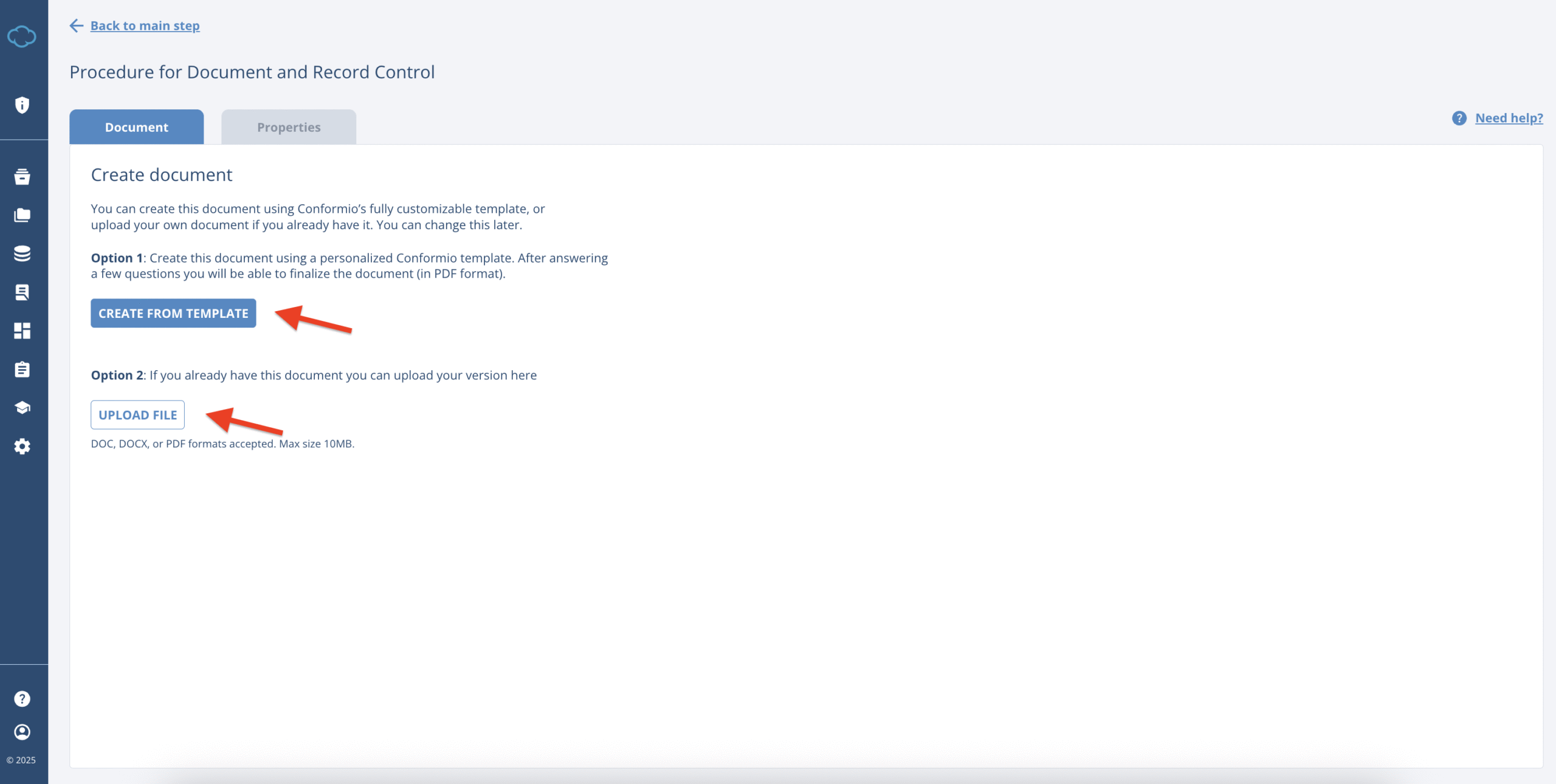
2. By opening the Online Editor, you are presented with:
- an option to start with the Conformio templates;
- or to upload your own document (if you already have one prepared);
- it will allow you to upload documents in .doc, .docx, or .pdf file format (if under 10MB in size)
3. By clicking CREATE FROM TEMPLATE you will be transferred into the Online Editor document setup process – all the inputs in this setup process are optional. However, we suggest filling the inputs as much as possible as inputs that can be re-used in other documents will be preserved (company logo, approvers, etc.).
Here you can provide the first inputs into the document that will be reflected on the front page of the document:
- logo of your company (if you have already uploaded it under Settings or with another document, it will be already displayed here);
- unique code for this document in your document management system
- name of the responsible person, for updating this document;
- classification of the document (who has access to it);
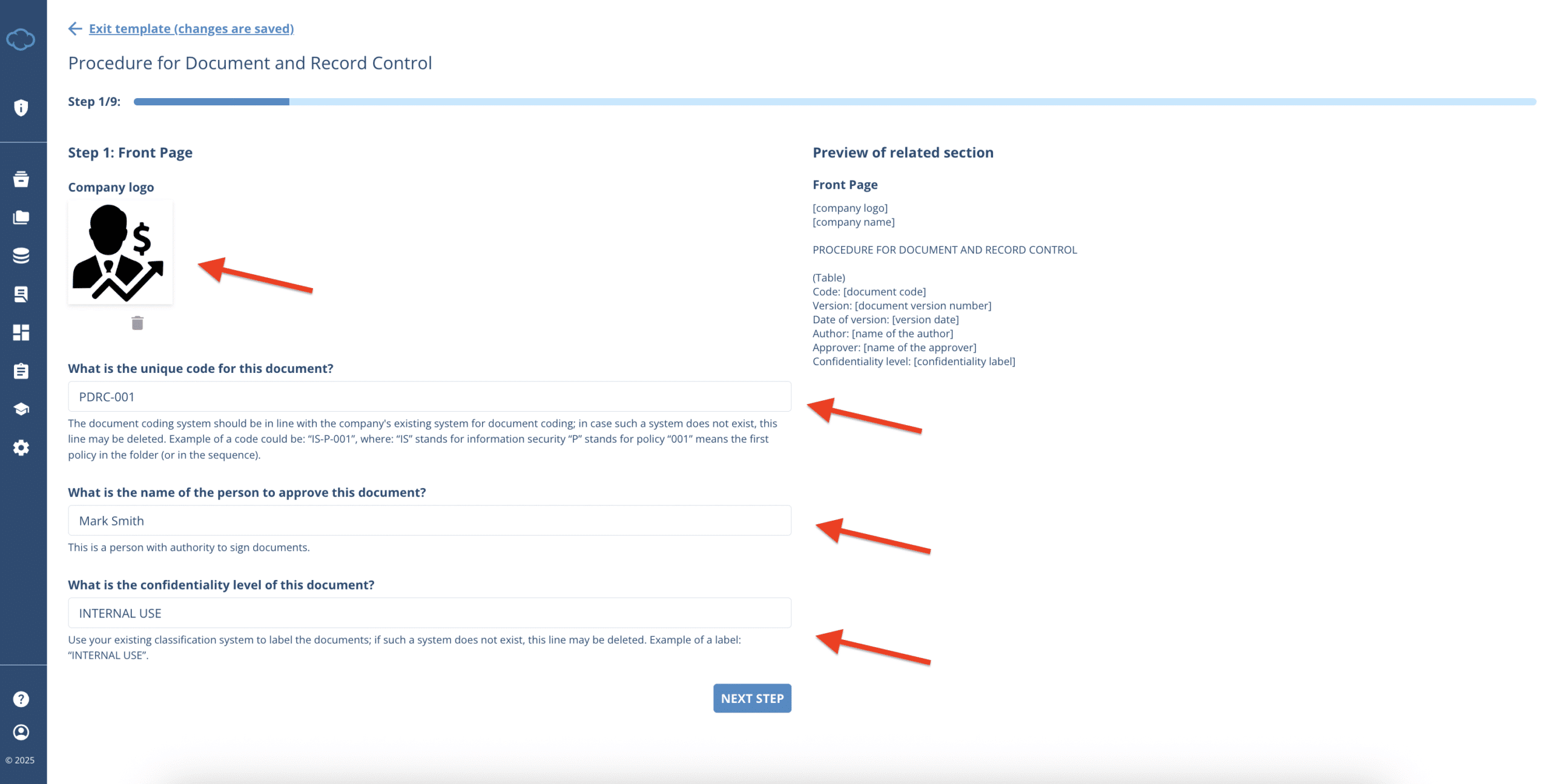
By clicking NEXT STEP you will be taken to the next step in the document setup process.
4. In the following step, you will have to input the name of the reference documents – in case any other documents specify document control in your company.
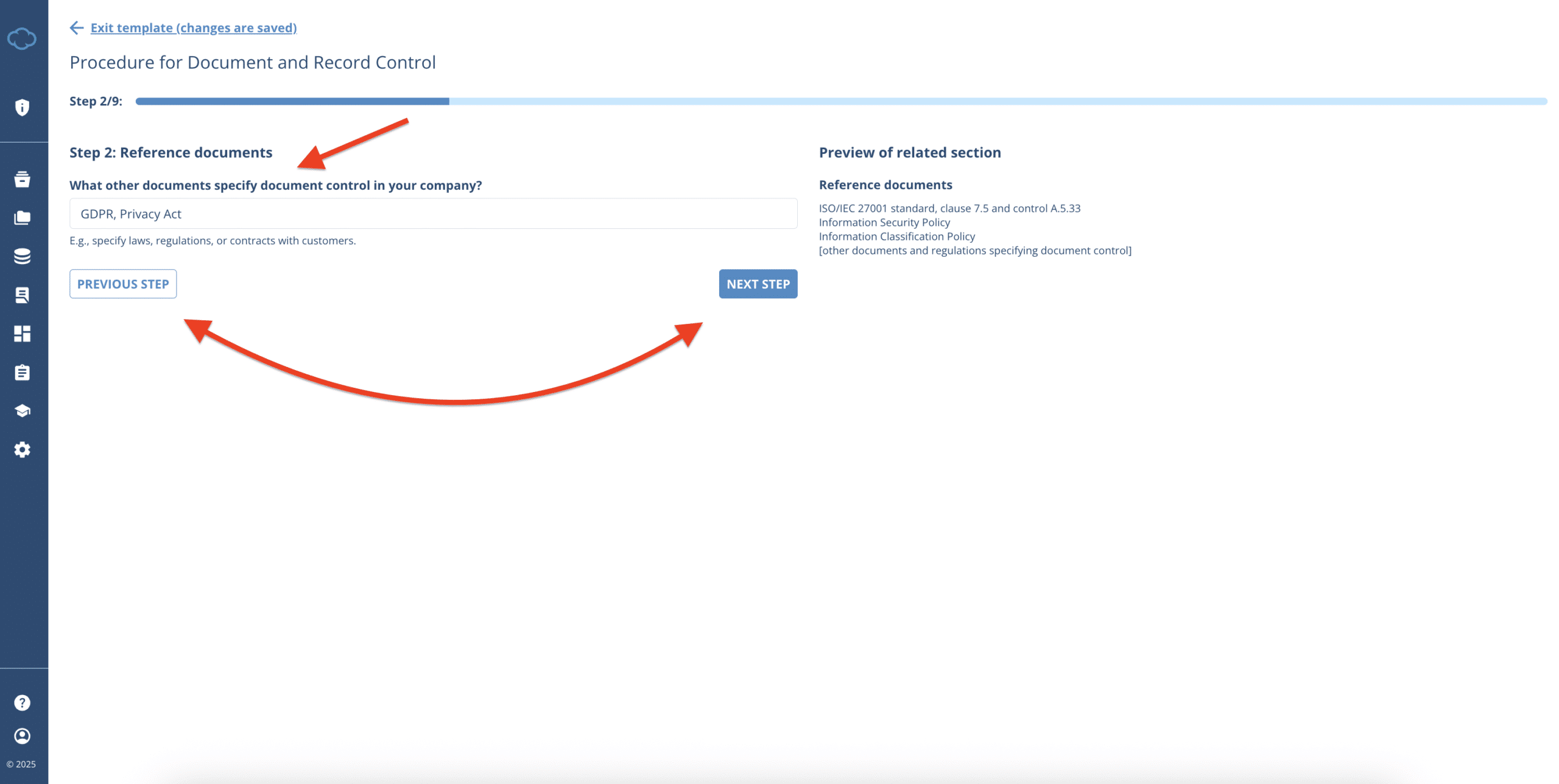
When you are ready, you can proceed to the next step by clicking NEXT STEP or you can also move to the previous step by clicking the PREVIOUS STEP.
5. The following step involves the definition of the document format to be used for all documents. Here you can use the example definition, or define your own.
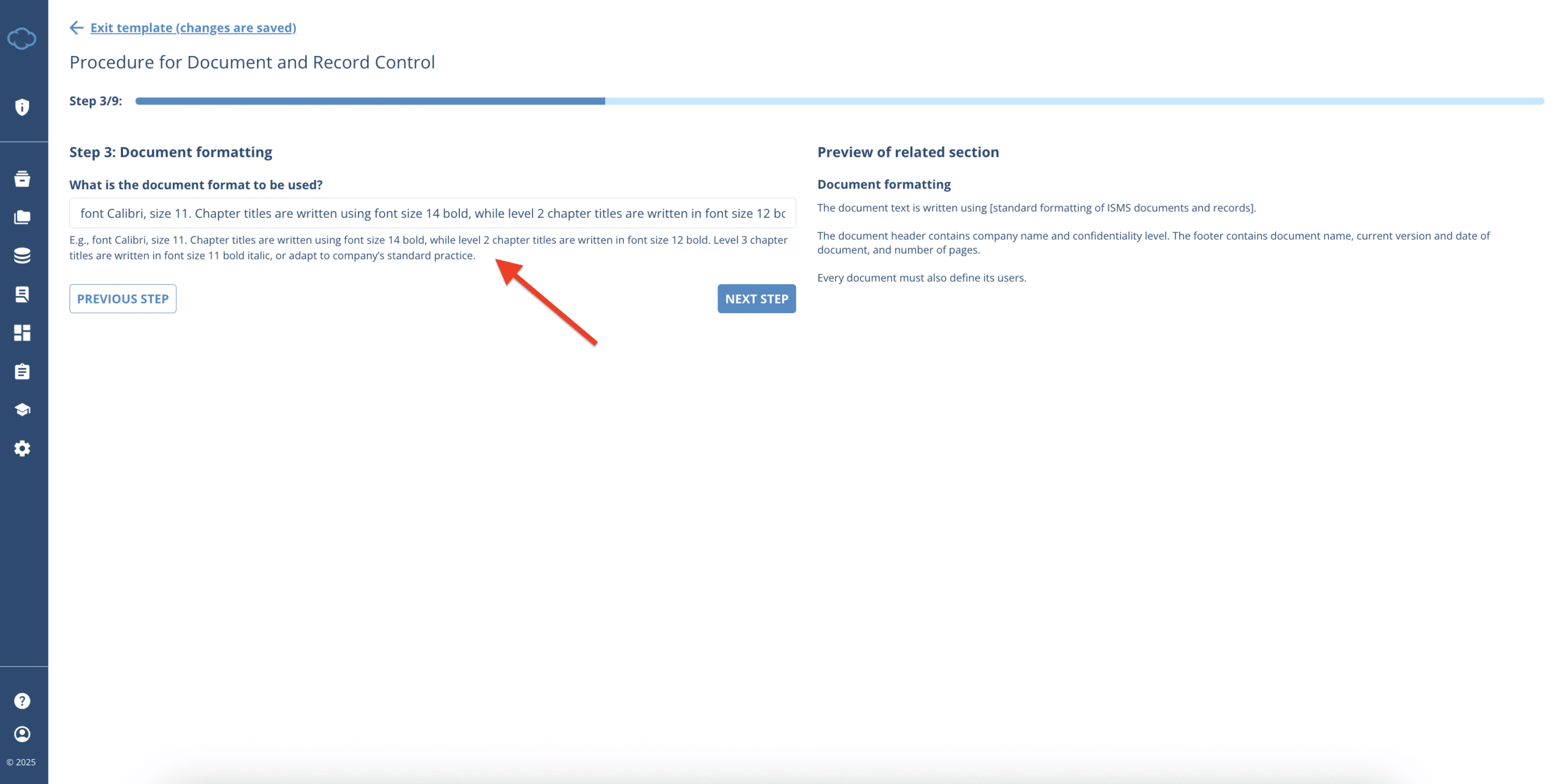
When you are ready, you can proceed to the next step by clicking NEXT STEP or you can also move to the previous step by clicking the PREVIOUS STEP.
6. In the following step, you will have to input the job title of the person who will be responsible for document approval (usually this is the CEO or another member of the executive team) and defining how the ISMS documents get approved. You can use the example provided, or define your own process.
NOTE: that when it comes to data inside the paragraphs, most of the inputs should focus on the job title of the person. When it comes to signatures or the inputs on the first page, name of the person is needed in those case.
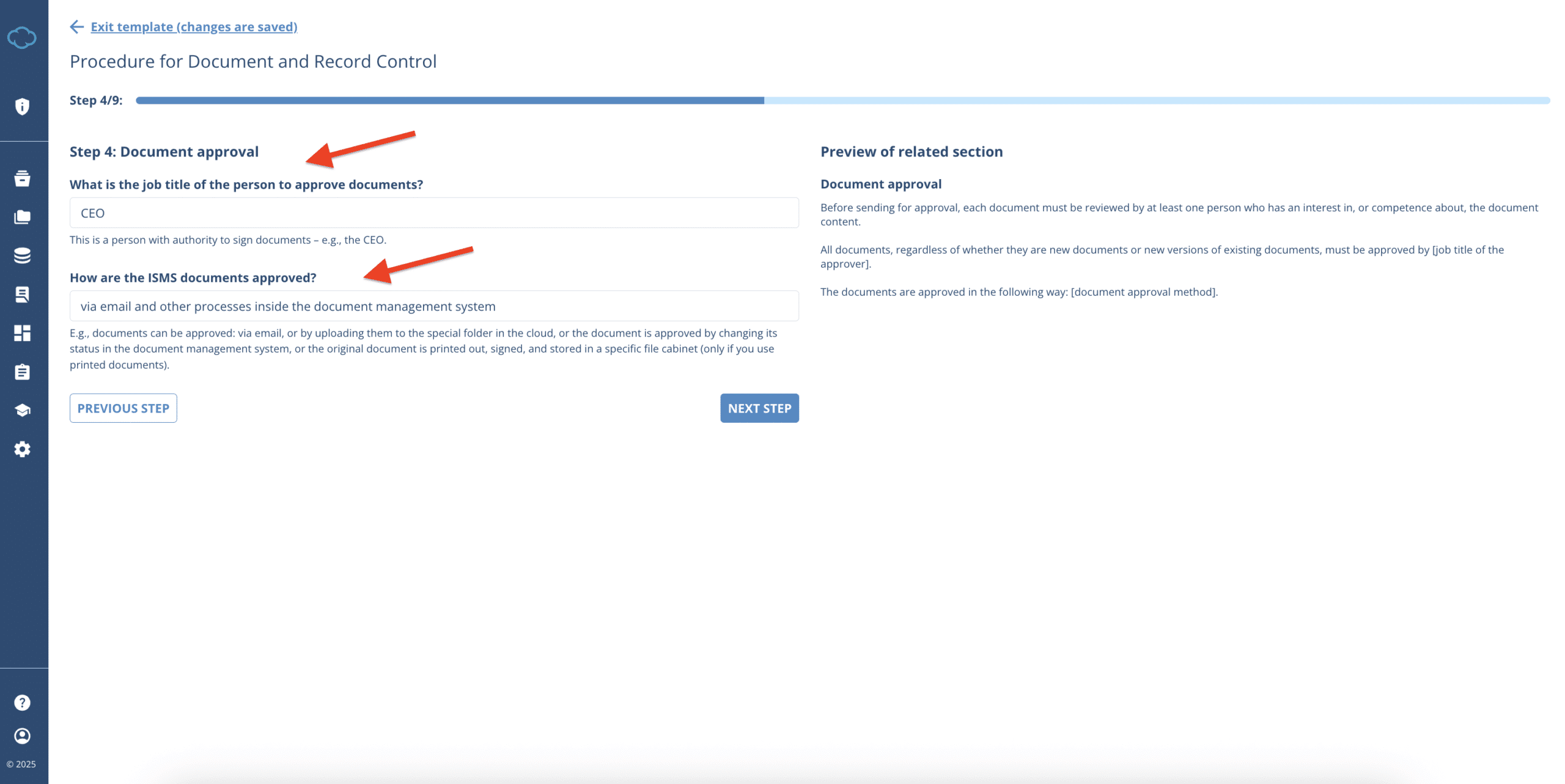
When you are ready, you can proceed to the next step by clicking NEXT STEP or you can also move to the previous step by clicking the PREVIOUS STEP.
7. In the following step, you will have to input/define the following items:
- the person in charge of publishing new documents and how are documents published;
- who is the responsible person for informing employees about new documents and how are employees notified;
- how are documents that were deemed obsolete removed/deleted;
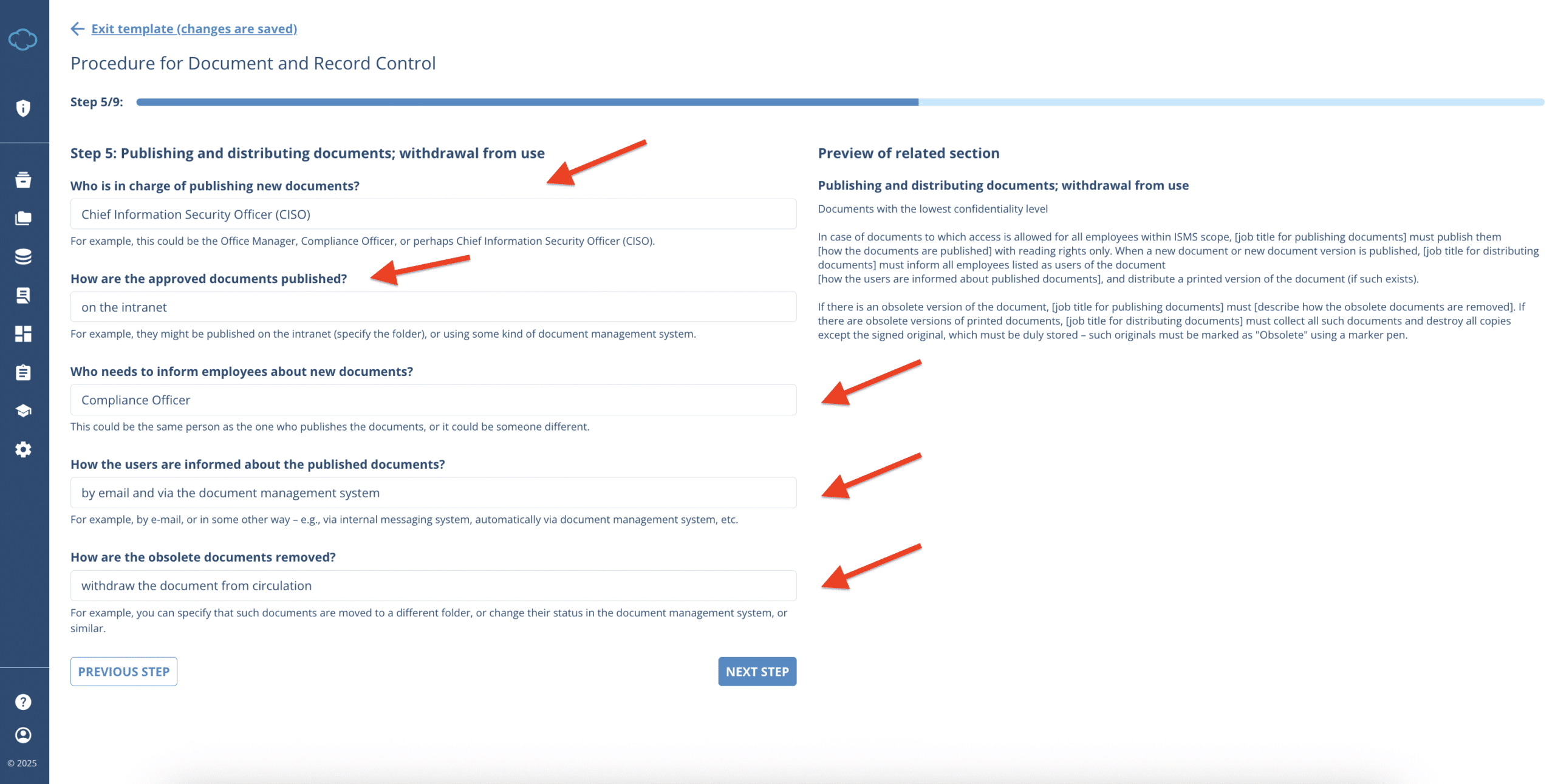
When you are ready, you can proceed to the next step by clicking NEXT STEP or you can also move to the previous step by clicking the PREVIOUS STEP.
8. In the following step, you will have to input the job title of the person who will be responsible for deletion of records. You can use the example provided or define your own.
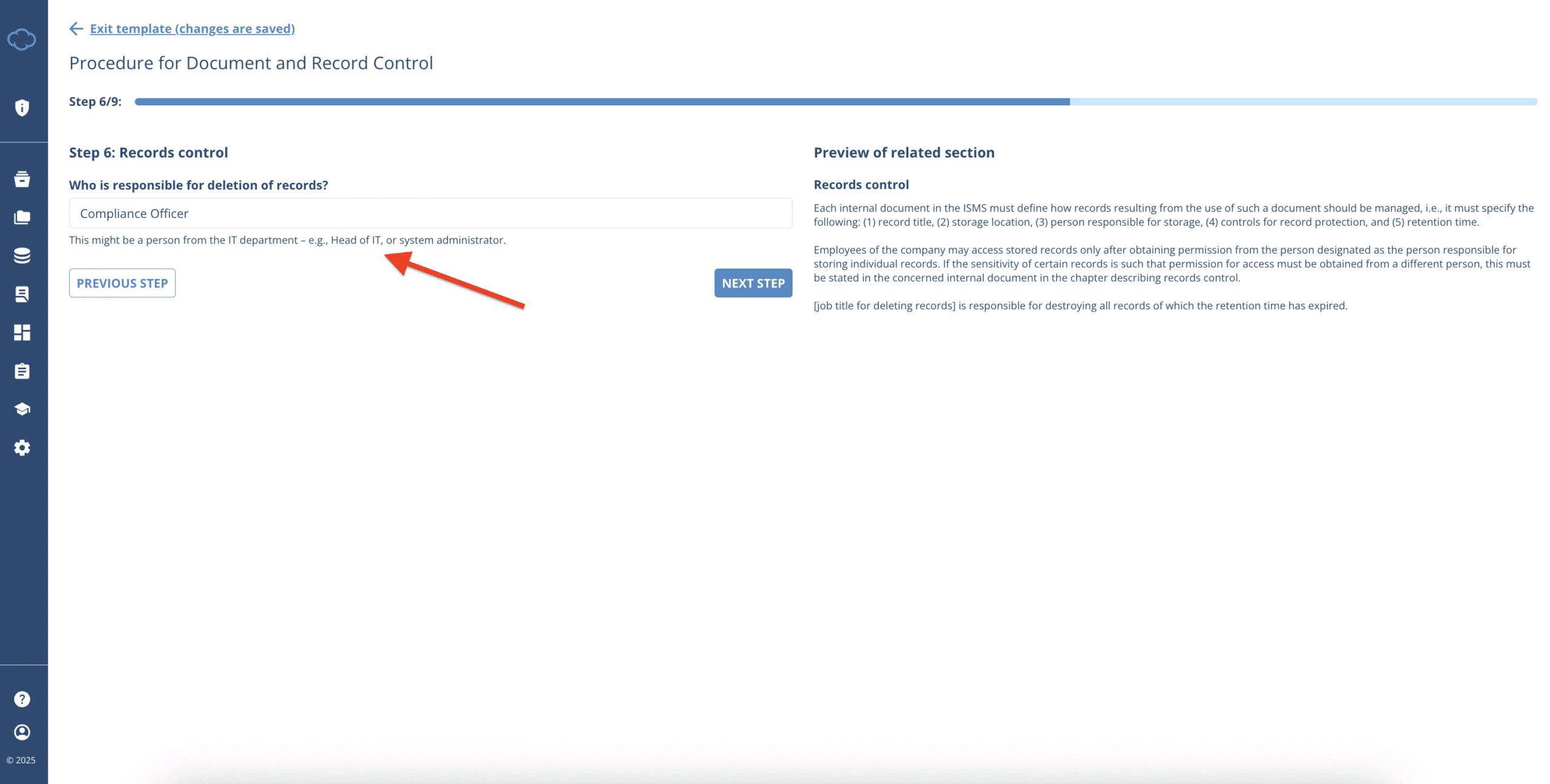
When you are ready, you can proceed to the next step by clicking NEXT STEP or you can also move to the previous step by clicking the PREVIOUS STEP.
9. In the following step, you will have to define how documents of external origins are recorded and saved.
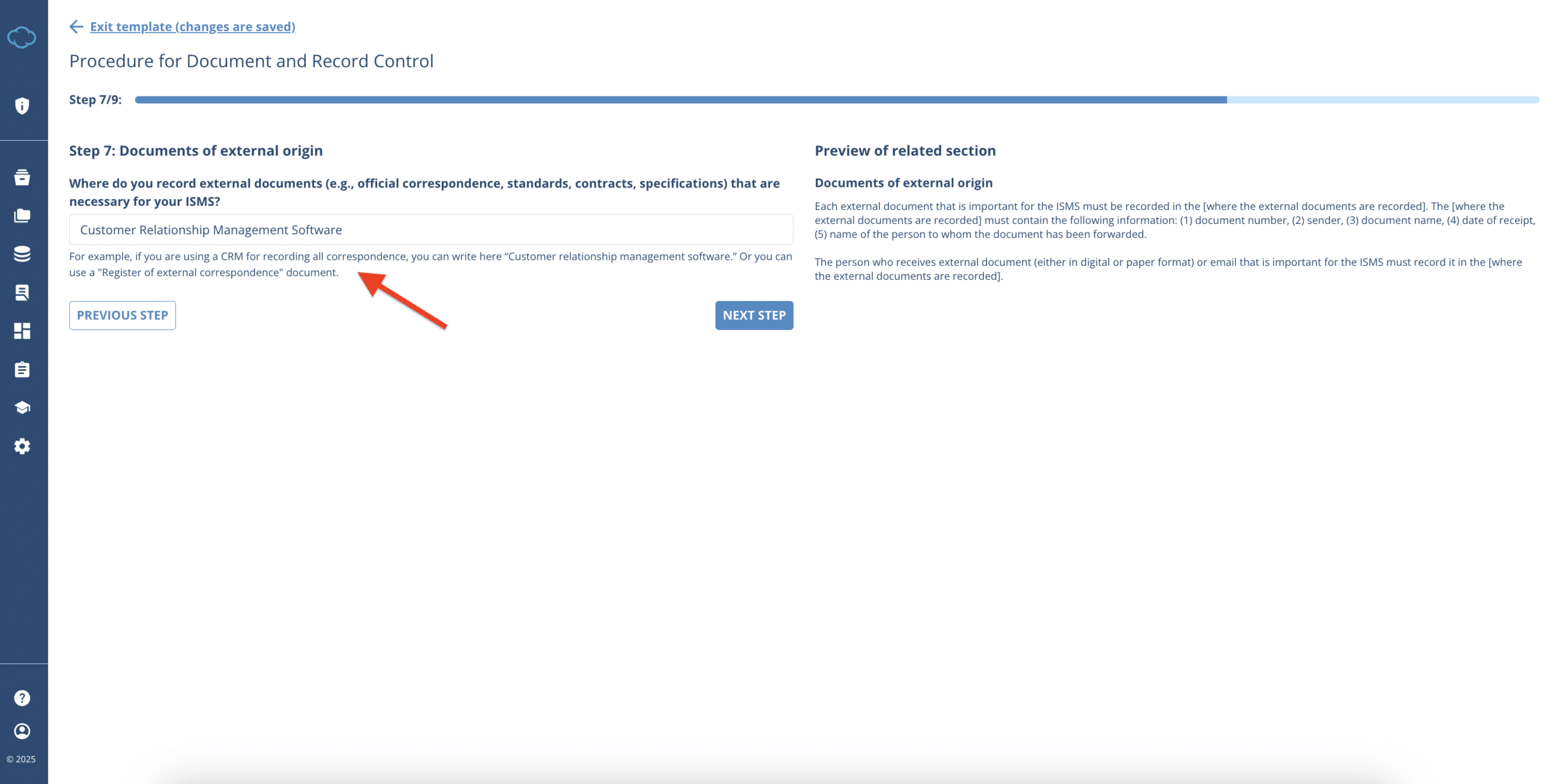
When you are ready, you can proceed to the next step by clicking NEXT STEP or you can also move to the previous step by clicking the PREVIOUS STEP.
- In the following step, you will have to input the following fields:
- the description of records of external correspondence
- who is in charge of keeping those records and how long are these records kept
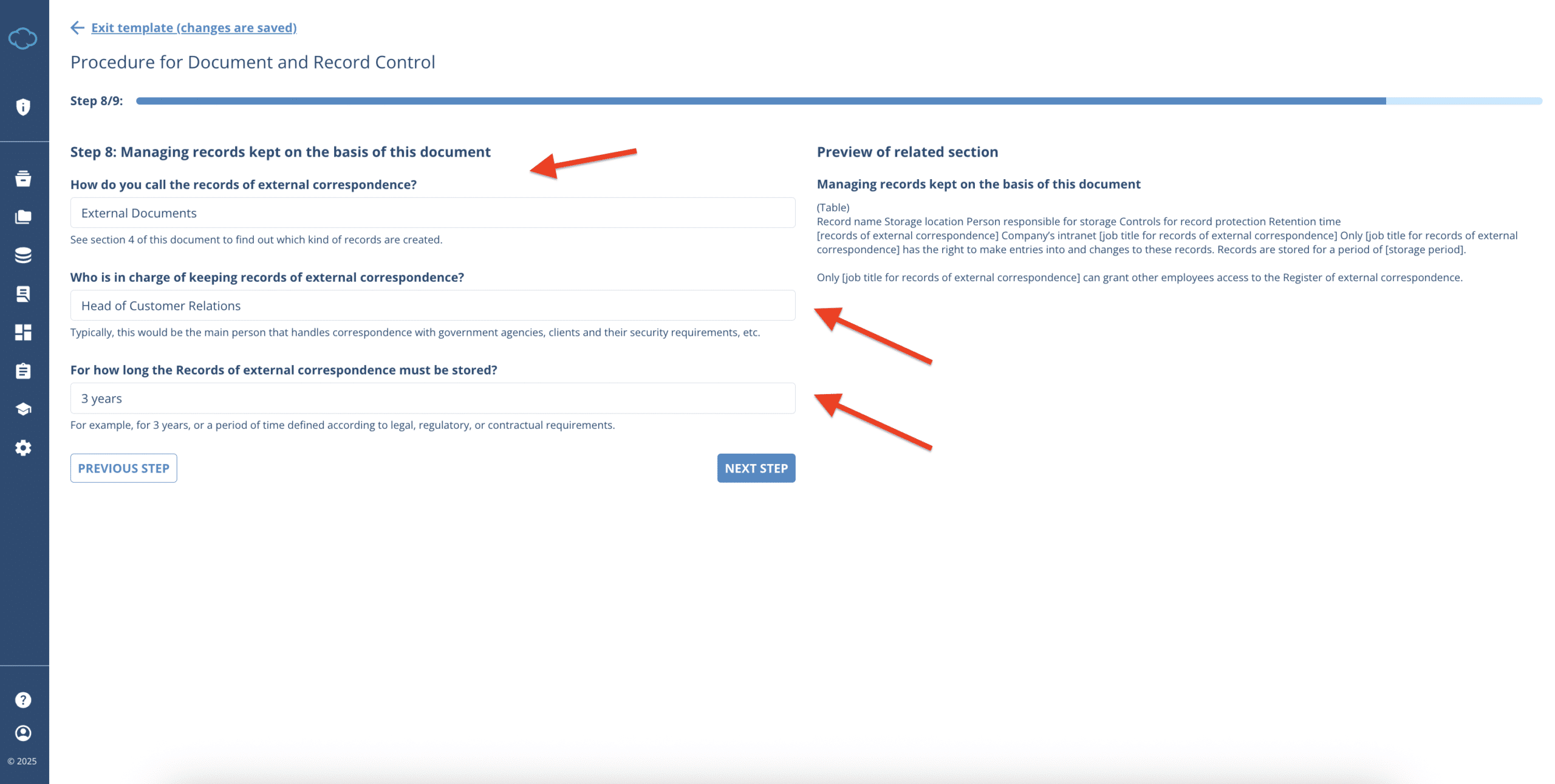
When you are ready, you can proceed to the next step by clicking NEXT STEP or you can also move to the previous step by clicking the PREVIOUS STEP.
11. In the following step, you will have to input the following fields:
- date of validity of the document
- who is the owner of the document and how ofter must the document be reviewed and, if necessary, updated
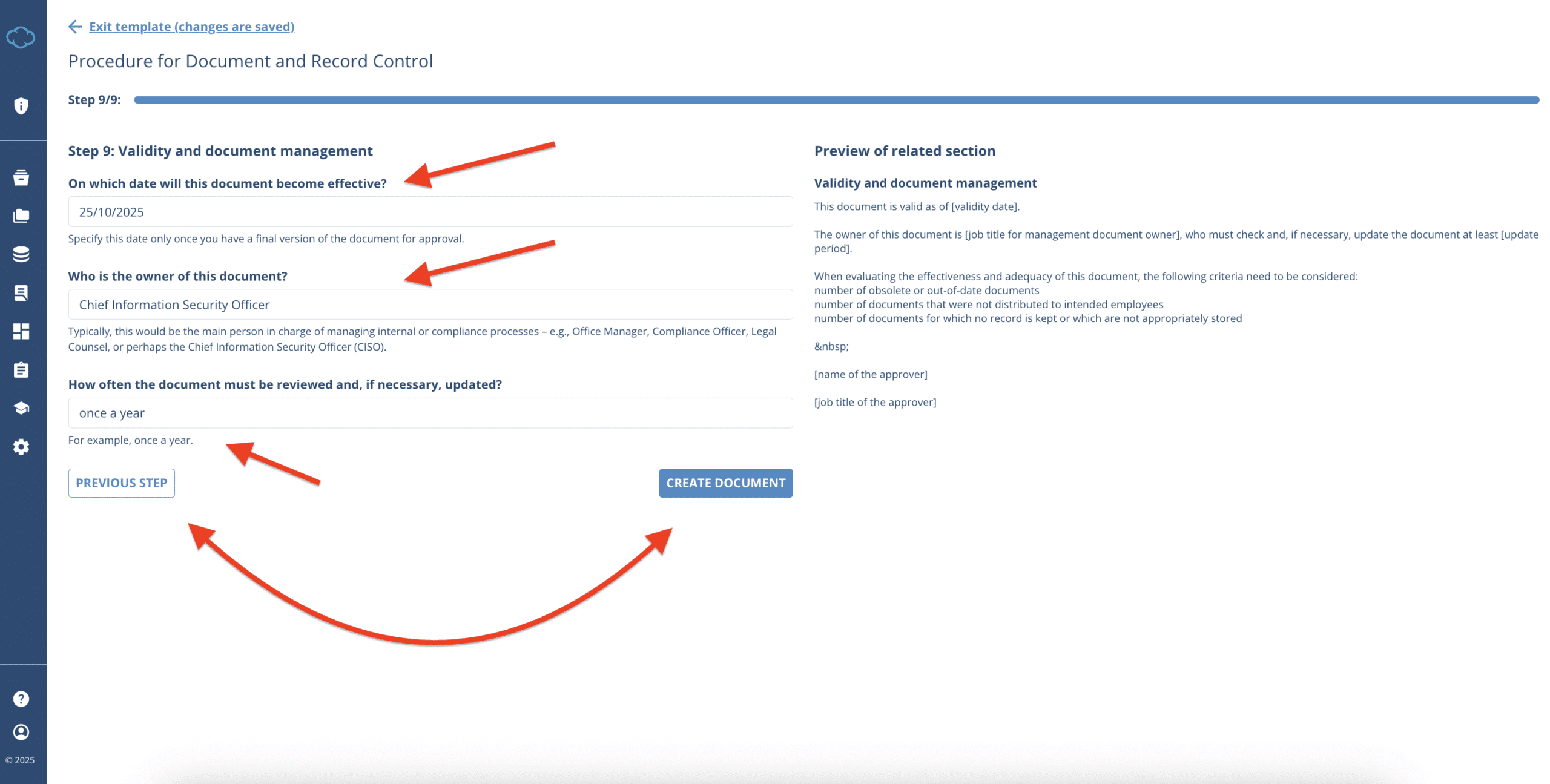
When you are ready, you can proceed to ONLINE EDITOR by clicking CREATE DOCUMENT or you can also move to the previous step by clicking the PREVIOUS STEP.
12. After clicking CREATE DOCUMENT the document will be provisionally generated and displayed in the initial window. Here you can:
- see the status of the document;
- the version of the document;
- submit document for review;
- submit document for approval;

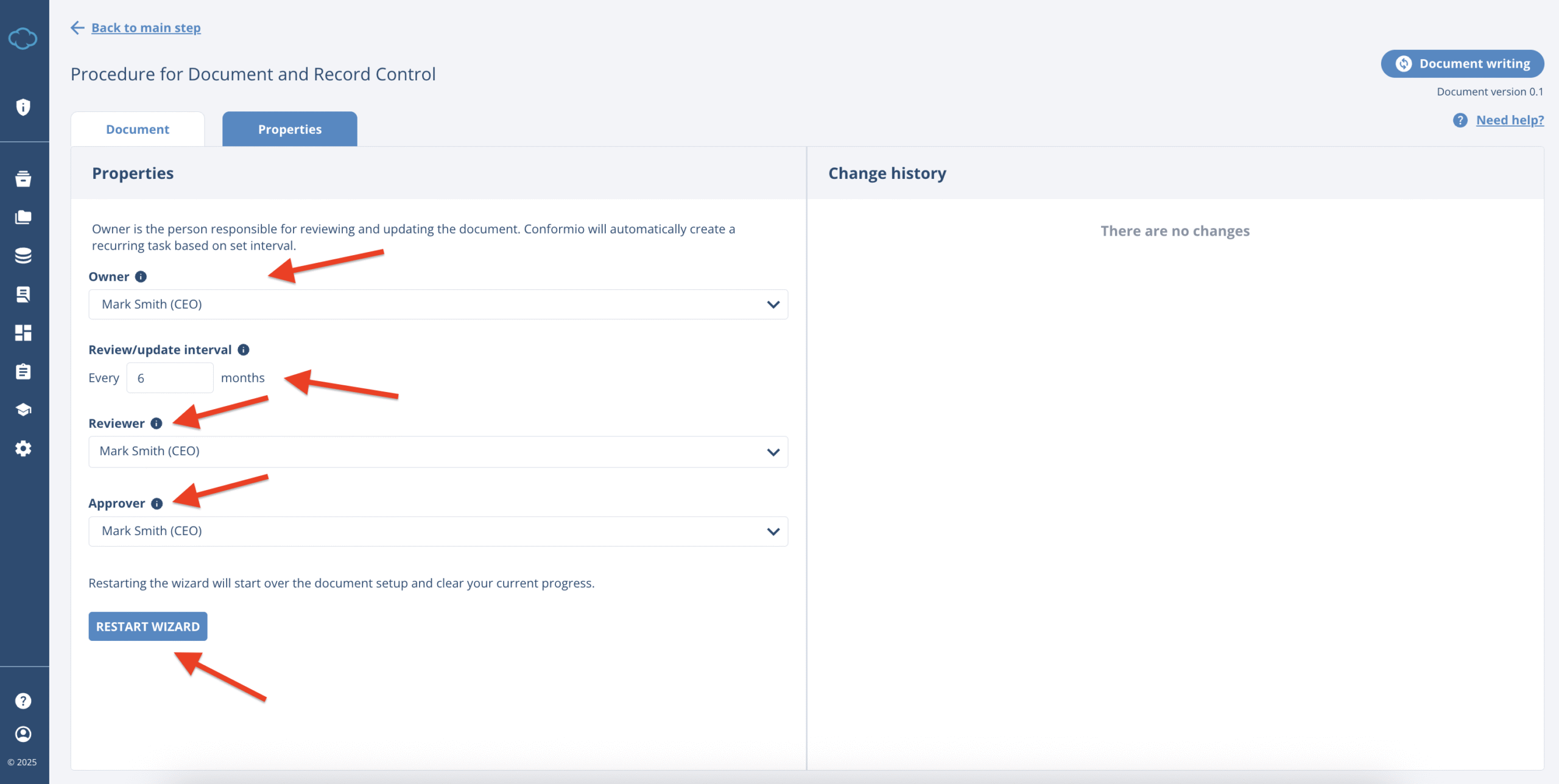
You can also click on “PROPERTIES” to see the properties of the document, such as:
- the owner;
- the approver;
- the reviewer;
- how often does the document need to be reviewed;
- the changes that were made to this document;
You can also click RESTART WIZARD, which will take you to the start of the document setup process.
NOTE: This will simply exit the Online Editor and move you to the start of the process. It will not remove any inputs already saved.
13. Then it is time to review and edit the document if needed. Online Editor will provide guidance in the form of document comments – that you can at all times check. Please note that some items – even though are in brackets – are not editable and will be automatically added to the document when the document is downloaded.
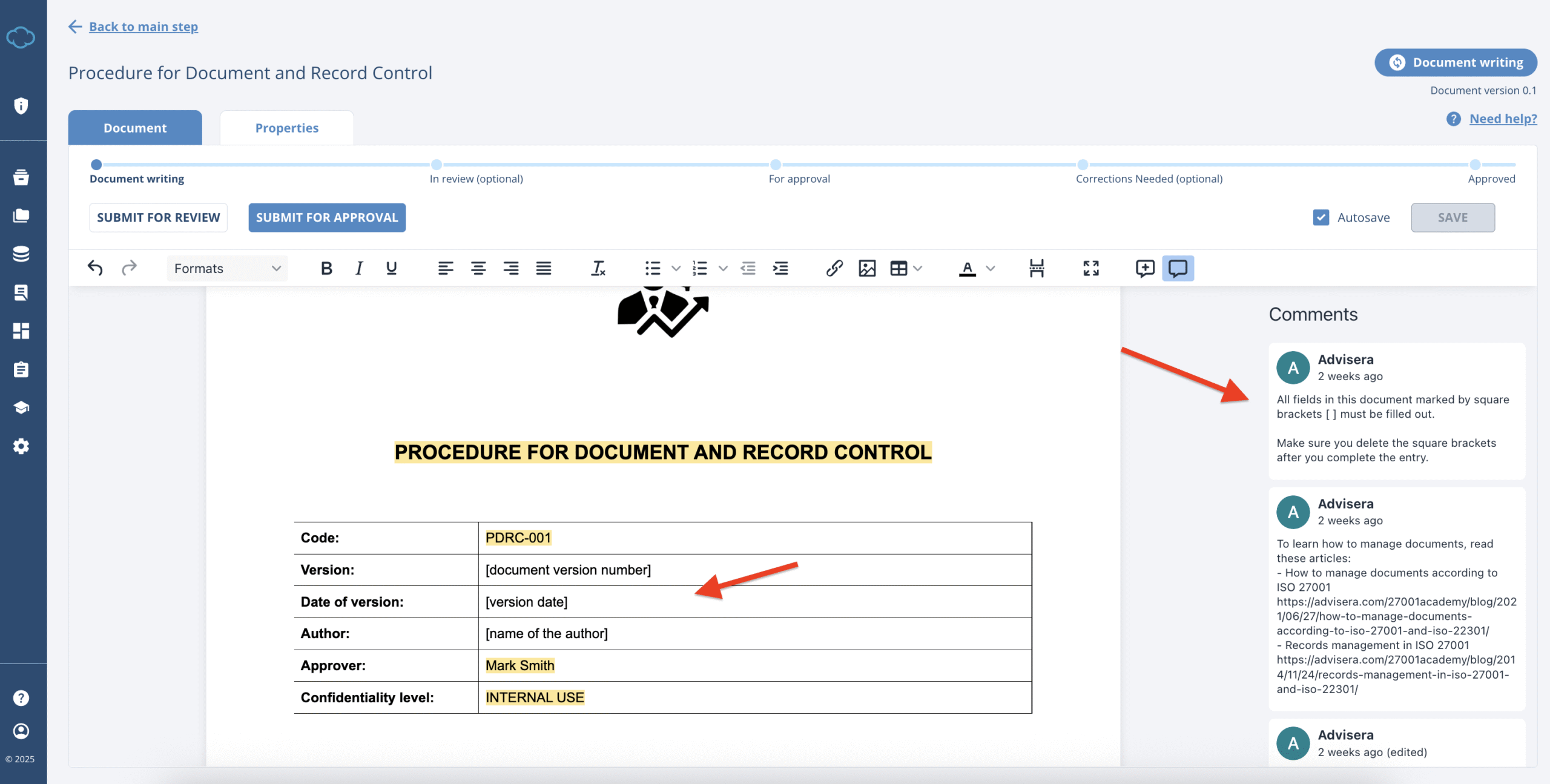
By clicking on the comments, you are redirected directly to the item it references so you have quick access to the editable fields.
14. If you need to add additional bullet points, or additional paragraphs – you can do all that in the Online Editor. This is the main advantage Online Editor has over Document Wizard. It allows you to:
- undo/redo changes;
- select formatting for paragraphs and headings
- make specific text bold, italic or underlined
- align paragraphs to your liking (left, center, right, justified)
- clear formatting
- add bullet points or numbered lists
- increase and decrease indent
- add direct links to the document
- add images and tables to the document
- change text color
- add page breaks
- view the editor in full screen
- write comments and show/hide comments
None of the above features were possible in the Document Wizard, where you only could change the specific pre-defined items, and there was no option to delete certain paragraphs if they did not make sense for your company.

The comments feature of the Online Editor replaced the DISCUSSIONS feature of the Document Wizard. Now the users are able to mark directly the words that need additional discussion by creating comments.

After the comments were addressed, they can be deleted, resolved or even edited.
15. When the document is ready, you can then send it for review and approval.
NOTE: Review and approval process are independent, so the document does not need to be reviewed first and then approved. If the document does not need to be reviewed, it can be immediatelly approved.
Send it for review by clicking SUBMIT FOR REVIEW. You will have to:
- confirm the person you designated as the reviewer who will receive the task to review the document;
- you will be able to see the document version change when the document is in review;
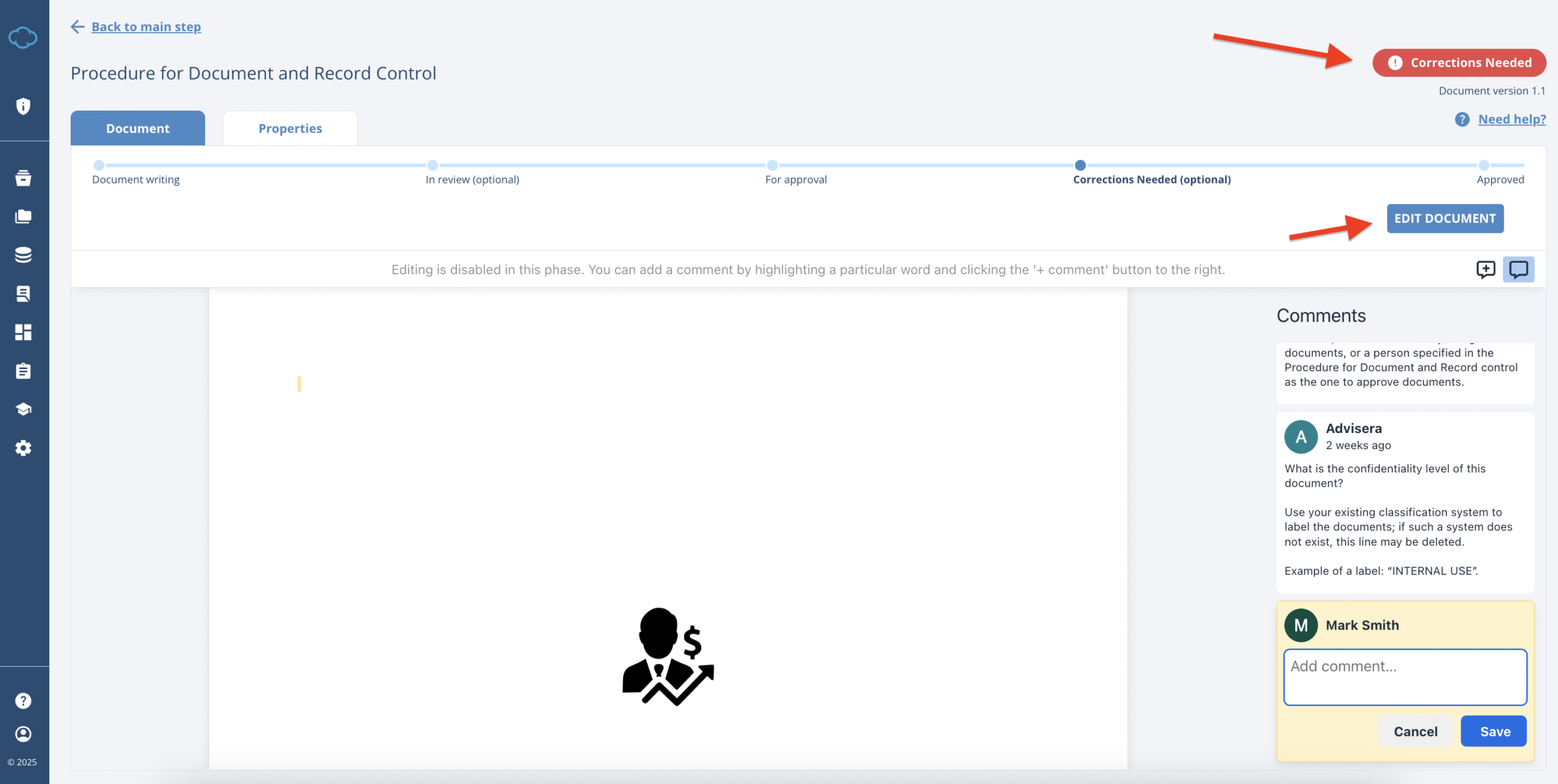
- the reviewer has the option to select I AGREE or CORRECTIONS NEEDED
- one completes the review, and the other stops it with the status clearly notifying the document creator that some changes are needed
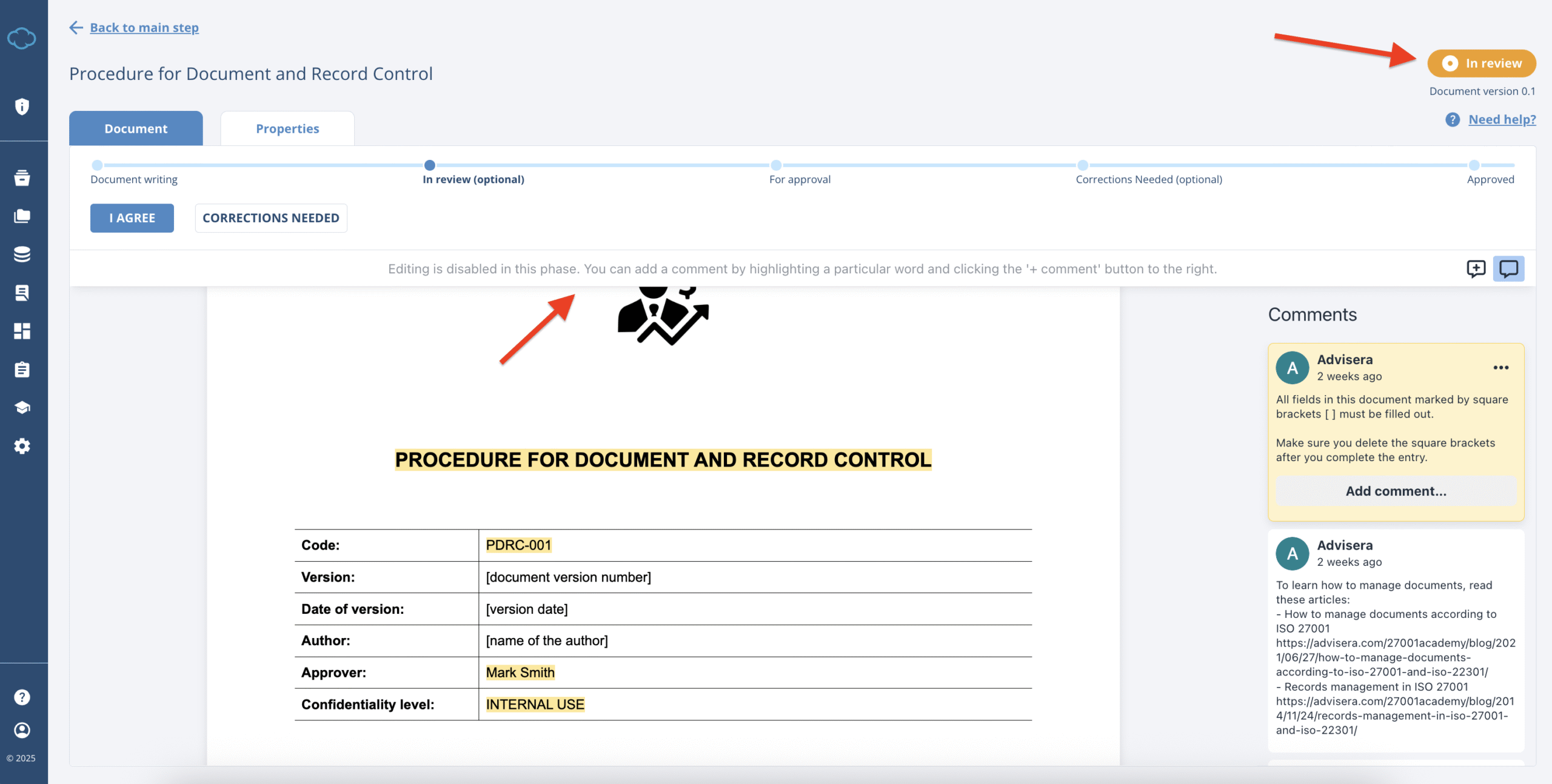
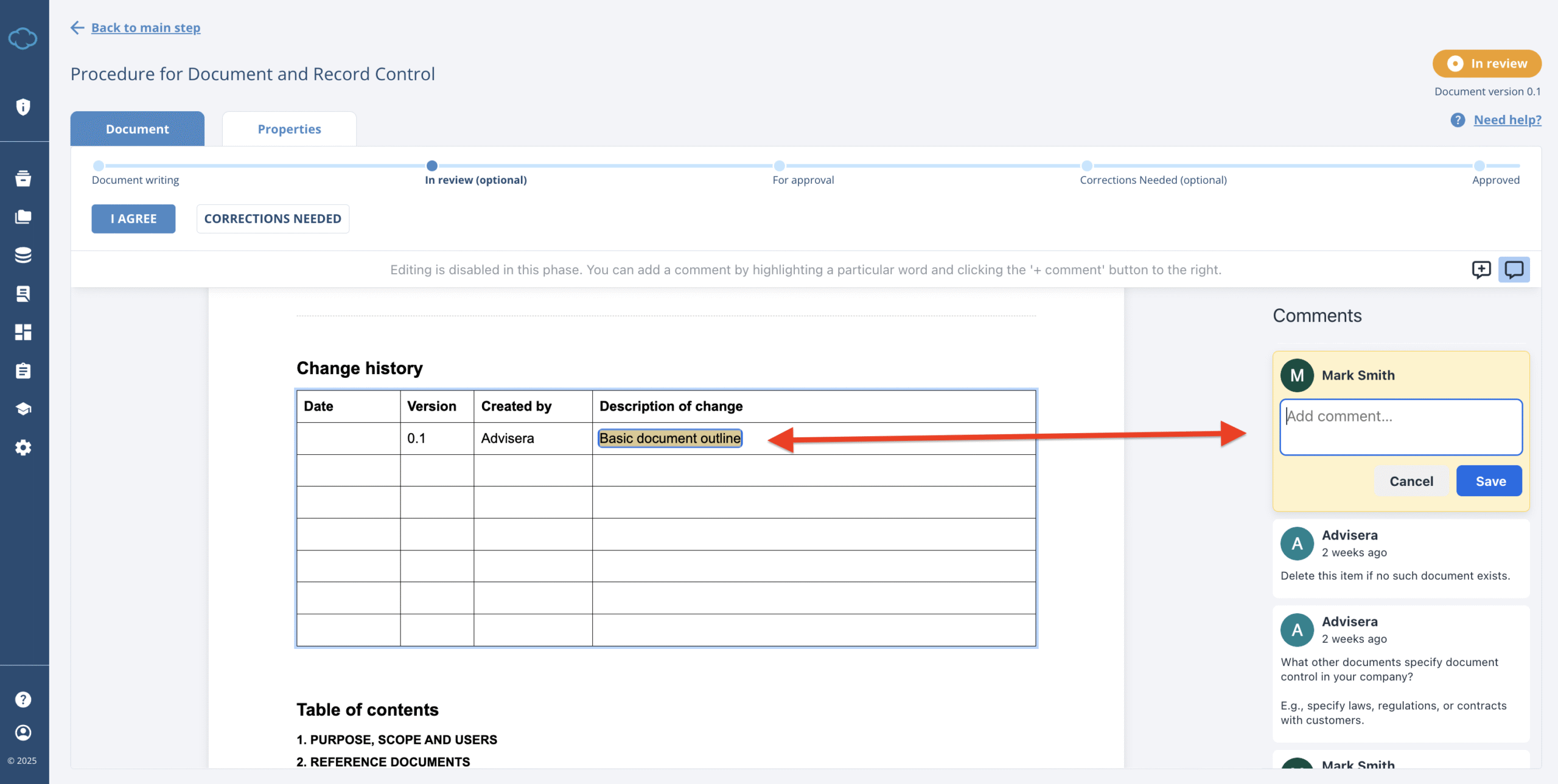
During the review phase, the editing of the document is completely disabled, however the reviewer has the ability to highlight the text and add comments for discussion or correction.
By clicking I AGREE or CORRECTIONS NEEDED the document will return to the “In Progress” status and will be ready to be approved.
16. After the document is reviewed, the next step is its approval. Proceed by clicking SUBMIT FOR APPROVAL. You will have to:
- confirm the person you designated as the approver who will receive the task to review the document;
- you will be able to see the document version change when the document is “in approval”;
- the approver has the option to select APPROVE, CORRECTIONS NEEDED or STOP APPROVAL;
- first approves the document, second allows the approver to suggest changes and the latter stops the approval and returns the document to the “In Progress” status;

By clicking APPROVE, the document will be approved and you will be transferred to the preview step, where your options are again limited to, downloading the current document, editing the existing document, or withdrawing the document if you no longer need it or it is no longer relevant.
By clicking STOP APPROVAL you will simply cancel the approval process and the document will return to editing phase.
Clicking on DOWNLOAD, will download the document in PDF version. If there are changes needed, clicking EDIT DOCUMENT will return you to the Online Editor where you can edit the document again.
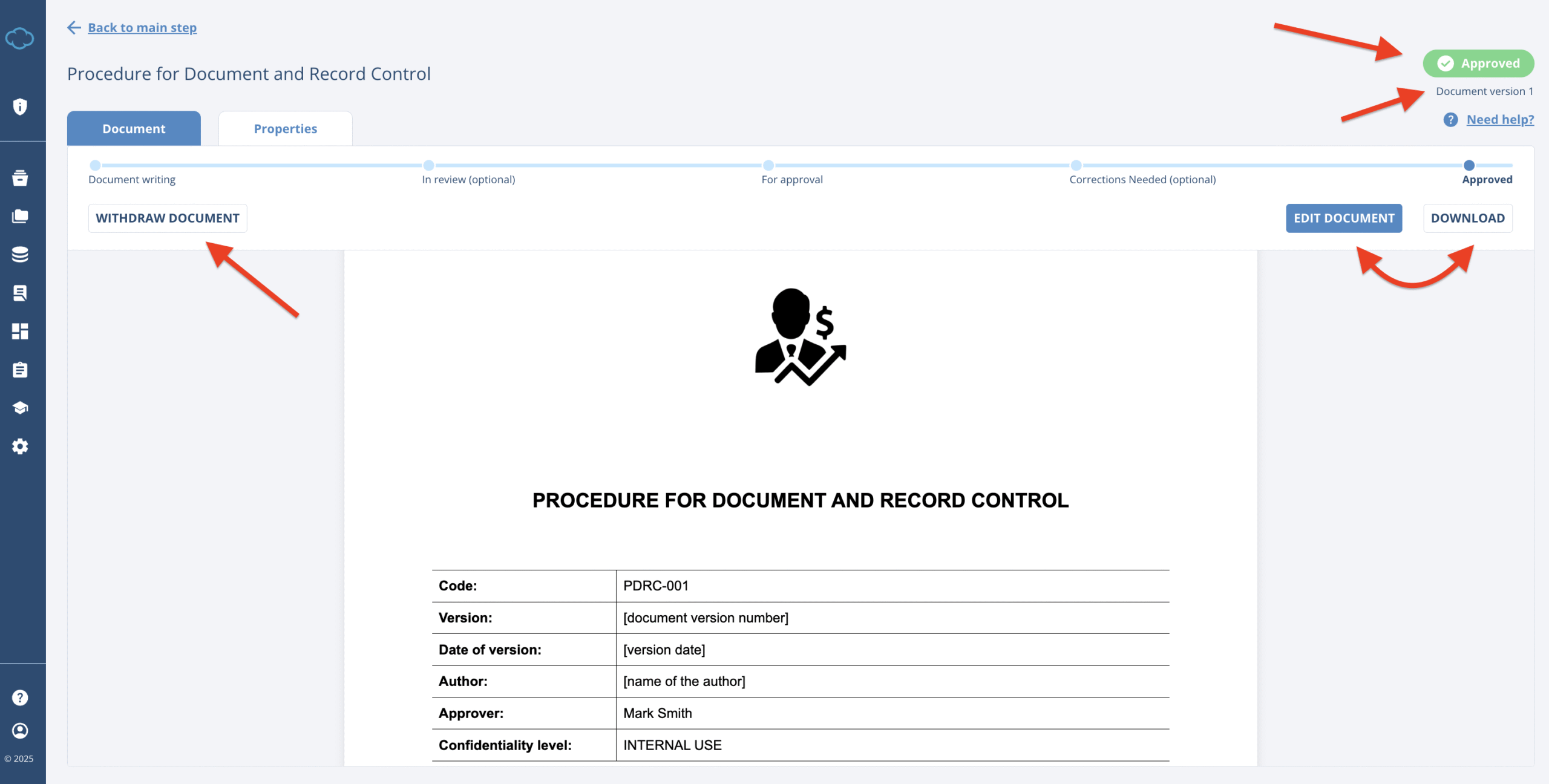
The inputs that are still in brackets after the document is approved, will be filled once the document is downloaded.
16.1 By clicking CORRECTIONS NEEDED you will proceed to the “optional” step where your only option is to edit the document, and then re-send the document for approval.