

Document Wizard
DISCLAIMER: Users who opened the account before October 22nd 2025, have by default enabled Document Wizard and should follow this part of the article. If you have opened the account after October 22nd 2025, please navigate to the Online Editor article.
To start working on the document using the Document Wizard, you need to have the role of Project Manager, or Step Performer and follow the steps described in the continuation of the article.
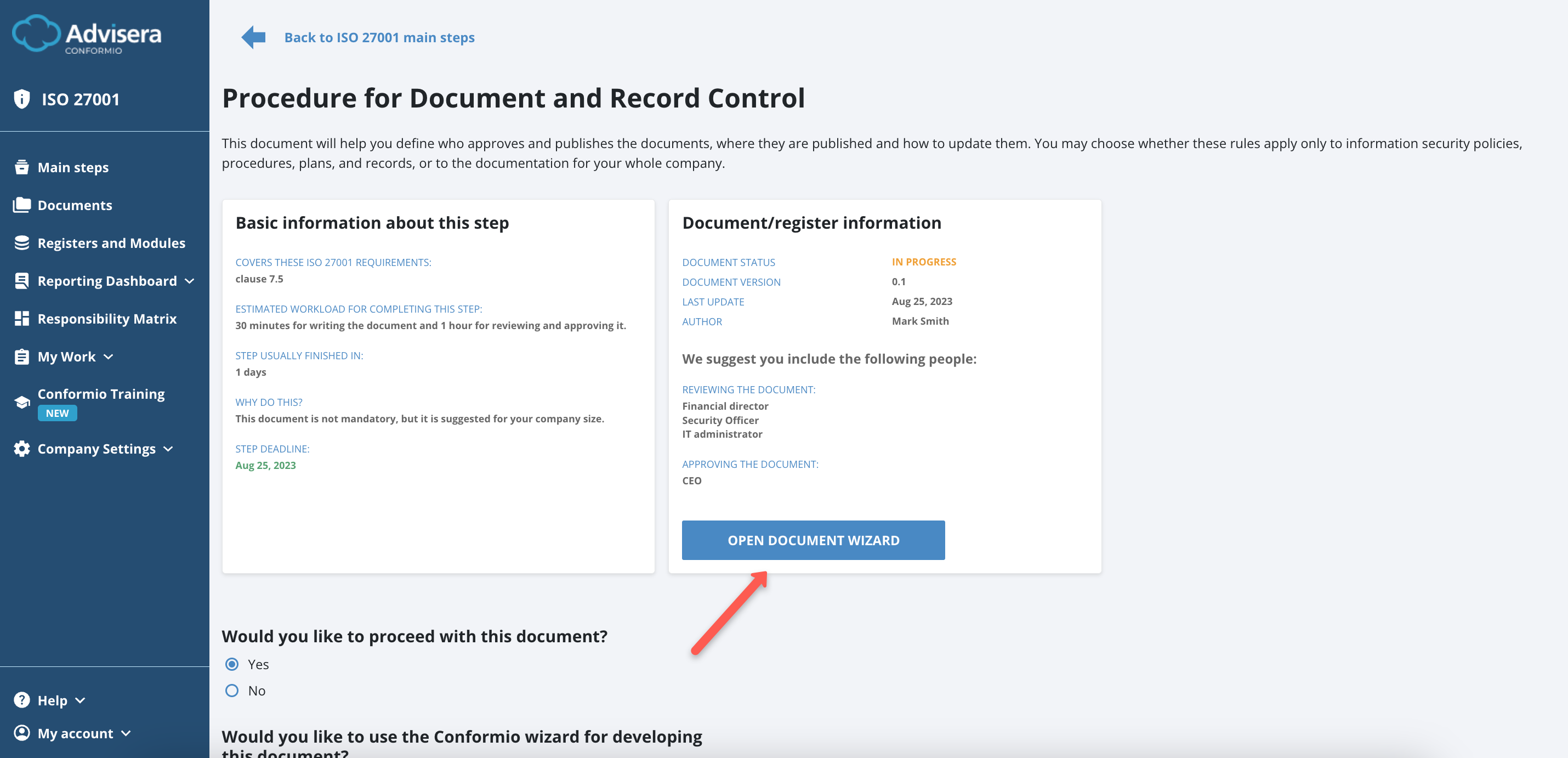
1. To start using the Document Wizard, click the Open Document Wizard button.
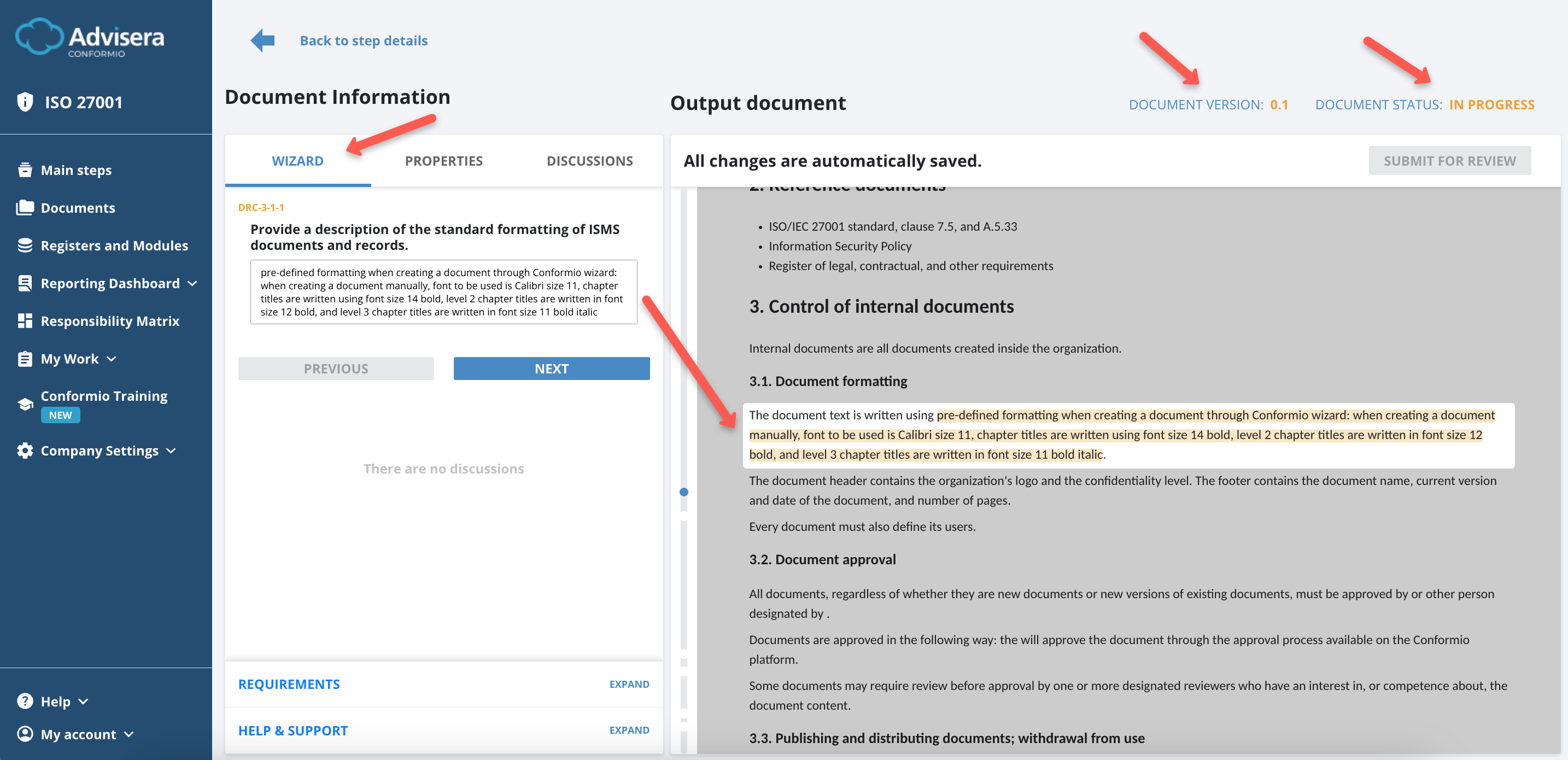
2. By opening the Document Wizard, you are presented with:
- The main document template on the right side of the screen;
- The wizard on the left side of the screen.
The wizard will guide you to the sections that need to be edited by highlighting them and offering suggestions for the most optimal process for your company.
3. While filling out the document, you can see the Want to learn more? info button. By clicking it, you can see and access the links to useful materials next to the relevant sections in the documents.
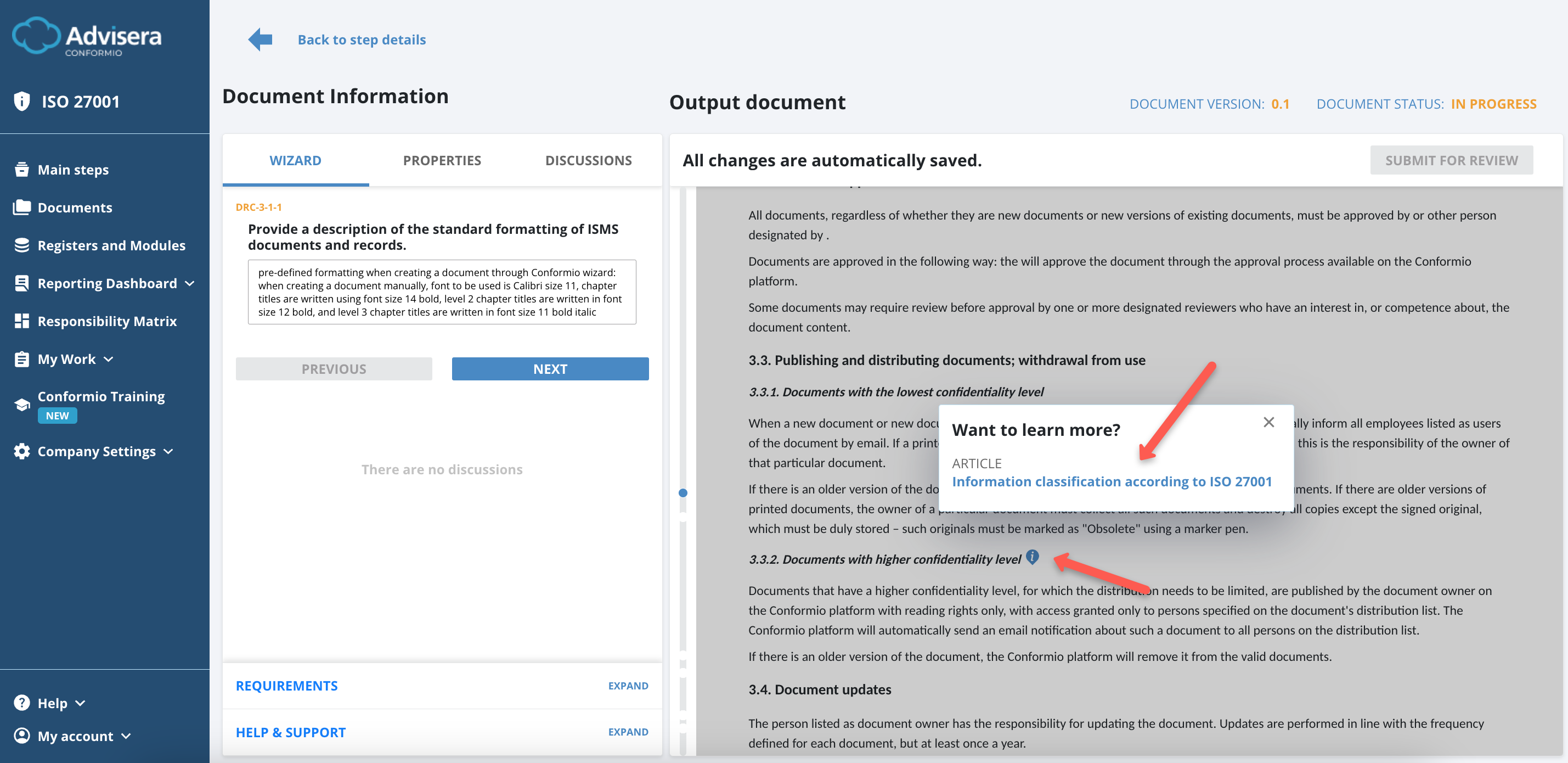
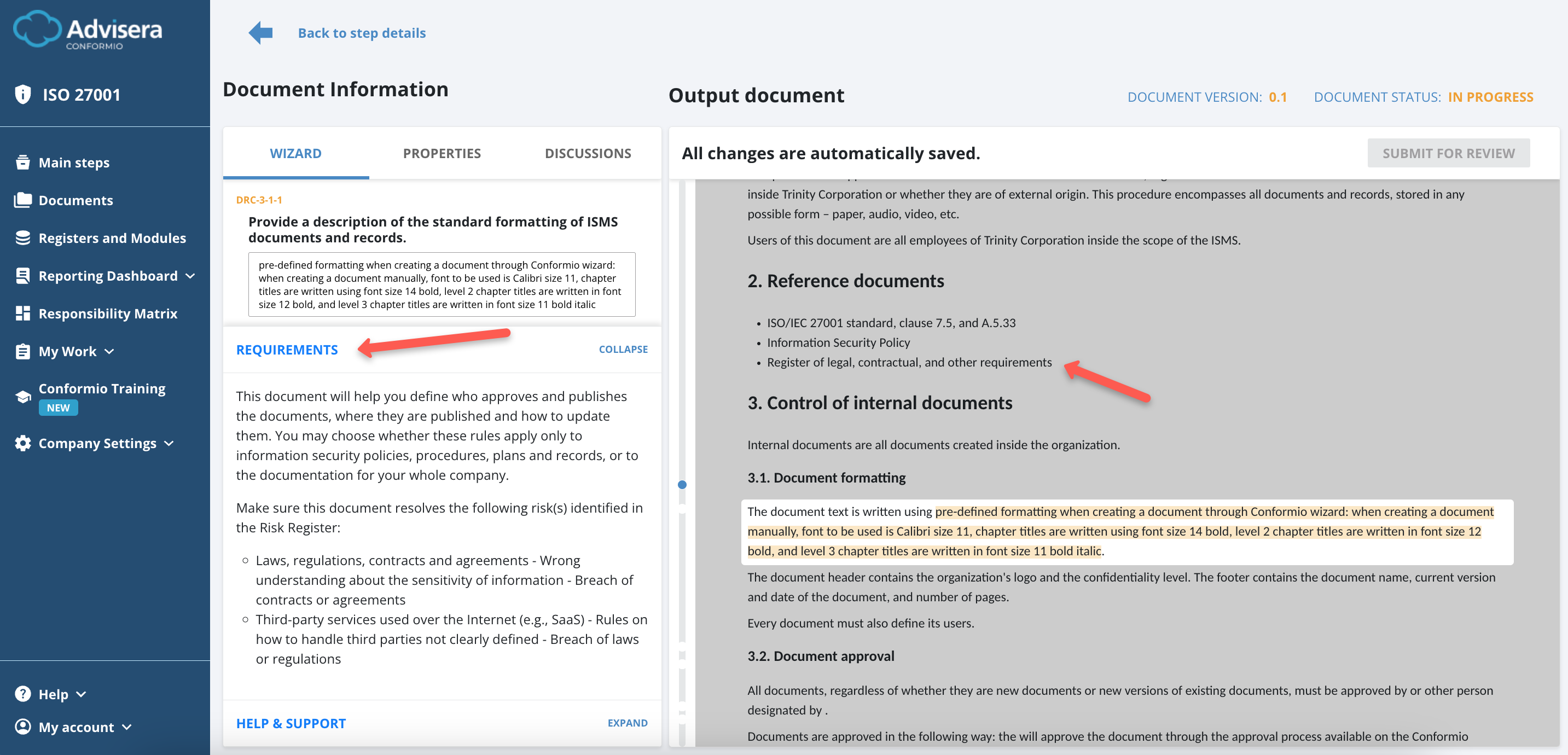
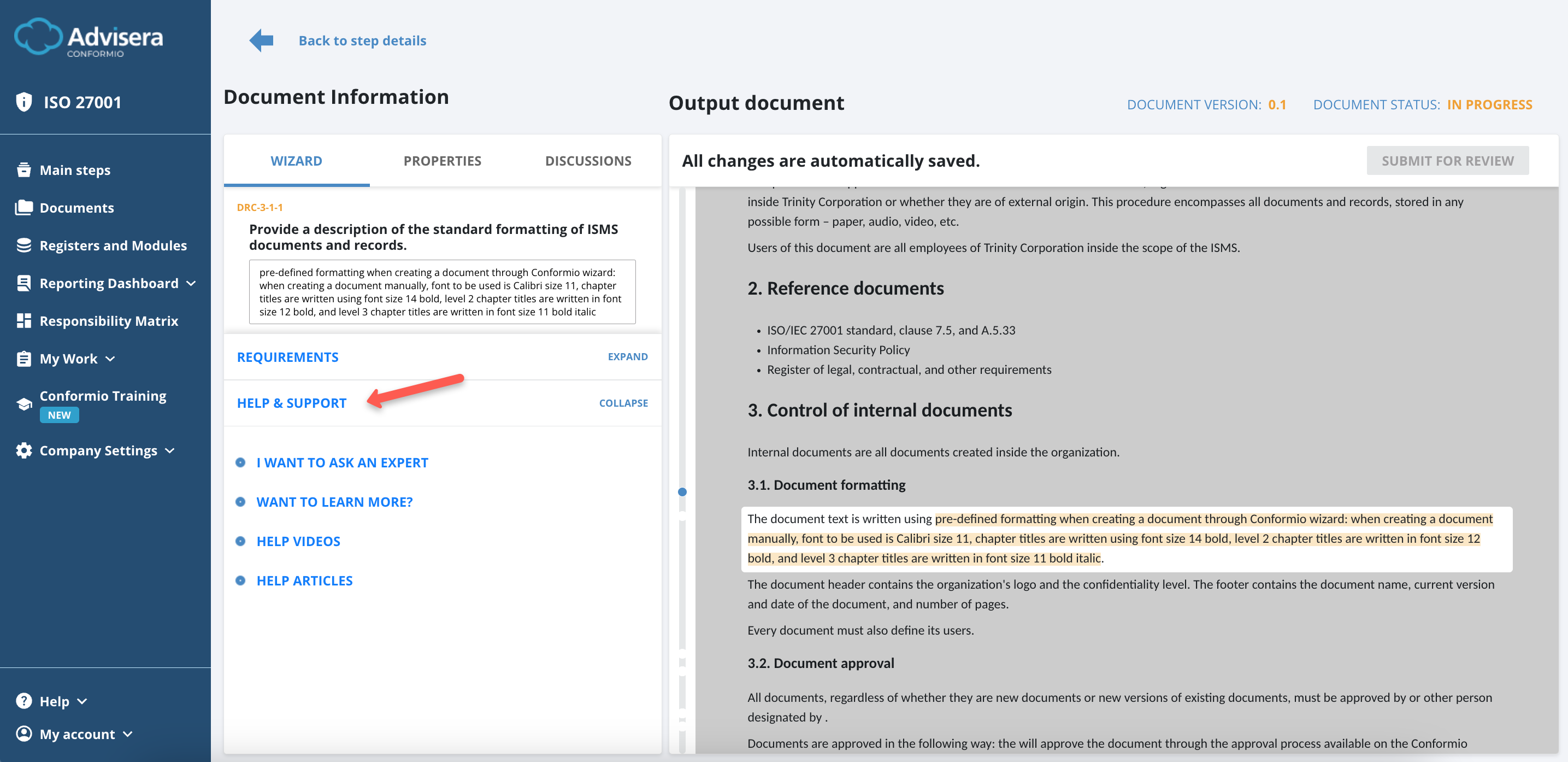
4. In the Wizard, you can see:
- Guidelines on editing document sections that are progressing by clicking the Next button;
- Requirements that might be relevant to that document (synced from the Register of Legal, Regulatory, and Contractual Requirements);
- Help & Support section with multiple assistance options in case you need it.
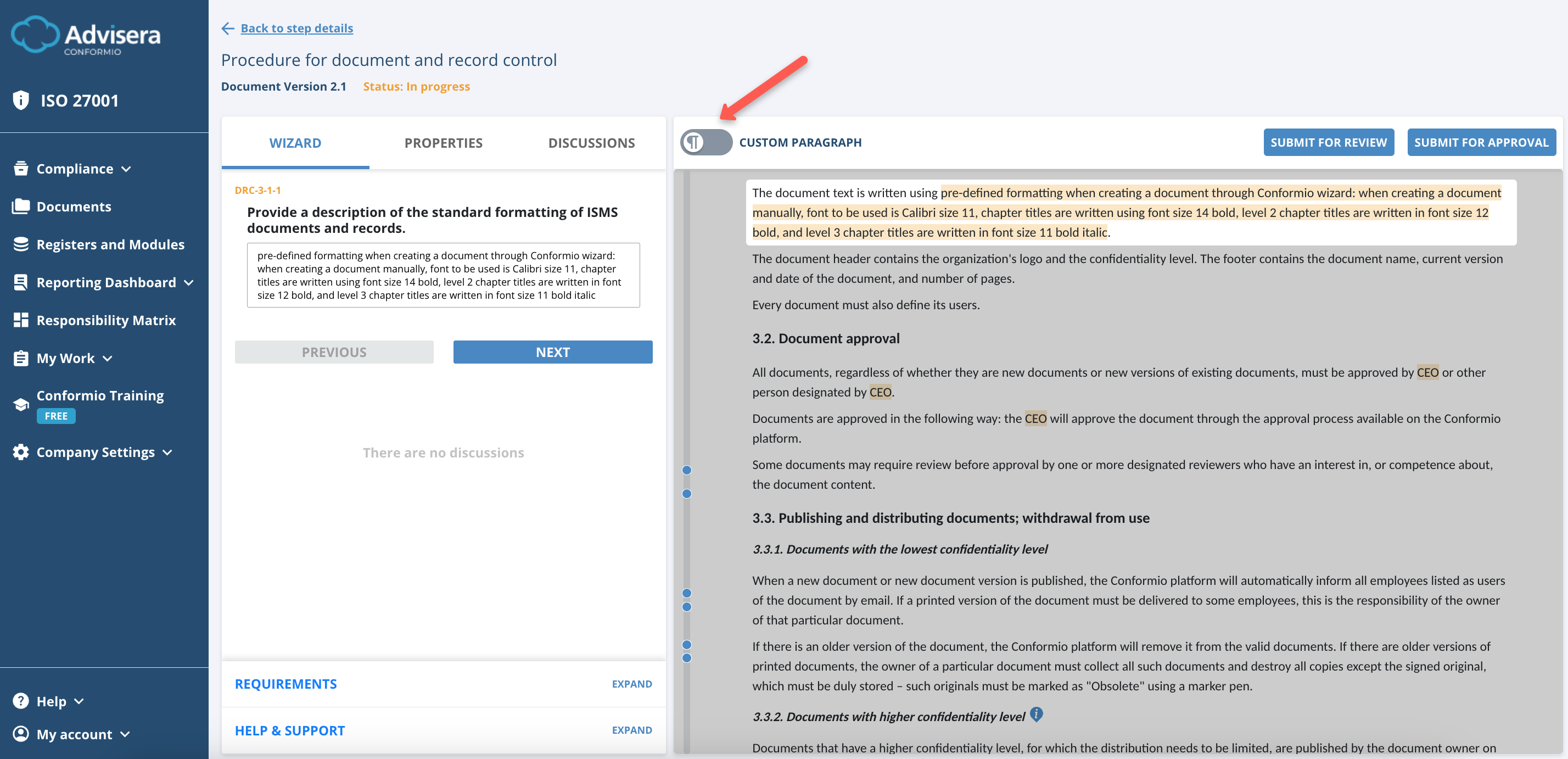
5. In the document, you can add Custom Paragraphs under every title and subtitle. To enable this, click the switch button next to the Custom Paragraphs selection. This is available only in the Advanced and Professional Conformio plans.
By clicking the switch button, the Custom Paragraphs menu opens, and you can see the description on the left side – how it works and what to expect from this feature. On the right side (in the document), you see buttons under each title and subtitle, where you can add custom paragraphs by clicking the Add Custom Paragraph button.
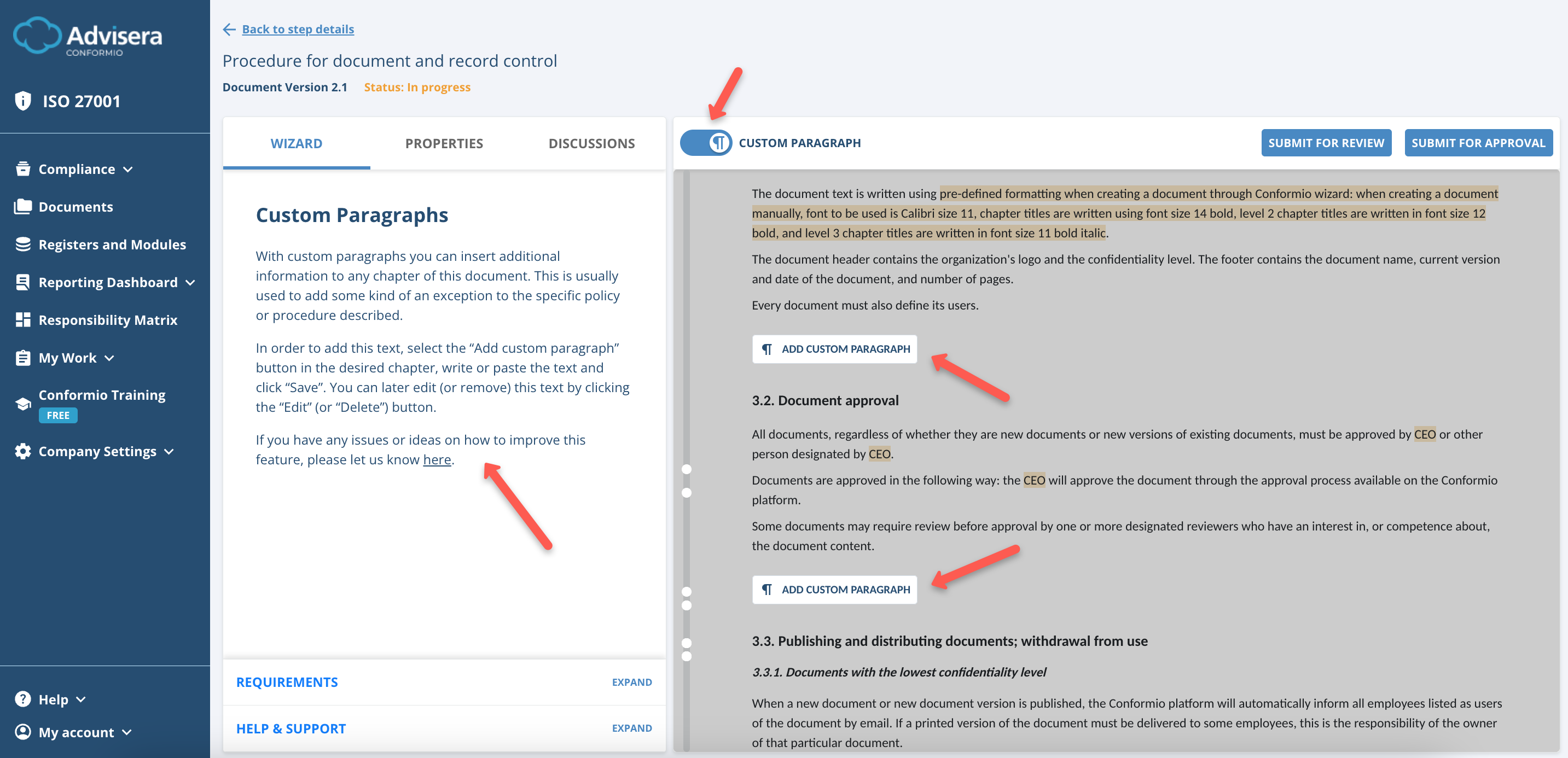
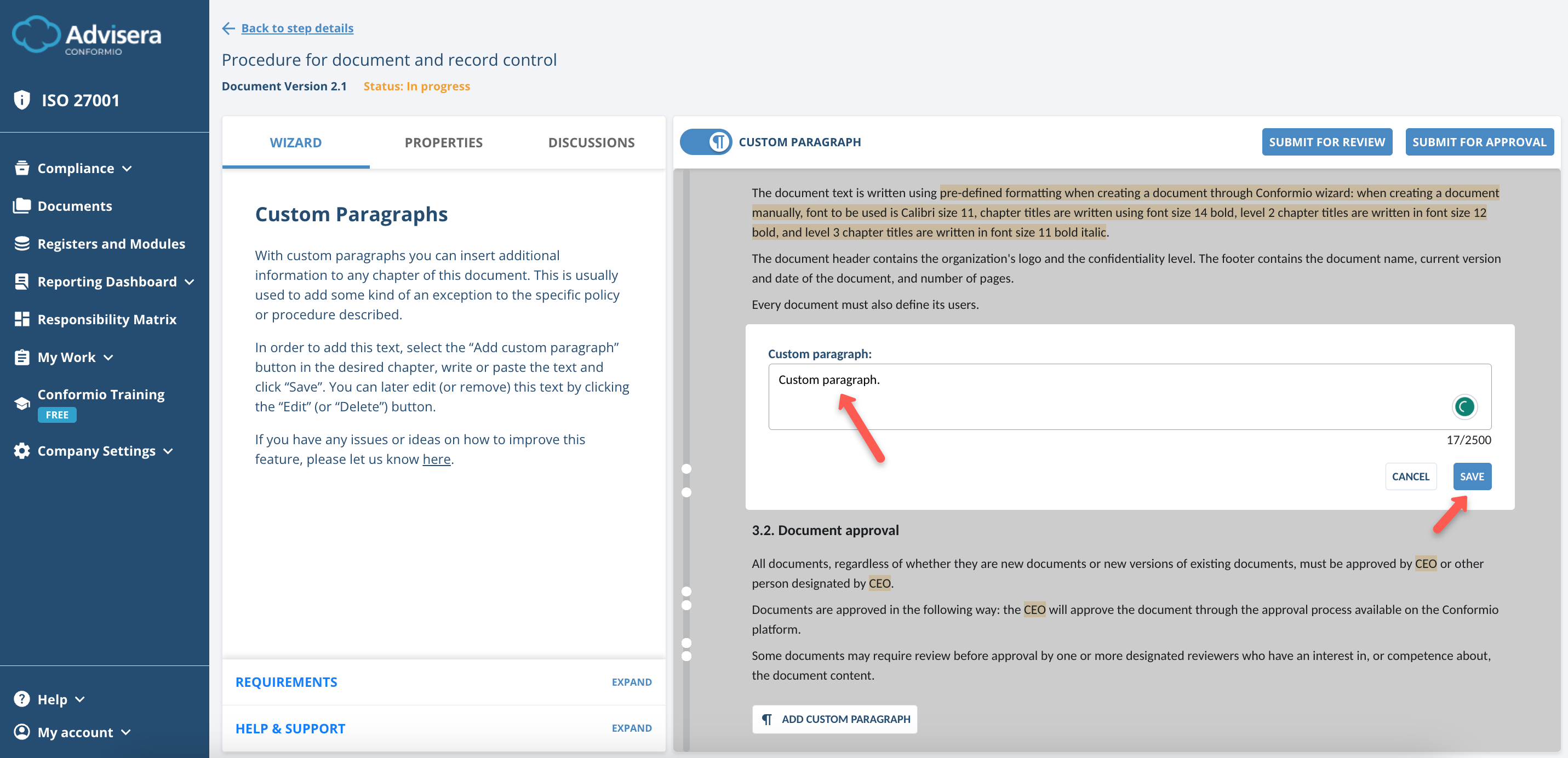
By clicking on the button, a small window opens where you can input the text of the custom paragraph and save the inputs by clicking on the Save button.
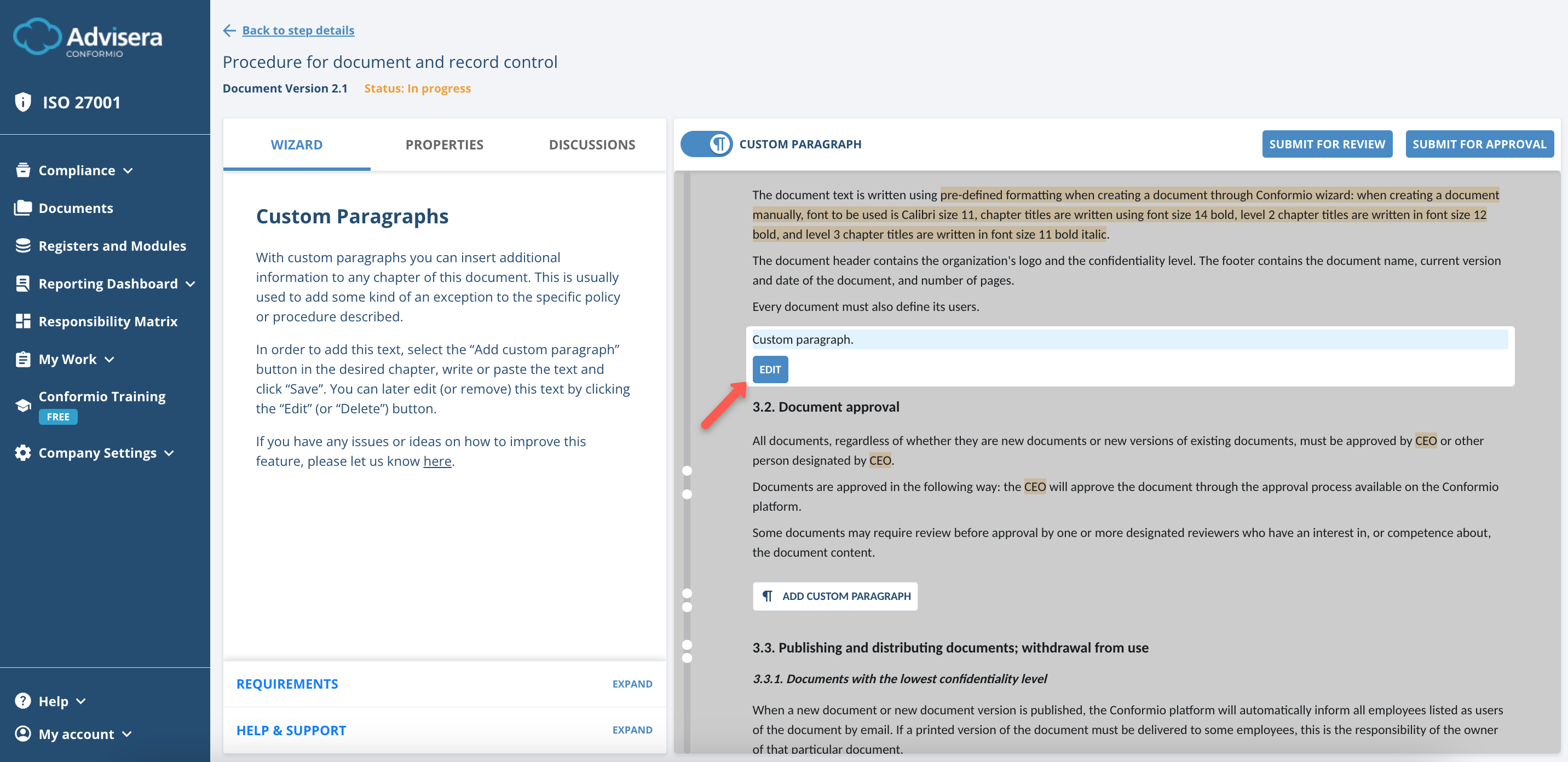
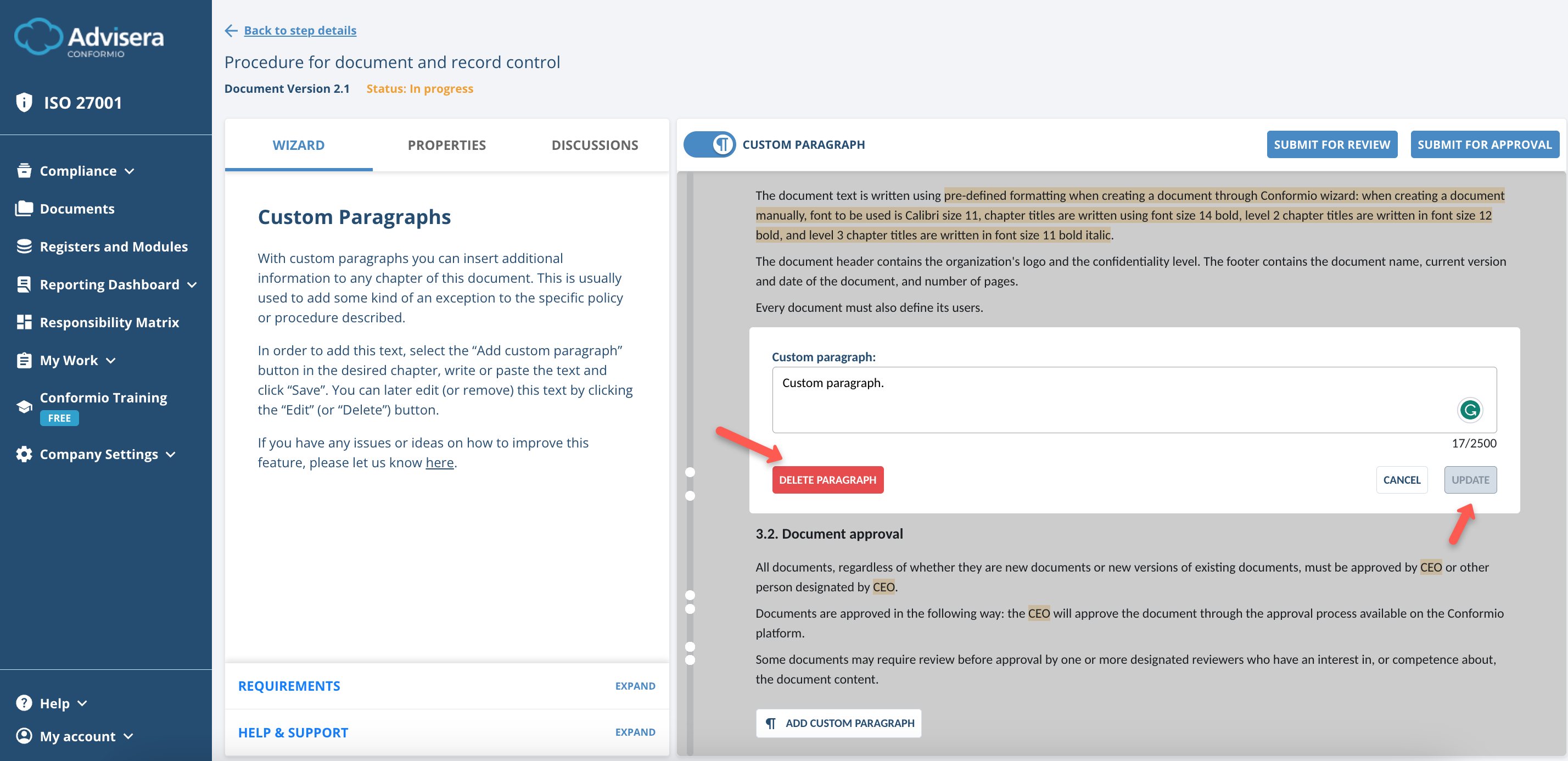
After the custom paragraph is saved, the Edit button becomes available to edit or delete the paragraph.
The Update button will be disabled until you make any changes to the text. By clicking Cancel, you will leave the editing mode.
Any change in the document is automatically saved, even if you exit the wizard before finishing it and then come back later.
6. Once you finish the document, click the Go To Properties button in the wizard to be directed to the Properties section.
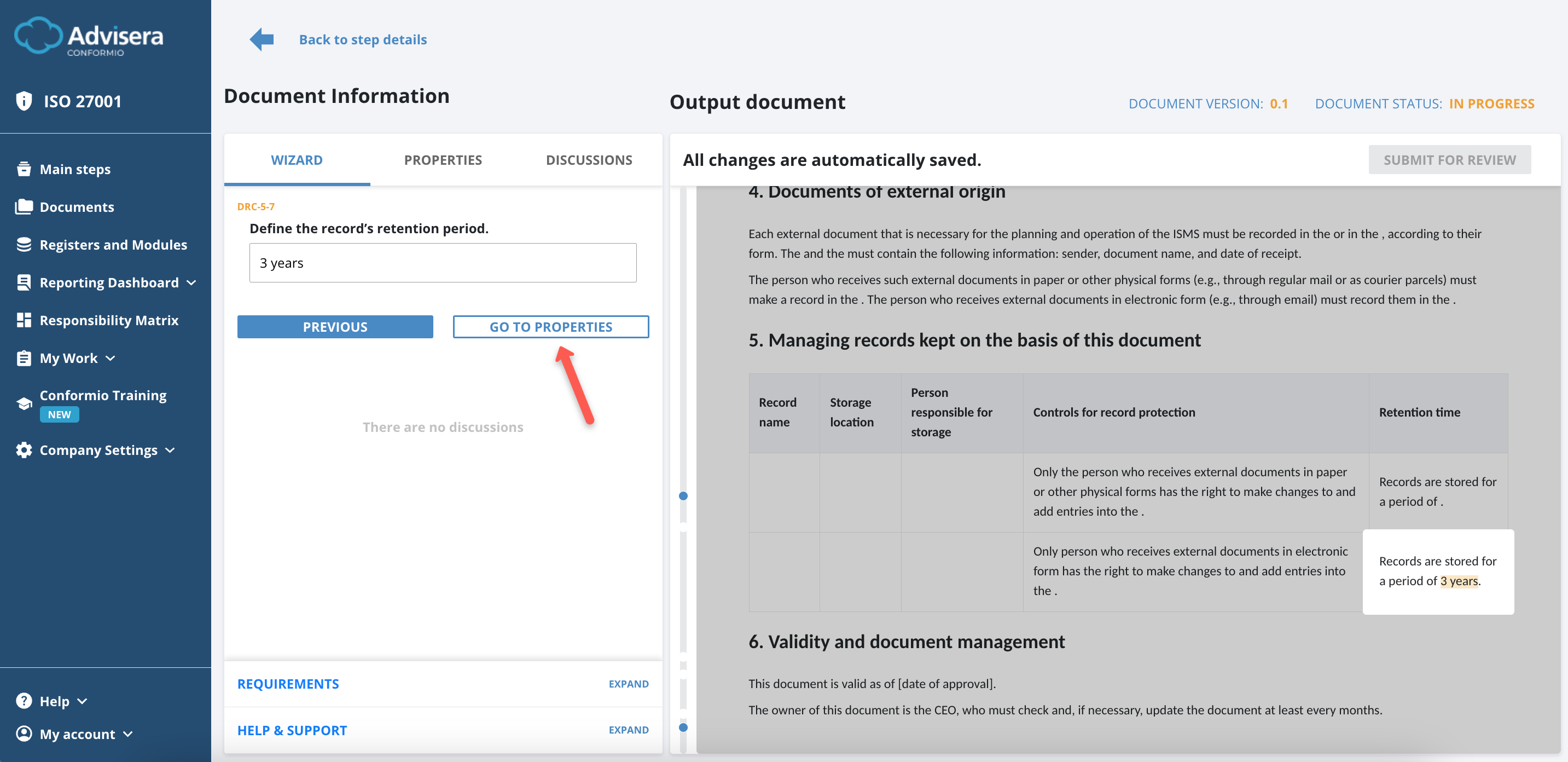
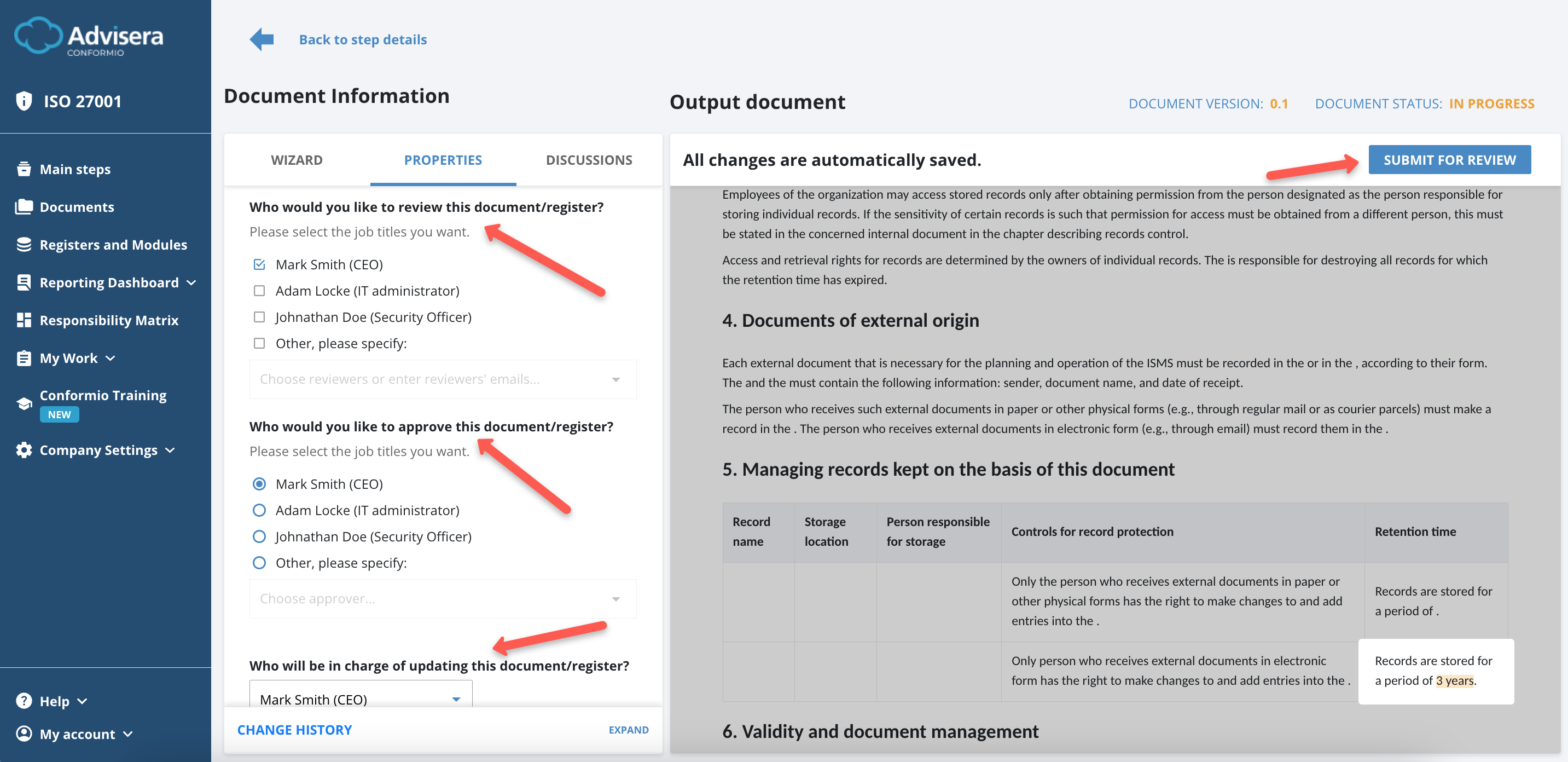
In the Properties section, you can define the following:
- Document Reviewers – Each document can have multiple reviewers, and the reviewer does not have to be a part of Conformio;
To add an external user, you need to type the user’s email under the “Other” option in the list of users displayed ; - Document Approver – There is only one Approver of the document and the Approver can only be an active user within Conformio;
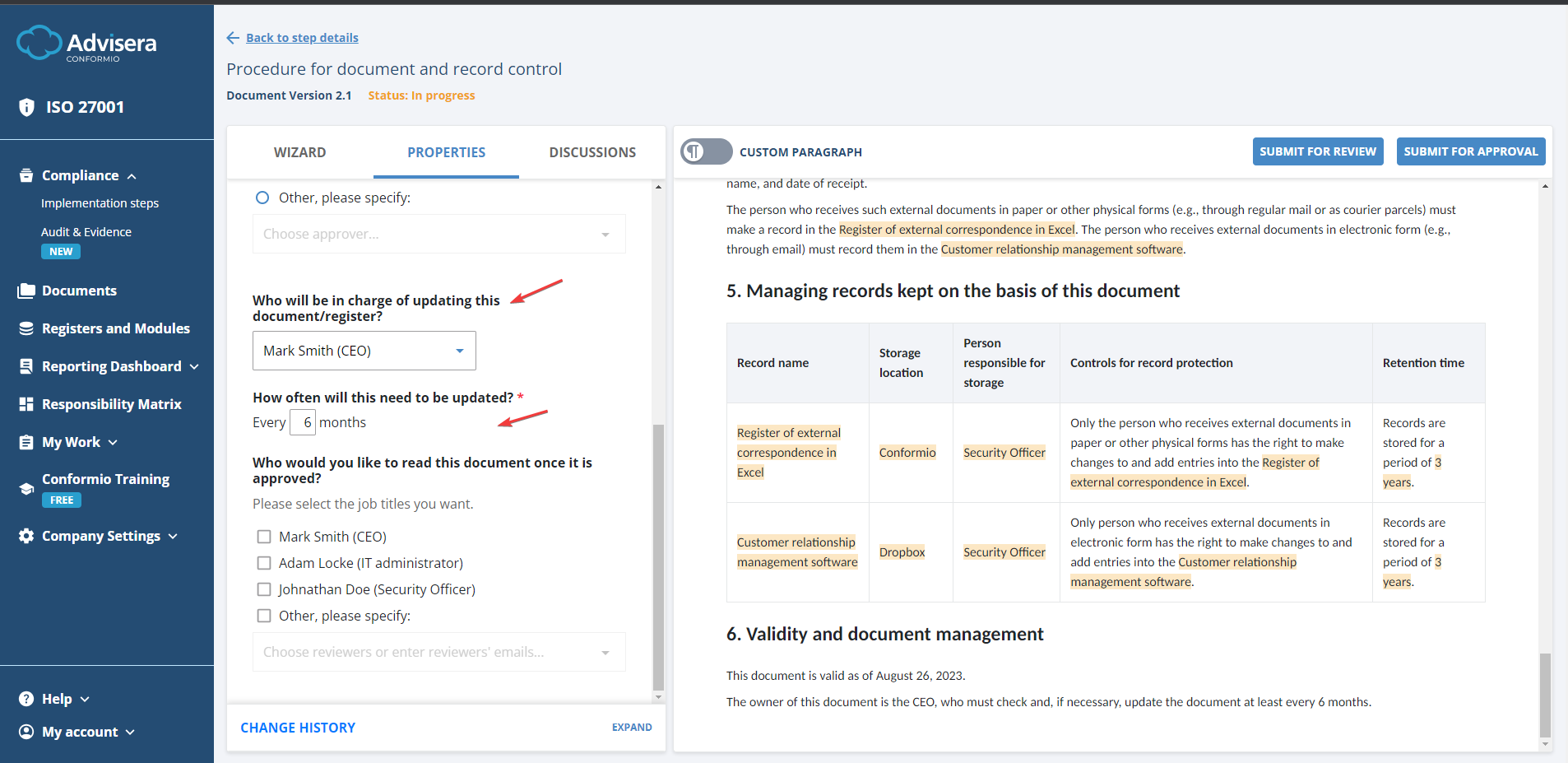
- Person in charge of updating this document – Only one person can be in charge of updating the document. Depending on the update frequency, this person receives a task to review and, if necessary, update the document one month before the deadline. This person can also only be an active user within Conformio.
- Update Interval – A numeric value that shows the frequency at which the document should be updated. Based on the update interval and the approval date of the document, the task is generated for reviewing and, if necessary, updating the document;
- Document Readers – Active or inactive users in Conformio or external users that you manually defined as those who should read the document. When the document is approved, the readers will receive a task through email and the My Work section to read the document.
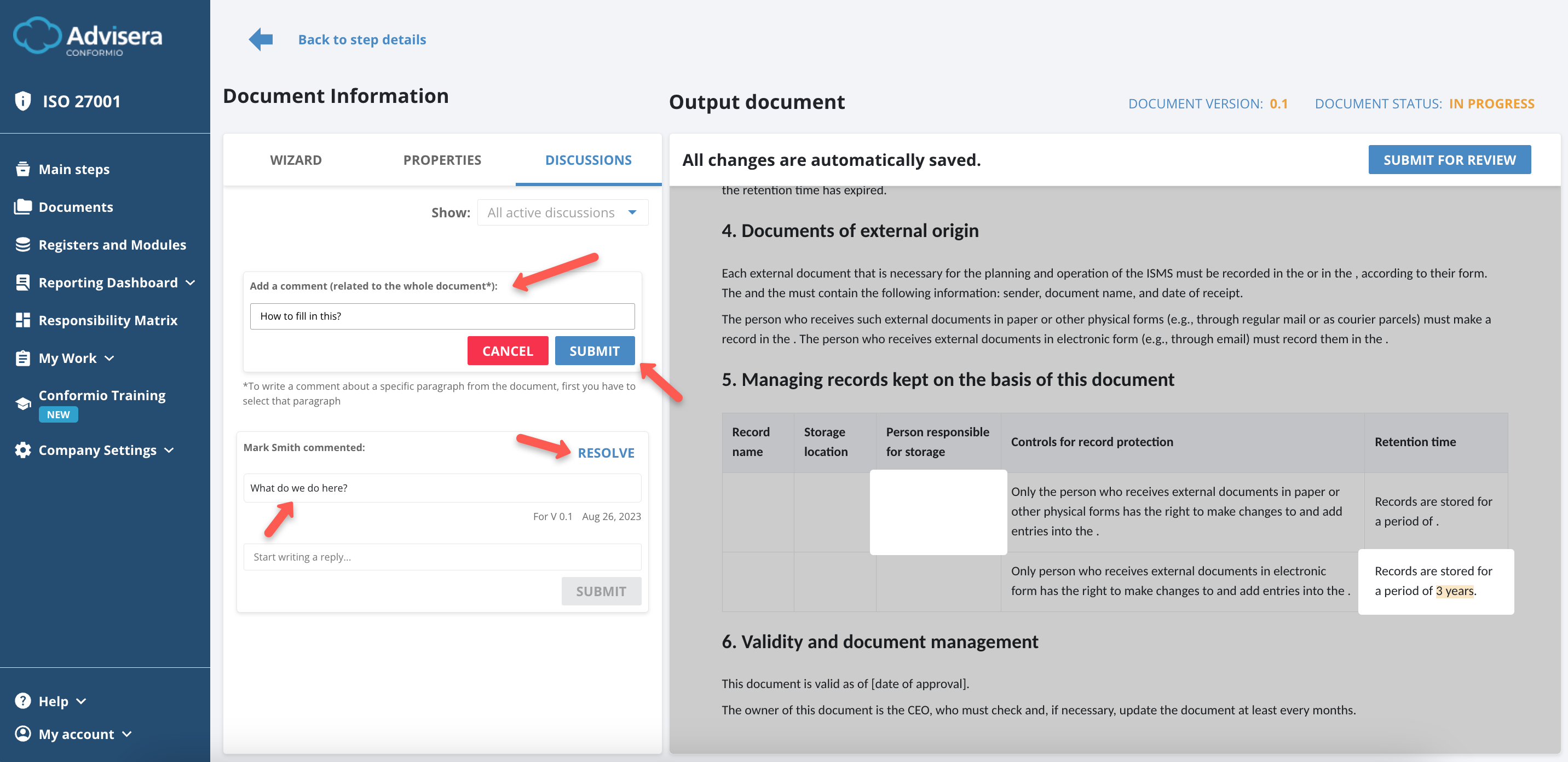
7. Once you’ve defined the Properties, you can switch to Discussions. Here, you can add comments to other users and leave comments on specific paragraphs or the document as a whole.