
BLACK FRIDAY DISCOUNT
Get 30% off on certification exams
Also valid for Conformio Advanced annual plan, Company Training Academy annual plans, and documentation toolkits.
Limited-time offer – ends November 30, 2026
Use promo code:
30OFFBLACK

Save 30% this Black Friday

Learn with free online courses. Earn a professional credential.

Limited-time offer – ends November 30, 2026

ISO/IEC 27001 Certified
ISO/IEC 42001 Certified
ISO 9001 Certified
ISO 14001 Certified
ISO 13485 Certified
ISO 45001 Certified
EU GDPR Certified
DORA Certified

Turn your knowledge into a credential

Learn at your own pace with expert-led online courses and save 30% on your certification exam.

Explore Certification

Buy now, take your exam anytime within 12 months of purchase.

Use this code at checkout
30OFFBLACK

Also valid for Conformio Advanced annual plan, Company Training Academy annual plans, and documentation toolkits.

Advisera Help Center
  • Back to Advisera.com
  • Ask a question
  1. Advisera Help Center
  2. Conformio GRC software
  3. Account & Settings
Searching...

User Profile & Preferences

Table of contents
  1. My Profile
  2. Preferences
  3. Notification preferences
  4. Password change
  5. About
  6. Log out
  7. Frequently Asked Questions:
Updated on September 15, 2024

Every registered user in Conformio has access to their account preferences and overview. This is available through My Account.

My account consists of 4 sub-menus:

  1. My Profile;
  2. Preferences;
  3. About;
  4. Log out.

My Profile

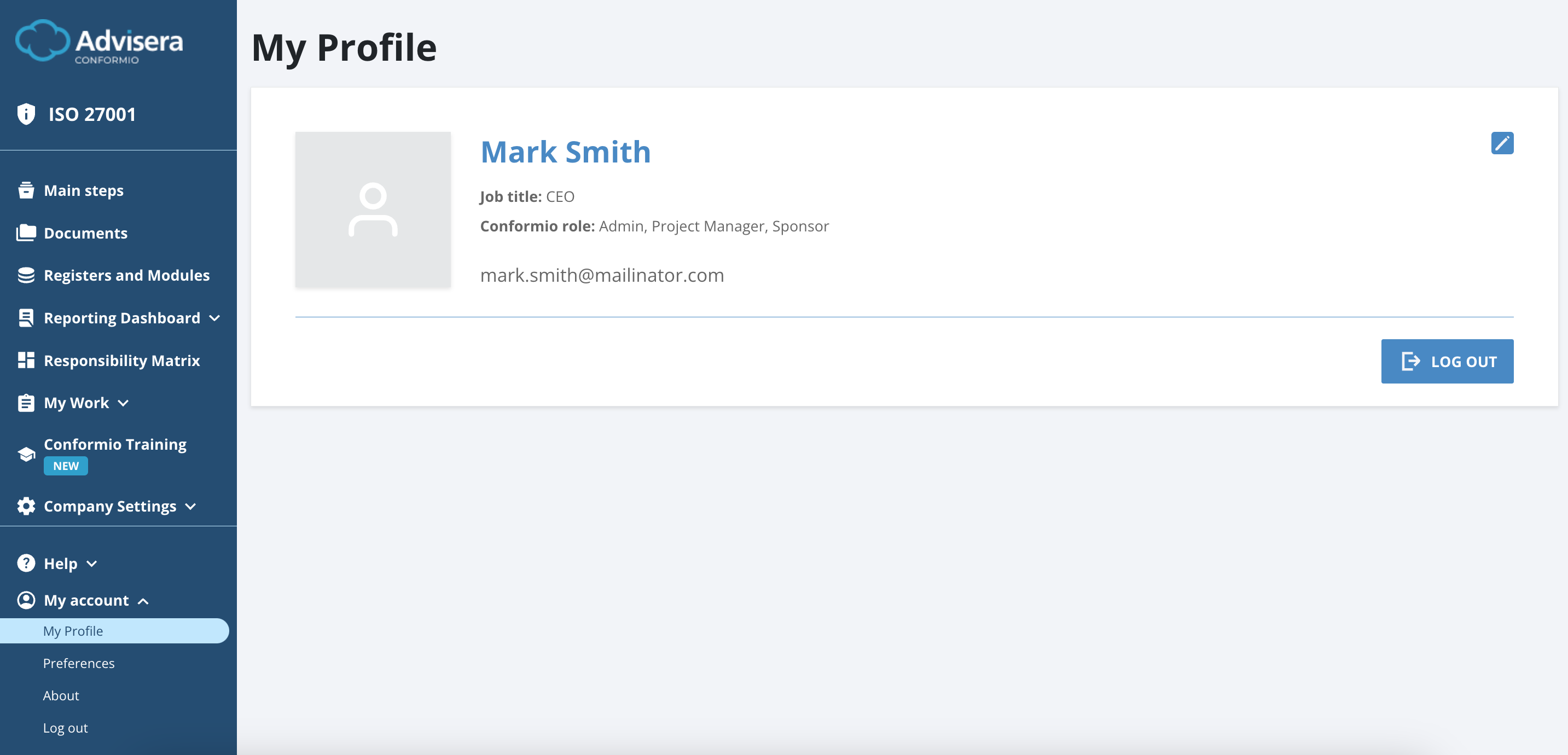
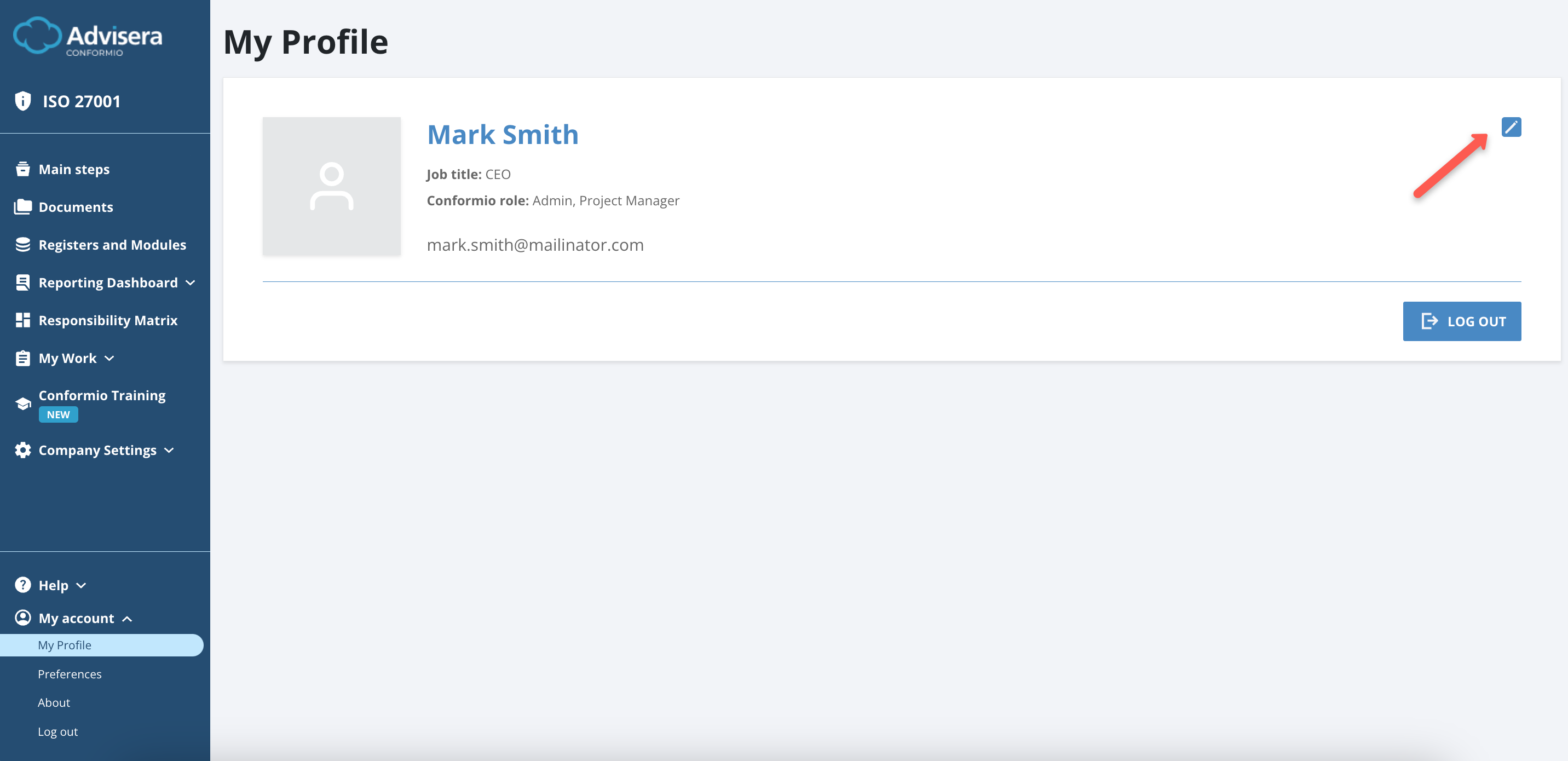
In the My Profile sub-menu, you can see:

  • The overview of your account – your name, job title, Conformio Role (which provides information about overall access to different parts of the Conformio platform);
  • Your registered email;
  • The Log Out button.

User Profile & Preferences - Advisera Help Center

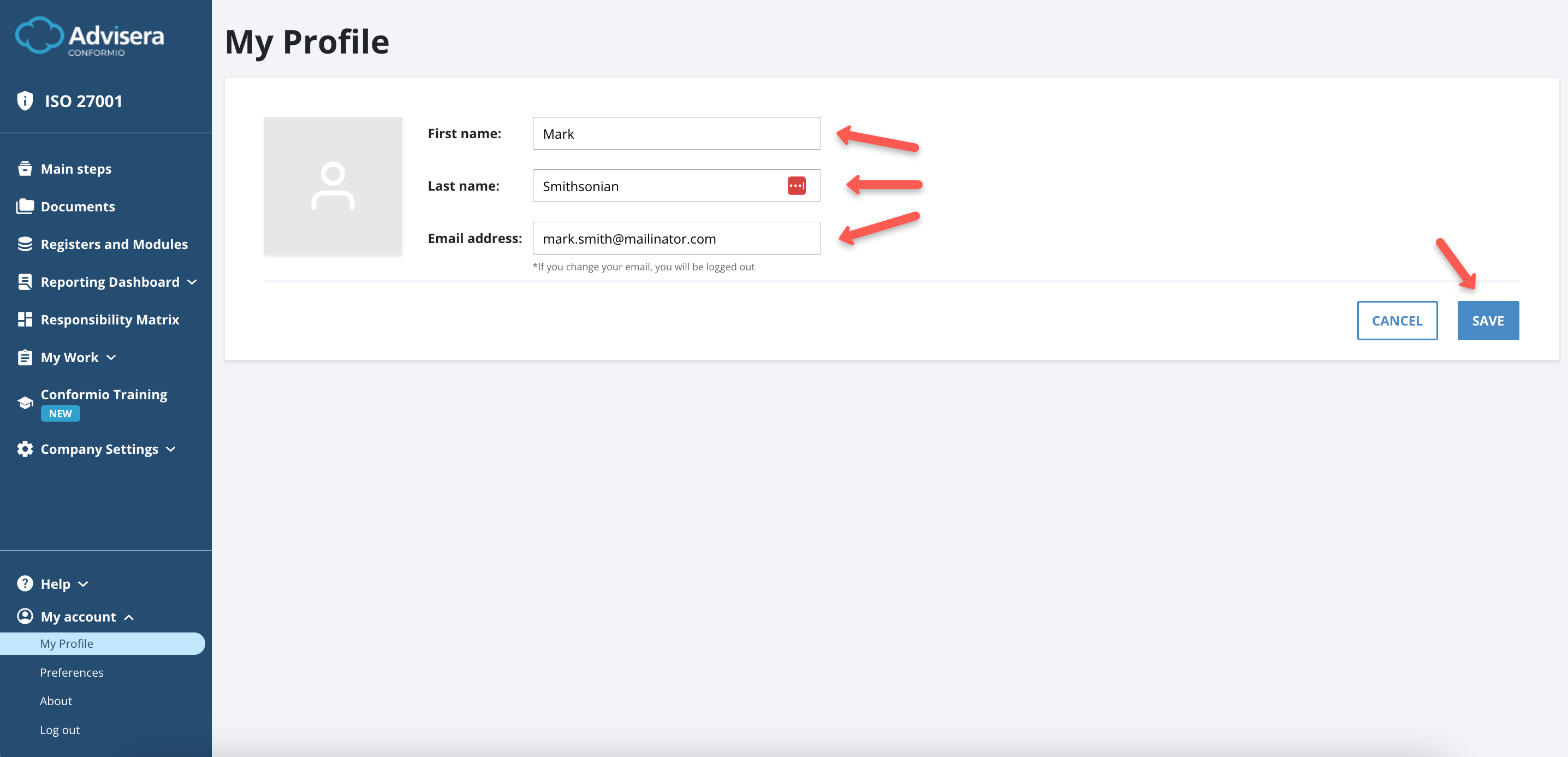
To change the first and last name or email address, follow the steps:

  1. Go to My Account and click on My Profile;
  2. Click on the Edit icon to open the editing menu;
  3. Input the desired information and click the Save button.
User Profile & Preferences - Advisera Help Center

User Profile & Preferences - Advisera Help Center

If no changes are required, and the menu was opened by mistake, you should click Cancel, and the page will be redirected to the My Profile overview.

Preferences

In the Preferences sub-menu, you can:

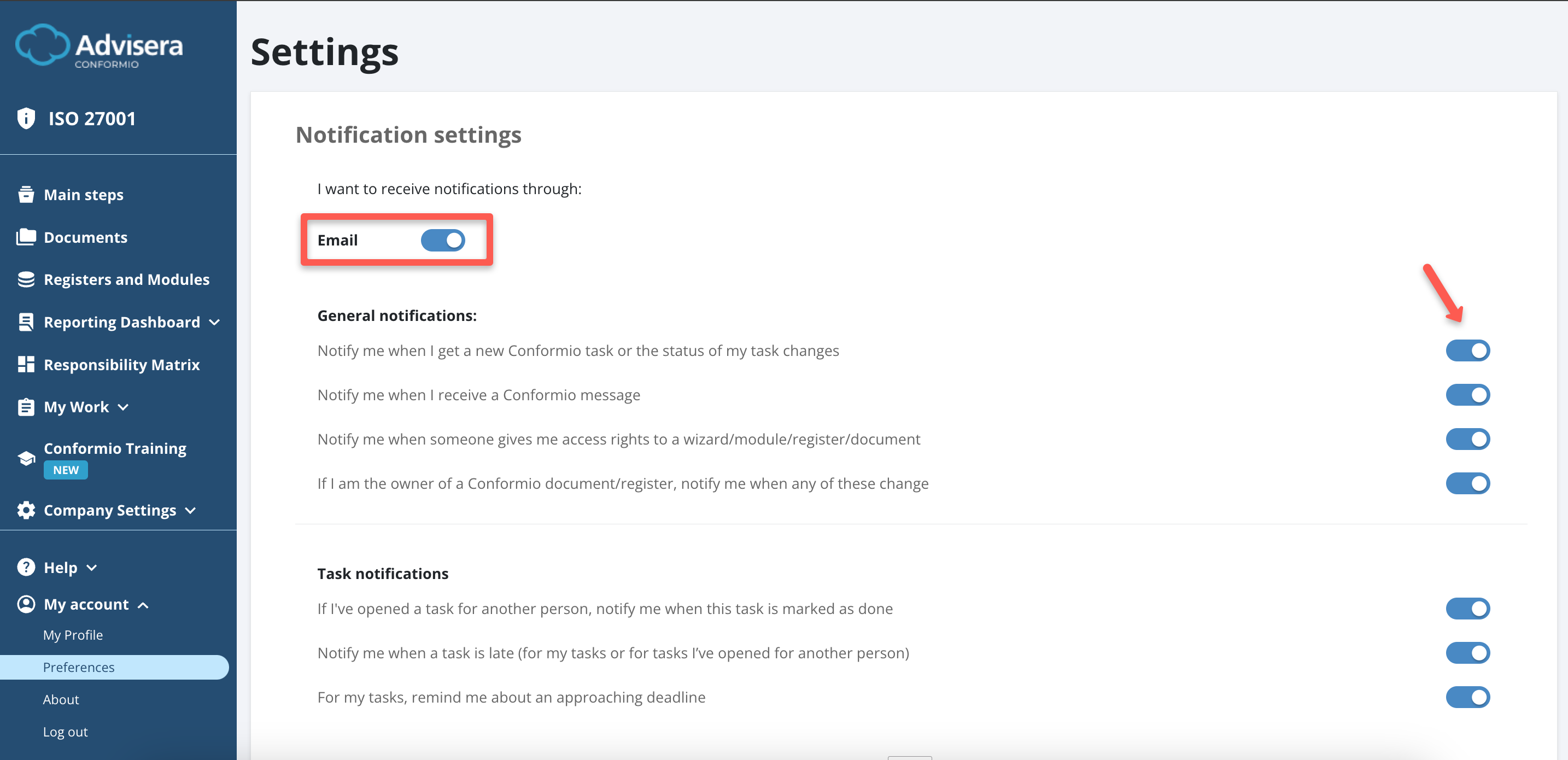
  • Change your email notification preferences;
  • Disable email notifications altogether by turning off the main toggle;
  • Change password.

Notification preferences

To change or turn off your notification preferences, click on the toggles with each setting to turn it on or off.User Profile & Preferences - Advisera Help Center
Password change

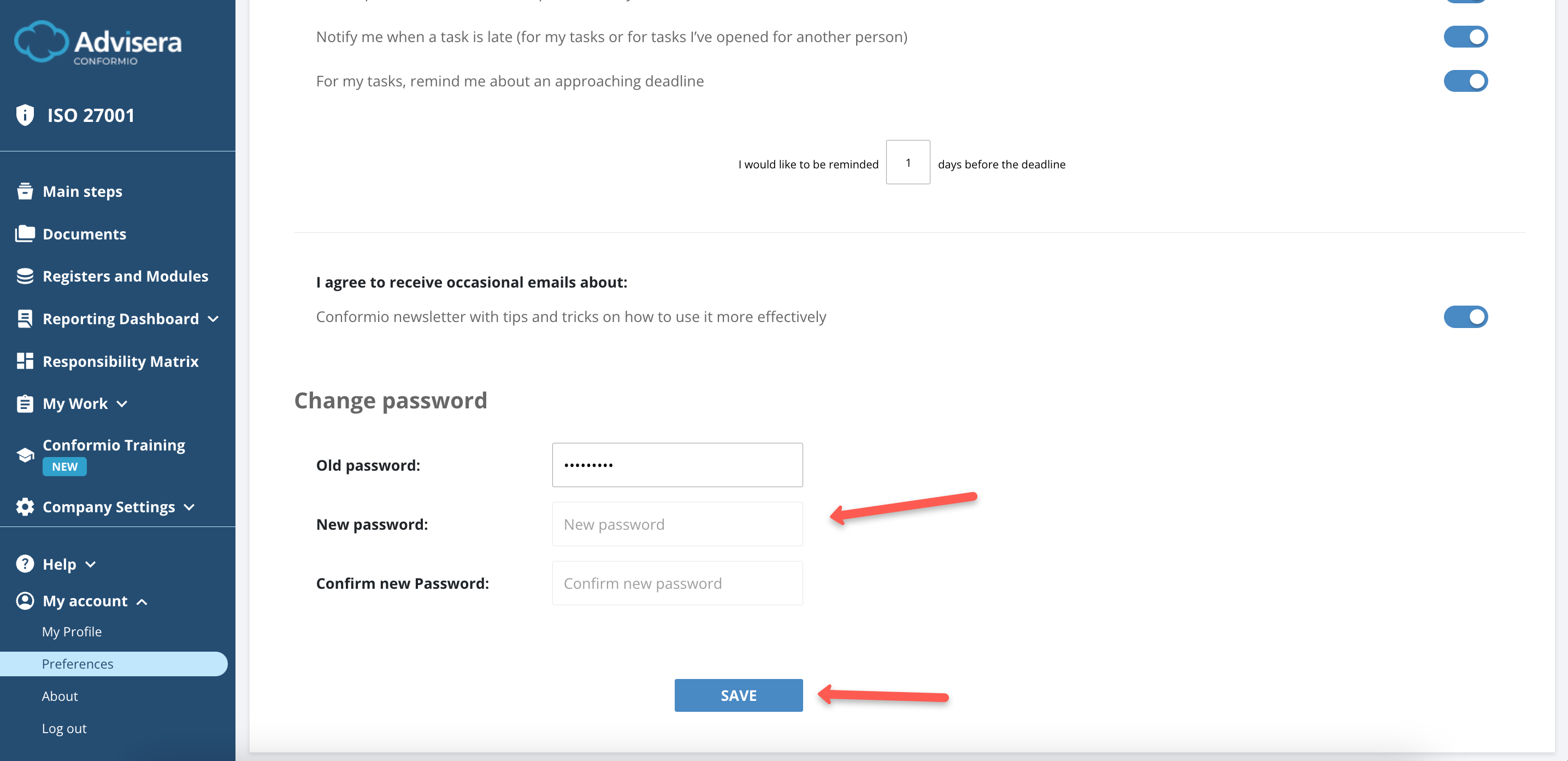
In the Change Password sub-menu, you can change your account password by following these steps:

  1. Input the old password in the Old password box;
  2. Write the new password in the New password box;
  3. Write the new password again in the Confirm new password box;
  4. Click the Save button.

User Profile & Preferences - Advisera Help Center

About

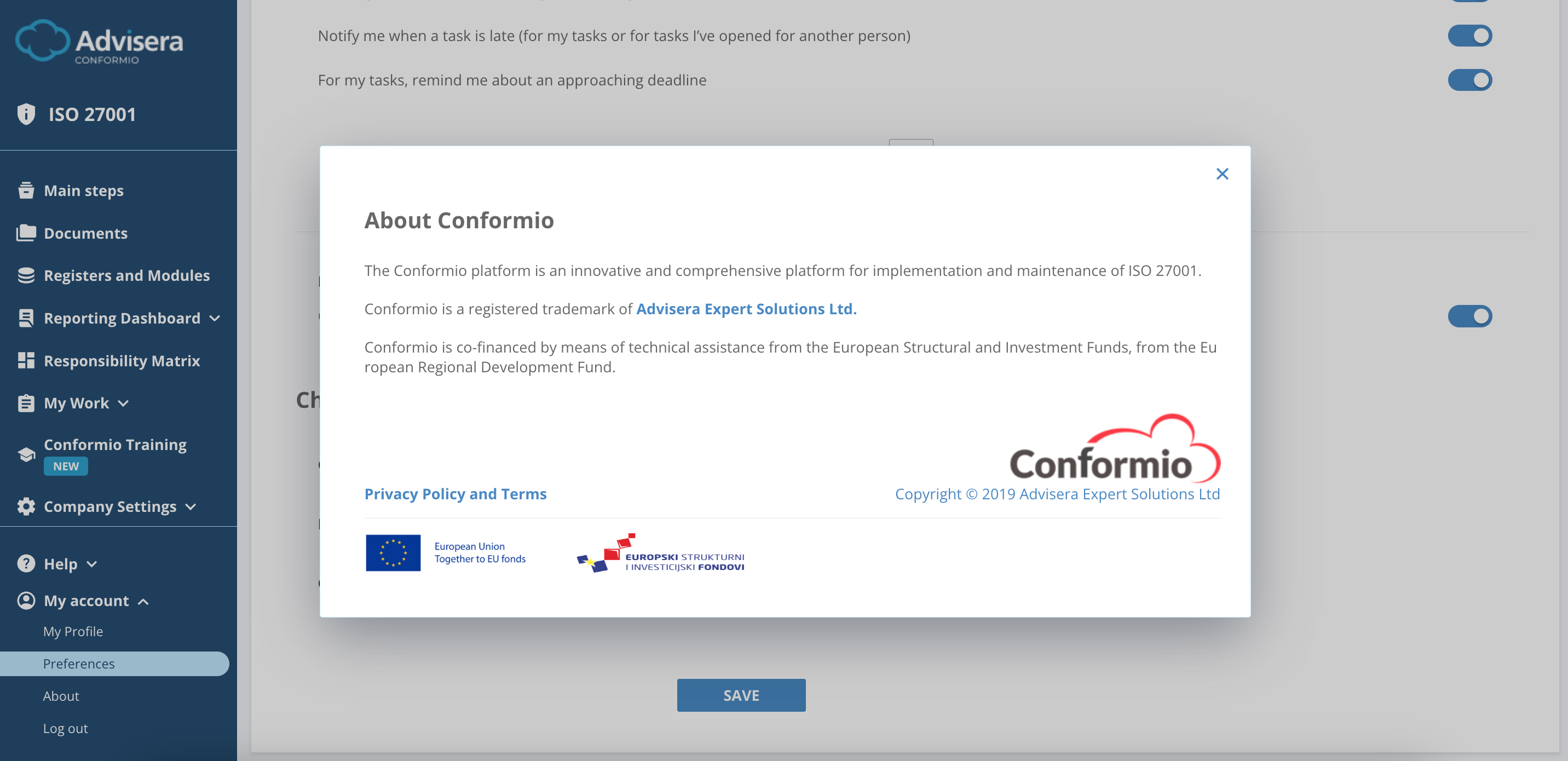
The About sub-menu will open a pop-up window and show you:

  • Basic information about Conformio;
  • Conformio’s parent company;
  • The main purpose of the Conformio platform.
User Profile & Preferences - Advisera Help Center

Log out

By clicking on the Log Out sub-menu option, you are immediately logged out of your account.

Frequently Asked Questions:

1. After clicking on the “About” section, the information was not extensive enough as we need additional information about privacy and security. Can that be provided?

Yes, please contact Conformio Support and inquire about the required information. We will be happy to provide all the information at our disposal.

2. Can I get email notifications about the comments on the documents?

No, that is not possible at the moment. But since this is a requested feature, we might roll it out in the future.

3. The SAVE button is disabled when I try to change the information in My Profile. How to resolve this?

The “Save” button will only become active when the platform recognizes that some information was actually changed. If the information is the same, the button will not become active.

Was this article helpful?
Yes No

Table of contents

  1. My Profile
  2. Preferences
  3. Notification preferences
  4. Password change
  5. About
  6. Log out
  7. Frequently Asked Questions:

Articles in this section

  • Company Settings
  • User Management in Conformio
  • Subscription & Payments
  • Integrations & Security
  • User Profile & Preferences

Products

  • Conformio
  • Toolkits
  • Courses
  • Experta
  • Company Training Academy

Free Resources

  • Resource Center
  • Community
  • Consultant Directory

Advisera

  • About Us
  • For Partners
  • Contact Us

Socials

  • LinkedIn
  • YouTube
  • Twitter
Copyright © 2026 Advisera Expert Solutions Ltd

This website stores cookies on your computer. These cookies are used to collect information about how you interact with our website and allow us to remember you. We use this information in order to improve and customize your browsing experience and for analytics and metrics about our visitors both on this website and other media. To find out more about the cookies we use, see our Privacy Policy.

If you decline, your information won't be tracked when you visit this website. A single cookie will be used in your browser to remember your preference not to be tracked.